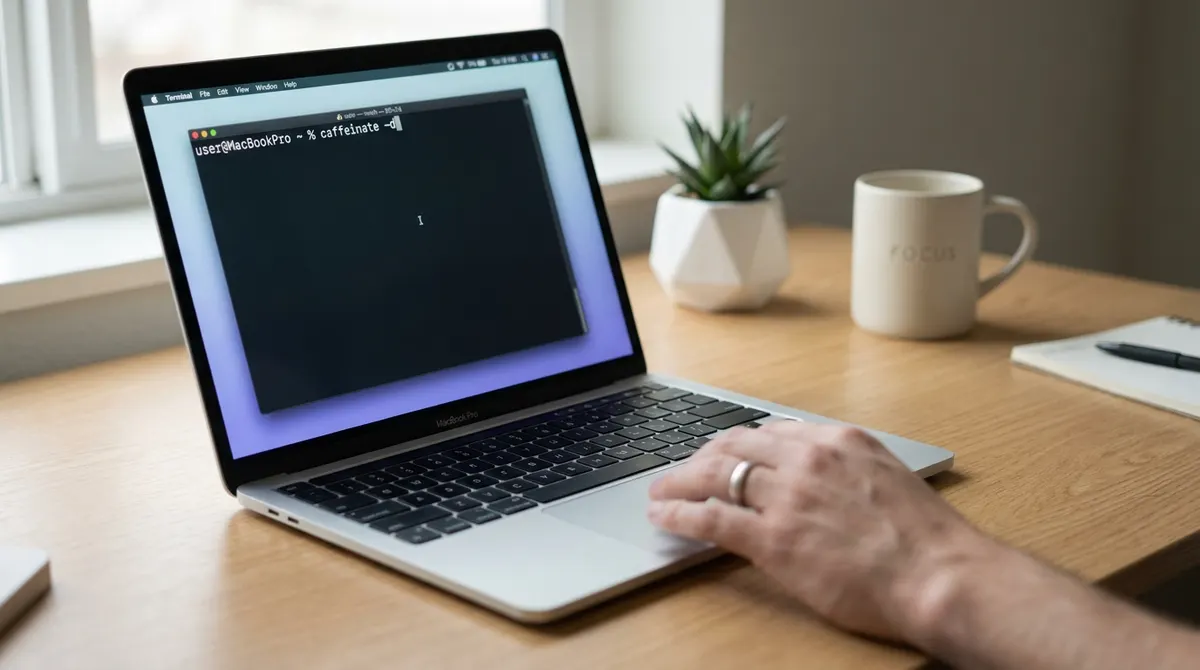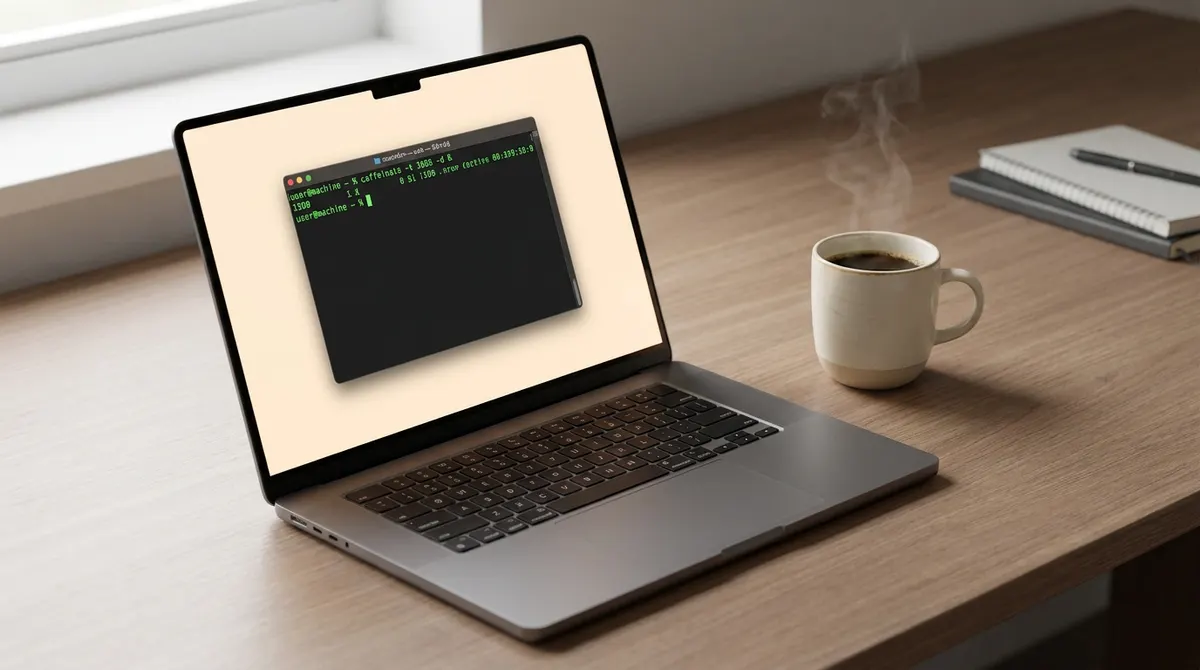
It’s a classic remote work headache: you step away for a quick coffee only to find your Mac has fallen asleep, killing your long download and flipping your status to "Away." Since macOS Energy Saver settings often feel more like suggestions than rules, keeping your hardware awake during critical tasks requires a more robust solution.
I’m going to show you how to master the amphetamine mac app to take total control over your system’s sleep behavior. We’ll break down everything from basic sessions to advanced automation triggers so your workflow never gets interrupted again.
Getting Started with the Amphetamine Mac App
Amphetamine bypasses macOS Energy Saver settings via power assertions. Users manage sessions through a menu bar icon, utilizing the Enhancer helper tool to monitor specific system processes and maintain hardware activity during lid closure.
Setting up this tool is the first step toward reclaiming control over your hardware's power states.
Installation and Initial Configuration
Download the utility from the Mac App Store. Grant disk access and notification rights immediately. These permissions allow the software to control system power states effectively.
Locate the pill icon in your menu bar. This interface provides instant access to every power management setting available.
Install the Amphetamine Enhancer tool from the official website. This separate component bypasses App Store sandboxing limitations. It enables advanced features like process tracking and improved closed-display mode reliability.
Verify your configuration. Ensure the icon appears correctly before starting your first session.
Starting Your First Keep-Awake Session
Indefinite sessions keep your hardware active until manual termination. Right-click the menu bar icon to trigger this mode instantly. It suits long renders or server tasks. Use this for unpredictable workloads where a fixed timer might interrupt your progress prematurely.
Timed sessions offer precise control for specific durations. Choose from preset minutes or define a custom clock-based endpoint. This prevents your Mac from staying awake all night by mistake.
Quick-start shortcuts save time. One click activates your most recently used session type immediately.
Monitor the icon. A filled pill indicates an active session is currently running.
Automating Your Workflow with Smart Triggers
Manual control works well, but the real power lies in automating these sessions based on your environment.
App-Based and Network Conditions
Link your sessions to specific professional software. The app detects when Premiere or a VPN launches. It then prevents sleep automatically while those tools remain active on your screen.
Network-based triggers react to your location. Connect to your office Wi-Fi to activate a work session. You can also use specific IP addresses to define safe zones. This ensures your mac awake only when you are in a productive environment.
External displays act as powerful triggers. Connecting a monitor can launch a session to keep your desk setup ready.
Battery Safety and Power Assertions
Protect your battery health with automated thresholds. Set the session to end when your charge hits twenty percent. This prevents total drainage during long periods of inactivity away from chargers.
Power assertions manage system-wide activity. They ensure downloads continue even if you walk away from the keyboard for hours.
Smart thresholds balance performance and longevity. Your hardware stays responsive without suffering unnecessary heat or excessive battery cycles over time.
Check the settings. Adjust these safety limits to match your specific MacBook model and age.
Customizing Notifications and Visuals
Customize the menu bar icon to suit your aesthetic. Choose different colors to represent various session states. This visual feedback helps you identify active sessions at a quick glance.
Configure custom sound alerts for transitions. A subtle chime can signal a session start. Another tone warns you when the session ends to avoid unexpected sleep during critical tasks.
Manage notification center behavior to reduce clutter. Only enable alerts that provide essential information about your power status.
Mastering Closed-Display Mode on Apple Silicon
Ever tried to use your MacBook with an external monitor only to have everything go dark the second you close the lid? It's a total workflow killer. Here is how you handle clamshell mode without the headache.
Keeping Your Mac Awake with the Lid Closed
Enable system sleep prevention while your laptop lid remains shut. This is vital for clamshell mode with external monitors. Amphetamine overrides the default macOS behavior that usually triggers sleep upon closing. It maintains your workflow on the secondary screen.
Use Power Protect on M1 or M2 chips. This feature monitors internal temperatures during closed sessions. It'll safely put the Mac to sleep if the hardware gets too hot.
Separate display sleep. Keep the system running while allowing the external monitor to turn off.
Test this configuration while connected to a power source.
Drive Alive and External Storage Persistence
Drive Alive prevents external hard drives from entering sleep mode. It writes a tiny hidden file at regular intervals. This keeps the disk spinning and ready for immediate data access.
Set your preferred frequency for these disk pings. Shorter intervals ensure the drive never spins down. This is particularly useful for older mechanical drives used for large file backups.
Manage storage settings for network volumes. Prevent your NAS from disconnecting during long periods of inactivity. This maintains a stable connection for your media libraries or remote project files.
Solving Common Issues and Browser Alternatives
Even with robust tools, conflicts occur, and sometimes a lighter browser-based solution fits better.Fixing Session Conflicts and Sleep Failures
Resolve issues where your Mac sleeps despite active sessions. Check for conflicting energy saver settings in System Settings. Sometimes a background process ignores the power assertions sent by the app.
Identify hidden tasks that might override your commands. Use Activity Monitor to spot energy-hungry processes. Sandboxing limitations often cause these failures on newer macOS versions. The Enhancer tool usually fixes these deep system integration problems by providing higher-level access.
Restart the app after making changes. Refreshing the session often clears temporary glitches in the power management stack.
Lightweight Chrome Extensions for Cross-Platform Needs
Browser-based tools offer a lighter alternative for simple tasks. Extensions like Keep Awake work on Chrome and Brave. They prevent sleep only while the browser remains the active window.
Evaluate the trade-offs between system utilities and extensions. Browser tools cannot manage lid-closed modes or external drives. They only handle basic display sleep prevention for web-based activities or downloads.
Select these alternatives for non-Mac hardware. They provide a consistent experience across different operating systems without deep installation.
Mastering your amphetamine mac setup means no more interrupted renders or sleeping drives. By automating triggers and securing your battery health, you take full control of your macOS power management. Grab the Enhancer tool today to unlock total productivity and keep your workflow alive forever.
See also: Best mouse jiggler 2026: top tools to stay active on Teams · How to stay active online status apps across all platforms
FAQ
Is the Amphetamine app for Mac actually free to use?
You bet. One of the best things about amphetamine mac is that it's 100% free. The developer, William Gustafson, released it as a gift to the community, so you won't run into any annoying ads, locked features, or "pro" subscriptions.
It’s a powerful utility that replaces old-school tools like Caffeine, giving you professional-grade power management without reaching for your wallet. It’s compatible with macOS 10.11 and later, including the newest Apple Silicon chips.
How do I keep my Mac awake when the lid is closed?
To master clamshell mode, you'll want to use the "Closed-Display Mode" settings within the app. By default, macOS loves to sleep the second you close that lid, but amphetamine keep awake triggers override that behavior so your external monitor stays active.
For those of you on M1 or M2 chips, I highly recommend installing the Amphetamine Enhancer tool. It helps the app bypass system sandboxing, ensuring your Mac doesn't nap unexpectedly while you're focused on your big-screen setup.
Can I automate my mac keep awake app to start on its own?
Absolutely, and this is where the magic happens. You can set up "Triggers" so you don't have to click a thing; for example, you can tell the amphetamine app mac to start a session whenever you connect to your office Wi-Fi or plug in a specific USB drive.
You can even link sessions to specific apps. If you launch a video editor or a VPN like Cisco AnyConnect, Amphetamine detects it and keeps the system alive until you close that software. It’s productivity automation at its finest.
Will using Amphetamine drain my MacBook battery?
It can if you aren't careful, but the app has built-in safeguards to protect your hardware. You can configure a "Battery Power" trigger that automatically ends your session if your charge drops below a certain percentage, like 20%.
This ensures you don't accidentally leave your Mac running all night in your bag and wake up to a dead battery. It’s all about finding that balance between keeping your mac keep awake app active and being smart about your power cycles.
What is the Drive Alive feature and do I need it?
Drive Alive is a specific setting designed to keep your external hard drives from spinning down. It works by writing a tiny, hidden file to the disk at regular intervals to signal that the drive is still in use.
If you're just downloading a file, you probably don't need it because the active data transfer keeps the drive awake anyway. However, for older mechanical drives or network volumes that tend to disconnect during idle time, it’s a total lifesaver for maintaining a stable connection.
Are there any lighter alternatives for Chrome or other platforms?
If you’re on a Chromebook or just need something quick for web tasks, extensions like Keep Awake for Chrome or Brave are solid, lightweight choices. They prevent your screen from dimming as long as the browser is your main focus.
Just keep in mind these extensions are much more limited than a full amphetamine mac installation. They can't handle complex tasks like closed-lid mode or system-level triggers, but they’re great for a quick, cross-platform fix when you're working entirely in the cloud.