You’re mid-presentation or watching a long progress bar when your Mac suddenly goes dark, forcing you to fumble for your password. It’s a classic productivity killer that happens to every remote worker at the worst possible moment.
Staying active on Slack or finishing a massive download shouldn't be a constant battle with your hardware. I’ll show you how to disable screensaver mac settings and tweak your power preferences to ensure your display stays bright exactly when you need it.
Disable Screensaver Mac Settings to Keep Your Screen Active
macOS allows screen management via System Settings > Wallpaper, where the "Start after" slider controls inactivity triggers. For permanent activity, the "Never" option bypasses the screensaver. Terminal commands like "caffeinate" offer temporary session-based wakefulness without changing global power settings.
Transitioning from the general display behavior to specific adjustments helps you regain control over your workspace.
Adjusting the activation timer in System Settings
Open System Settings and find the Wallpaper menu. Look for the screen saver section at the bottom. This area controls when the visual animation starts during idle periods.
Locate the "Start after" dropdown menu or slider. Select a specific duration like ten minutes or one hour. This choice dictates how long your Mac waits before starting the saver.
Your Mac saves these preferences immediately. This simple adjustment prevents the screen from dimming too quickly during your daily tasks.
Switching off the screen saver entirely
Sometimes you need the display to stay visible forever. Scroll to the bottom of the time options. Choose the "Never" setting from the list. This action stops the screensaver from ever appearing on your Mac. It stays active until you lock it.
Check the settings for both battery and power adapter modes. Ensure the "Never" option applies to your current setup.
Confirming these two states ensures consistent behavior. Your screen will now remain bright regardless of your power source choice.

How to Stop Your Mac Display From Turning Off?
While the screensaver handles visual overlays, managing the actual display sleep settings involves the Lock Screen and Battery menus to keep the hardware powered.
Managing Lock Screen behavior on modern macOS
Navigate to the Lock Screen section in System Settings. This menu controls the display sleep timer for Sonoma and Sequoia. Adjust the "Turn display off on battery" setting here.
Keeping the display active prevents communication apps from showing you as away. Teams or Slack will remain green.
This trick maintains your active status during work hours. It's a simple way to stay visible to colleagues.
Handling battery and power adapter differences
MacBooks handle power differently when unplugged. You should set a shorter sleep timer for battery use. This protects your battery health over time. Plugged-in Macs can stay awake much longer. Desk setups usually allow for permanent display activity without any risk.
Balance your needs between mobility and desk work. Use the Energy Saver or Battery menus for these tweaks. Different thresholds help optimize your Mac performance for every single situation.
Stopping the immediate password prompt
Look for the "Require password after screen saver begins" option. Change the delay from "Immediately" to five seconds or one minute. This gives you a brief grace period.
You can wake the screen without typing your long password. It saves time during short interruptions or quick breaks.
This setting balances security with convenience. Your Mac stays protected but remains much more accessible for frequent daily use.
Use Hot Corners for Manual Display Control
Beyond automated timers, macOS offers a physical gesture through Hot Corners to instantly override your power settings with a simple mouse movement.
Creating a 'Stay Awake' corner for presentations
Open the Desktop & Dock settings to find Hot Corners. Assign one corner to "Disable Screen Saver." This creates a manual override for your display behavior during important meetings.
Simply move your cursor to that specific corner. The Mac will stay awake as long as the mouse stays there. This is perfect for long presentations or video watching.
You no longer need to touch the keyboard. Your screen remains bright and active with zero effort on your part.
Locking your screen with a quick mouse flick
Privacy is often a major concern in open offices. Map another corner to "Put Display to Sleep" for instant locking. Flick your mouse when you leave your desk. The screen goes dark immediately. This bypasses the standard inactivity timers for better security.
It provides a fast way to hide your work. No one can see your data when you step away for coffee.
This manual toggle offers great flexibility. You control your privacy without digging through complex system menus every single time.
2 Smart Workarounds Using Terminal and Apps
For users who want temporary control without changing their permanent settings, advanced tools like the Terminal and dedicated apps provide a more surgical approach.Running the caffeinate command for session-based wakefulness
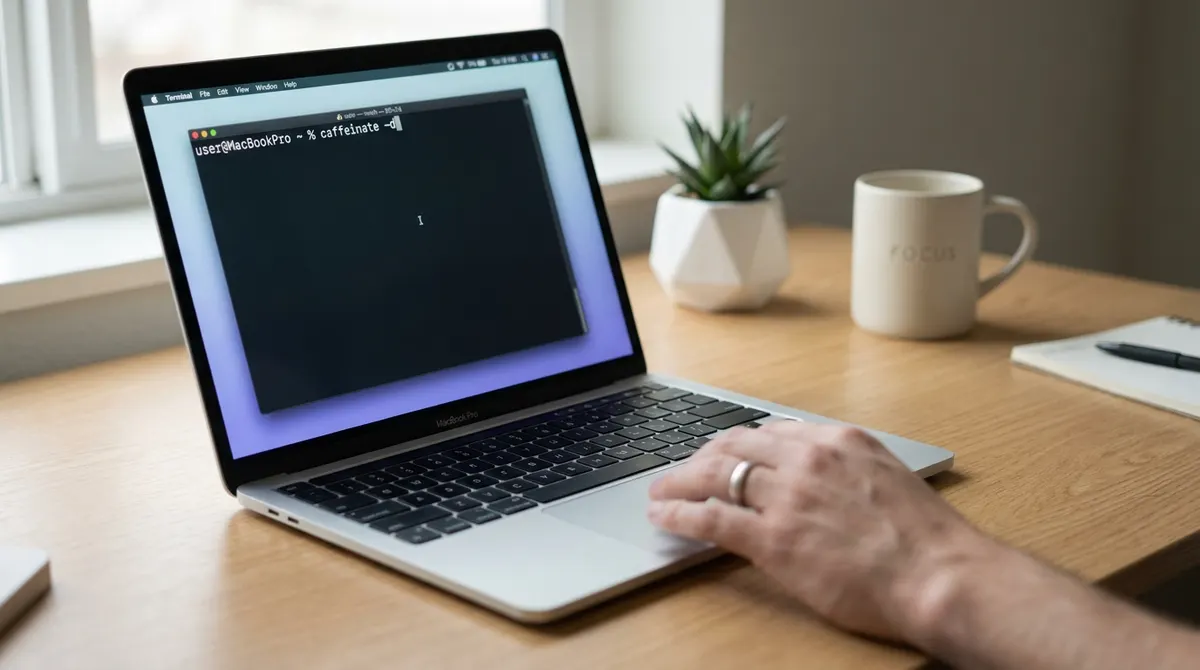
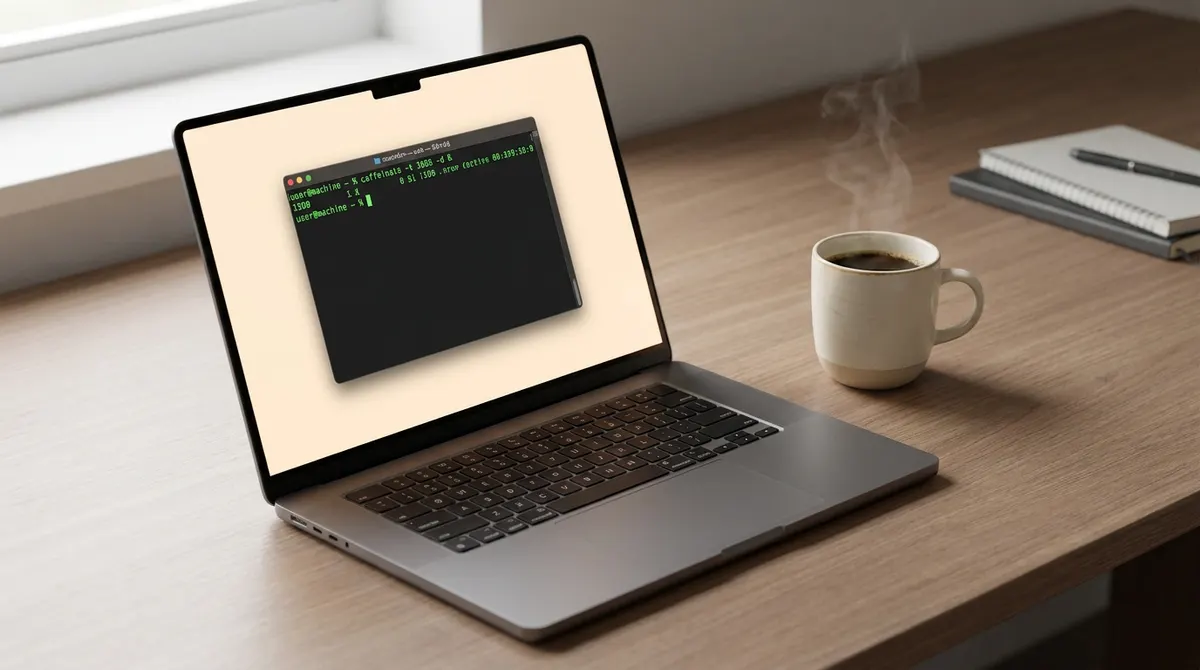
Launch the Terminal app from your Applications folder. Type the word "caffeinate" and press enter. Your Mac will now stay awake until you stop the process with a shortcut.
Use flags like "-t" followed by a number of seconds. This sets a specific timer for the wakeful state. It is ideal for long downloads that might fail if the system sleeps. The command ends automatically once the time expires. It is very clean.
Close the window to end the session. Your normal power settings then return immediately.
Choosing lightweight apps for one-click toggles
Third-party apps like Lungo or One Switch offer a menu bar icon. You can click once to keep your Mac awake. These tools are much faster than navigating settings.
Remote workers often prefer these visual toggles for quick access. You can see the status of your screen at a glance. Most apps allow for custom durations or infinite wakefulness. They handle the background commands for you. This is very user-friendly.
These utilities stay out of the way. They provide power without cluttering your workspace.
Mastering your Mac’s energy settings ensures you never lose momentum during critical tasks. Whether you adjust System Settings, use Hot Corners, or run a quick Terminal command, you can easily disable screensaver mac preferences to stay productive. Stop fighting your display and keep your workflow bright and uninterrupted forever.
See also: How to use the amphetamine mac app to keep your mac awake · How to use PowerToys Awake to keep Windows 11 active
FAQ
How can I disable the screensaver on my Mac?
To disable screensaver mac settings, head over to the Apple menu and select System Settings, then click on Wallpaper. Scroll down to the screen saver section and look for the "Start after" dropdown menu. If you want to stop the animation from ever appearing, simply select "Never" from the list. This ensures your display stays on your current work until you manually lock it.
What’s the best way to stop my Mac display from sleeping?
If you want to stop mac display sleep, you’ll need to navigate to the Lock Screen section in your System Settings. Here, you can adjust the timers for "Turn display off on battery" and "Turn display off on power adapter." Setting these to "Never" will keep your hardware powered up indefinitely, which is a lifesaver during long downloads or when you need to keep your status active on apps like Slack.
Can I use a shortcut to keep my Mac from dimming?
Absolutely! You can set up "Hot Corners" via the Desktop & Dock menu in System Settings. By assigning one corner to "Disable Screen Saver," you create a manual override. Just flick your cursor into that corner, and your Mac will stay awake as long as the mouse stays there, perfect for presentations where you don't want to keep touching the trackpad.
Is there a way to temporarily prevent sleep without changing my main settings?
Yes, and it’s a great trick for power users. You can open the Terminal app and type caffeinate to keep your system awake for the duration of that session. If you want a more user-friendly approach, lightweight apps like Lungo or One Switch live in your menu bar and let you disable screensaver mac triggers with a single click. These are perfect for temporary needs because your original settings return to normal once you toggle them off.
How do I stop my Mac from asking for a password every time the screen dims?
If you're tired of typing your password after every short break, go to the Lock Screen settings. Look for the option "Require password after screen saver begins" and change the delay from "Immediately" to something like five seconds or a minute. This gives you a brief grace period to wake the screen back up without the hassle of a login prompt.