Recent data shows that macOS power management is aggressive enough to trigger sleep mode in as little as one minute of inactivity. But what if you need to keep Mac awake for a massive download or a long presentation without messing with your permanent energy saver rules?
It's incredibly annoying when your screen goes dark right in the middle of a task or flips your status to away. I'll show you how to bypass those restrictions using simple browser tools and built-in commands so you stay active on your own terms.
Keep Mac Awake Using One-Click Browser Tools
Preventing Mac sleep involves using the 'caffeinate' Terminal command, menu bar utilities like Amphetamine, or browser extensions. These methods bypass System Settings to maintain active downloads, renders, or presentations via temporary overrides.
Using browser extensions for instant wakefulness
Browser-based tools stop your system from sleeping right through the toolbar. They simulate activity to trick the OS into staying active. It's a seamless way to keep Mac awake.
You can choose between keeping the system active or keeping the screen on. Many tasks only need the CPU running to finish. This approach saves your hardware from unnecessary wear while staying productive.
Toggling these tools off is easy. You return to default power settings instantly.
Why menu bar utilities beat system preferences
Clicking a menu bar icon is faster than digging through the System Settings app. Icons provide immediate access to your power rules. You save time during busy workflows without any hassle.
Temporary overrides are perfect for long downloads. Standard timers often interrupt these background processes. Utilities keep the connection alive without making any permanent changes to your Mac.
These tools bypass standard auto-lock timers. They offer a flexible layer of control for your daily tasks.

Run the Caffeinate Command in Terminal
While graphical tools are convenient, macOS includes a powerful native solution hidden within the Terminal for those who prefer a built-in approach.
Basic commands to prevent mac sleep
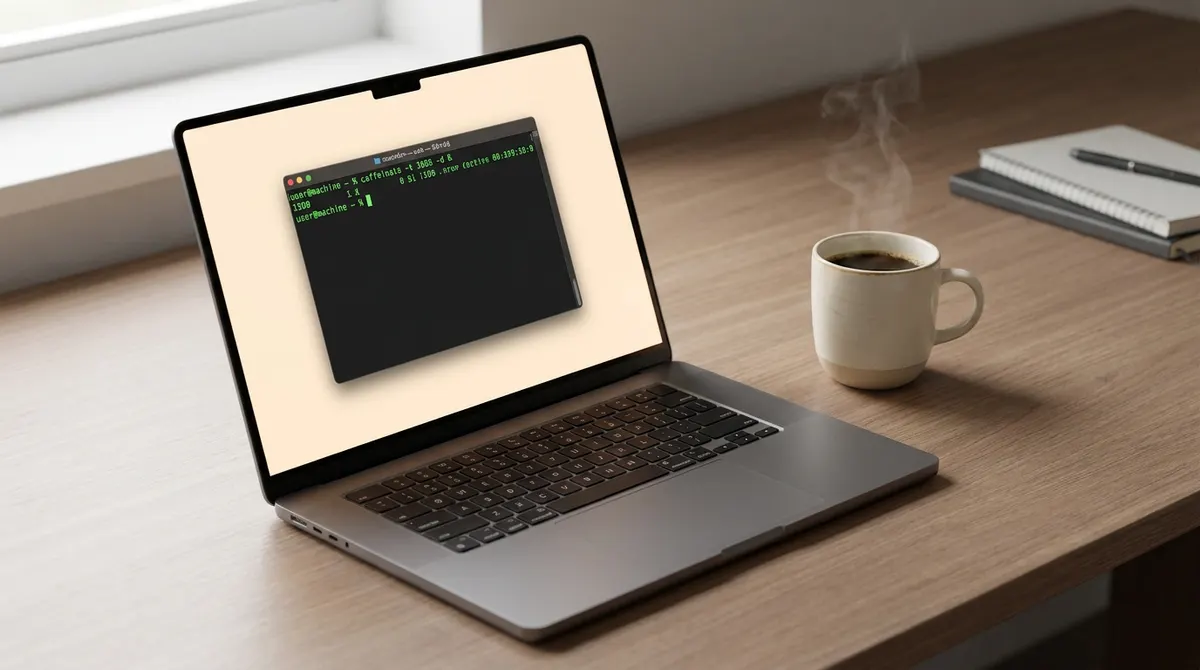
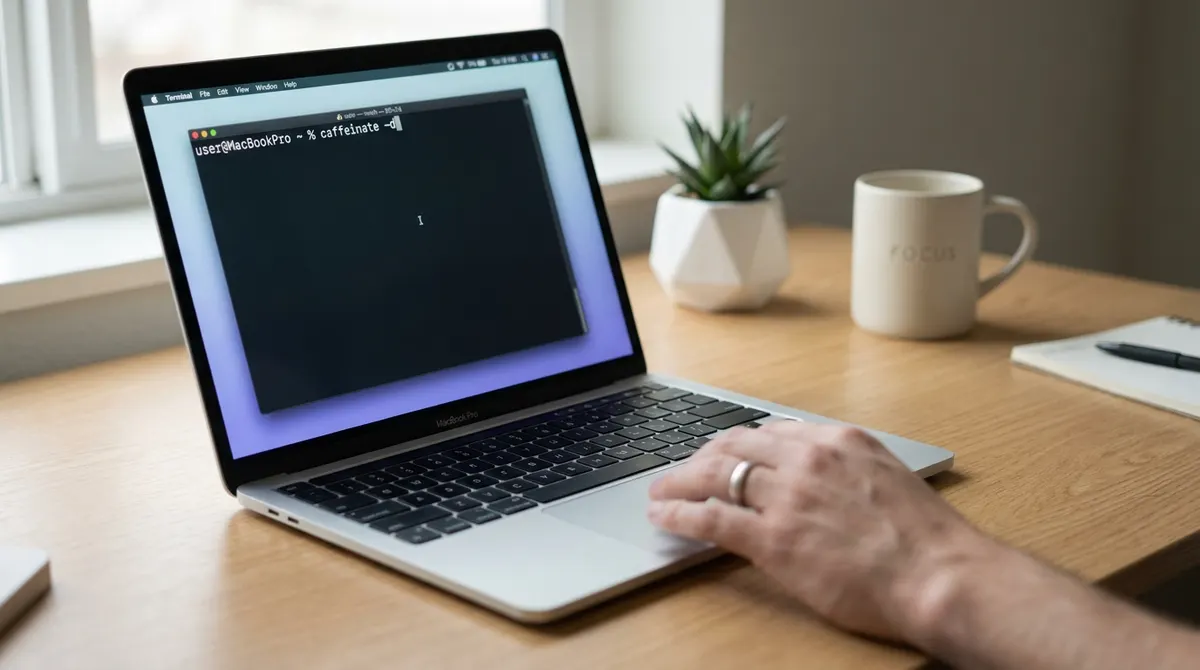
Type "caffeinate" and press enter. Your machine stays awake as long as the process runs. It's the cleanest method available to keep Mac awake. You don't need to install anything extra for this to work.
Use Control-C to stop the command. This restores your energy saver rules immediately. No reboot is required. It's a quick way to stop Mac from sleeping without digging through menus.
The cursor remains active in the window. You know the script is working. It's a simple visual cue.
Advanced flags for timed sessions and displays
Detail the use of the -t flag for setting specific durations in seconds. This automates the wake period. It's perfect for known render times or long downloads.
The -d flag keeps the display awake specifically. This prevents the screen from dimming during presentations. Your audience stays focused on the content, and you prevent Mac sleep effectively.
Link the wake command to a specific background process using -w. The Mac sleeps only when that task finishes. This optimizes energy consumption perfectly while you keep MacBook awake.
How to Stay Active in Clamshell Mode?
Beyond software commands, hardware configurations like using an external monitor require specific steps to keep your MacBook running with the lid closed.
Requirements for keeping a closed MacBook awake
You must plug in your charger first. A power adapter is essential for this mode. An external monitor must be active too. These hardware signals keep your Mac powered on despite the lid being shut.
The OS detects your secondary screen immediately. It then shifts your primary desktop there automatically. This logic allows the system to bypass the usual sleep trigger when you close the laptop.
A connected mouse or keyboard is necessary. These inputs maintain the wake state. You stay productive easily without any interruptions.
Managing background processes in Activity Monitor
Open Activity Monitor to spot apps preventing sleep. Navigate to the Energy tab. Look for the specific column regarding power management to see what is running.
Sometimes an app freezes or hangs. Force-quitting these stubborn processes restores your normal sleep cycle. Ending the task stops the unintentional drain on your system.
Check the "Preventing Sleep" column carefully. A "Yes" status means that app is active. This helps you diagnose why your battery drains at night.
Performance Impact and Hardware Safety
Keeping your Mac awake is useful, but you must balance this convenience with the long-term health of your battery and internal components.Protecting battery health during long sessions
Keeping your screen active for hours accelerates battery cycle counts. This constant drain eventually reduces the overall lifespan of your portable machine. It's a trade-off you should monitor closely.
Try using dimming features while keeping the system logic awake. This saves significant energy. You get the benefits of an active CPU without the display drain. It's a smart compromise for long tasks.
Watch for heat. Never leave a running Mac inside a bag. Ventilation is vital.
Troubleshooting a Mac that won't wake up
Need a quick fix for power glitches? Resetting the SMC or NVRAM often solves unresponsive wake triggers. Use specific key combinations during startup to clear these settings. It's a reliable way to handle charging issues too.
Faulty USB or Thunderbolt peripherals often disrupt your power settings. Unplug everything to find the culprit. Test each device one by one. One bad cable can cause major headaches.
Ready to go back to normal? Close your Terminal. Toggle your utilities off.
Whether you use the Terminal's "caffeinate" command, a one-click browser extension, or a dedicated menu bar utility, you can easily keep Mac awake for long downloads or presentations. These methods bypass system settings instantly, protecting your productivity while preserving your hardware's long-term health. Grab your favorite tool now and never let a sleeping screen interrupt your flow again.
See also: How to use the macOS caffeinate command to stay awake · How to disable screensaver mac and stop display sleep
FAQ
How can I identify which app is preventing my Mac from sleeping?
To track down the culprit, use Activity Monitor. Open it via Spotlight (Cmd + Space) and head straight to the Energy tab. Look for the column labeled "Preventing Sleep"; if it's not there, right-click the header to add it. Any app with a "Yes" next to it is the reason your machine is staying awake.
For a deeper dive, you can use the Terminal. Type pmset -g assertions to see exactly what is holding your system active. This gives you a technical breakdown of background processes or hardware triggers that are overriding your standard power-saving rules.
Is there a way to keep my Mac awake without digging through System Settings?
Absolutely. You can keep Mac awake by using the native caffeinate command in Terminal. Just type caffeinate and hit Enter; your Mac will stay active as long as that window remains open. It’s a clean, built-in way to prevent Mac sleep without permanently changing your preferences.
If you prefer a visual interface, one-click browser extensions or menu bar utilities like Amphetamine are lifesavers. These tools let you stop Mac from sleeping with a single click, allowing you to toggle between "active" and "default" modes instantly. This is perfect for keeping MacBook awake during long downloads or presentations.
How do I keep my MacBook awake when the lid is closed?
To use "Clamshell Mode" and keep MacBook awake while closed, you must meet a few hardware requirements. First, your Mac must be plugged into a power adapter. Second, you need an external monitor connected and active. Finally, having an external mouse or keyboard is essential to maintain the wake state.
If you're on macOS Sonoma and having trouble, ensure your external display is detected under Display Settings. Sometimes, toggling the "Prevent automatic sleeping on power adapter when the display is off" setting is necessary to stop Mac from sleeping in this configuration. Always ensure your Mac has proper ventilation when running closed to avoid heat buildup.
What should I do if my Mac won't wake up or has power issues?
If your power settings are acting up, you might need to reset the SMC or NVRAM. For Intel-based Macs, resetting the NVRAM involves holding Cmd + Option + P + R during startup. To reset the SMC on a MacBook with a T2 chip, shut it down and hold the left Control, left Option, and right Shift keys for seven seconds, then add the power button for another seven.
For modern Apple Silicon (M1/M2) Macs, there is no manual reset for these. Simply shutting the computer down for 30 seconds and restarting usually does the trick. This often fixes glitches where the system refuses to keep Mac awake or fails to charge properly.
Can keeping my Mac awake all the time damage the battery?
While it's convenient to prevent Mac sleep, doing it 24/7 can impact long-term hardware health. Keeping the screen on indefinitely increases battery cycle counts and can lead to display wear. To mitigate this, use tools that keep the system logic active but allow the screen to dim or turn off.
Also, be mindful of heat. If you keep Mac awake for heavy tasks like rendering, ensure it's on a hard surface with plenty of airflow. Never leave a Mac running these "awake" commands inside a laptop bag, as the lack of ventilation can cause the system to overheat and potentially damage internal components.