Corporate monitoring software has become incredibly sophisticated, often scanning for repetitive cursor patterns every few seconds to track your presence. If you're working remotely, you've likely felt the pressure of that tiny status icon turning yellow the moment you step away to grab a quick lunch or answer the door.
We've all been there, watching the screen dim just as we're in the middle of a long download or a critical presentation. I'll help you navigate the best tools to keep your PC awake, from a hardware mouse jiggler to seamless browser extensions like StopVeille, so you can maintain your privacy without the headache of IT restrictions.
Choosing The Best Mouse Jiggler For Remote Work Stealth
Hardware HID emulators remain the safest choice to bypass IT monitoring without admin rights. While software like Caffeine or PowerToys offers free alternatives, they risk detection by enterprise agents tracking repetitive cursor pixel patterns.
The safety of these tools depends heavily on how corporate monitoring agents scan your system for unusual activity.
Understanding Detection Risks In Corporate Environments
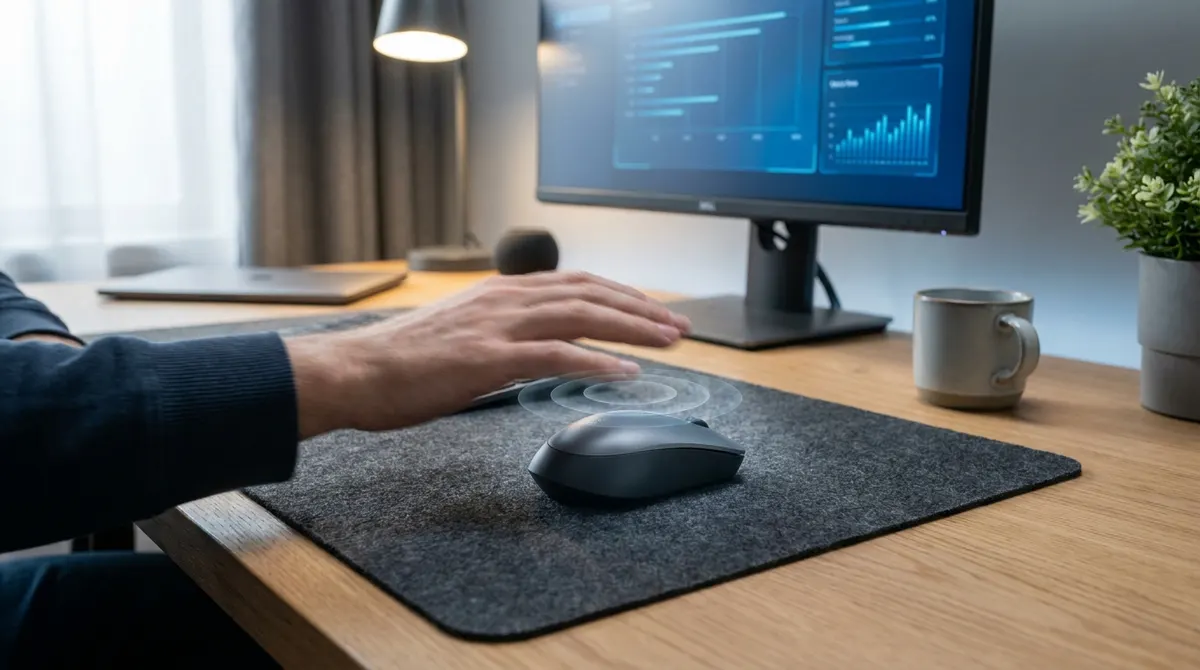
Modern IT agents track repetitive cursor patterns. They scan how often your mouse moves. Constant, identical movements flag you as inactive or using a simulator.
Operating systems trust hardware signals more than scripts. A physical device emulates a real Human Interface Device. Software signals look like background noise to security tools.
Unverified executables trigger security flags. You risk HR alerts. Stick to verified hardware or browser-based tools.
Why Random Movement Algorithms Matter For Privacy
Linear cursor paths look fake to tracking algorithms. You need organic, non-linear travel across your screen. Simple back-and-forth lines are a dead giveaway for monitoring software. Randomness is your best friend here.
Advanced tools mimic natural behavior. They use varying speeds and pauses. This makes your activity look human, not robotic.
Scheduling features maintain a logical work schedule. You look active when you should be. It keeps things realistic.
Physical USB Devices For Admin-Free Operation
While software risks detection through system logs, physical devices offer a layer of hardware-based security that bypasses most digital surveillance.
Standard USB Dongles And HID Emulation Benefits
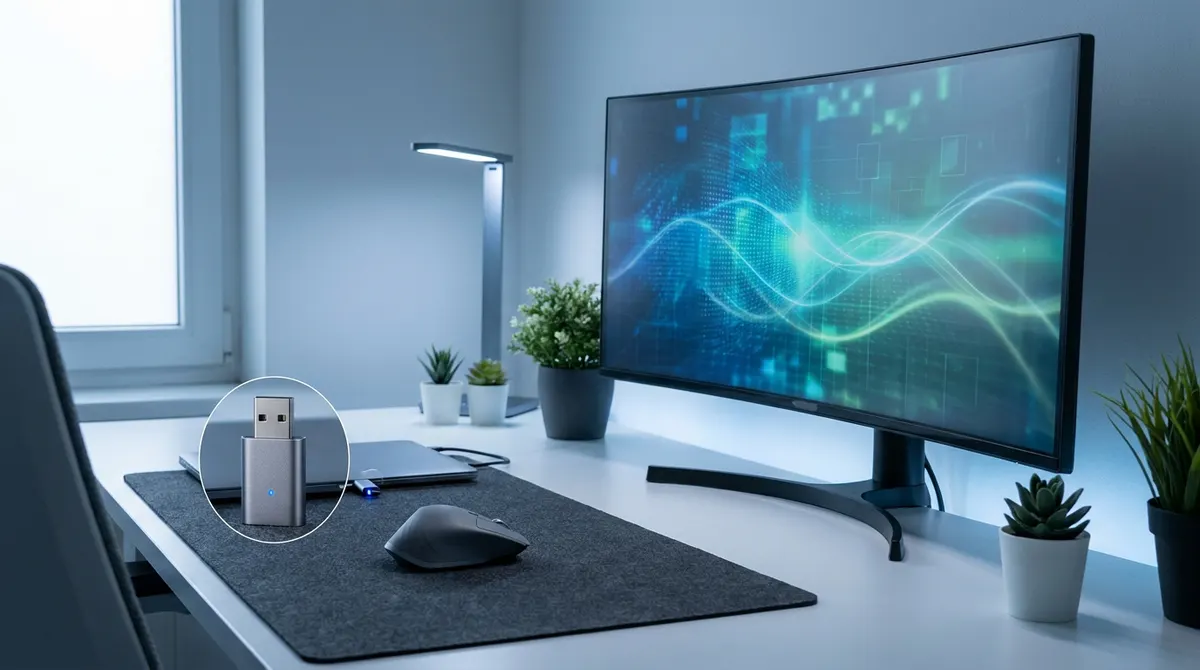
A mouse jiggler dongle acts as a standard mouse. It uses the Human Interface Device protocol. Your OS cannot distinguish it from a real mouse.
The plug-and-play setup bypasses admin rights. No drivers are needed for these tools. They work instantly on any locked-down corporate laptop.
Hardware is durable. Yet, you must pay an upfront cost for the device.
Modern dongles are discreet. They look exactly like tiny wireless mouse receivers.
Mechanical Shakers For Restricted Hardware Setups
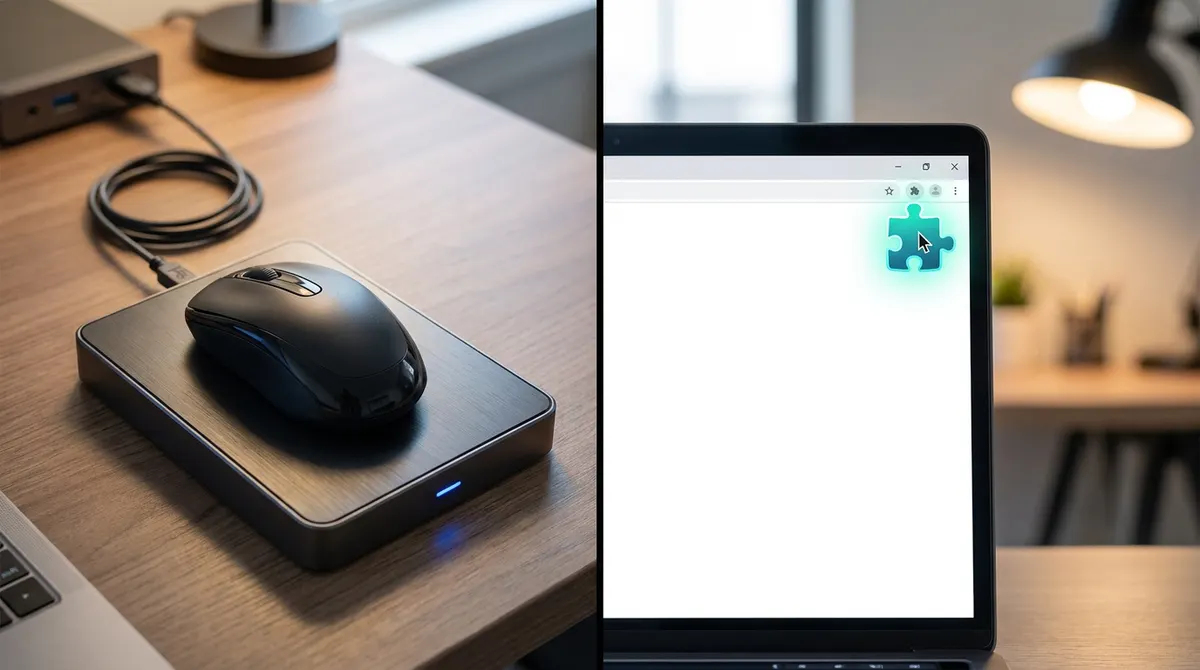
Physical cradles move your actual mouse sensor. A rotating disk or platform shifts the mouse physically. This requires no connection to the computer port at all. It is the ultimate stealth method for high-security roles.
You get a zero-footprint advantage on monitored laptops. No USB device is registered in the system logs. This eliminates any digital trail for IT teams to find.
Mechanical solutions are bulky and noisy. These devices take up desk space and often hum.
Top Software Apps Like Caffeine And PowerToys
If hardware isn't an option, several reputable software suites provide built-in tools to manage system idle states effectively.
Windows PowerToys Awake For Simple System Control
PowerToys Awake is a handy module within the official Microsoft PowerToys suite. Since it's a Microsoft utility, it carries a sense of corporate legitimacy. It's built for professionals needing reliable uptime.
You can toggle between timed sessions or keep your PC awake indefinitely. These modes effectively stop the screen from sleeping during long tasks. It prevents the system from entering sleep mode automatically.
Keep in mind that this tool requires local installation on your machine. Many companies restrict the PowerToys suite through IT policies. Always check your local permissions before you try to install it.
Caffeine For Mac And Lightweight Status Management
For macOS users, Caffeine offers a simple toggle via a small coffee cup icon. Clicking this menu bar icon keeps your Mac awake during presentations or downloads. It’s lightweight and barely touches your system resources.
The interface favors extreme simplicity over complex automation or deep customization. You won't find buried menus here. It's just a quick way to manage your status dot without any hassle.
Be careful with your battery life when preventing system sleep. Keeping the screen active will drain your power much faster. It's a trade-off you need to manage while working away from a plug.
It's ideal for quick tasks. It lacks advanced movement randomization.
StopVeille For Seamless Chrome-Based Activity
For those restricted by both hardware blocks and installation rights, browser-based extensions offer a clever middle ground for web-centric workflows.
Bypassing IT Locks Without Local Installations
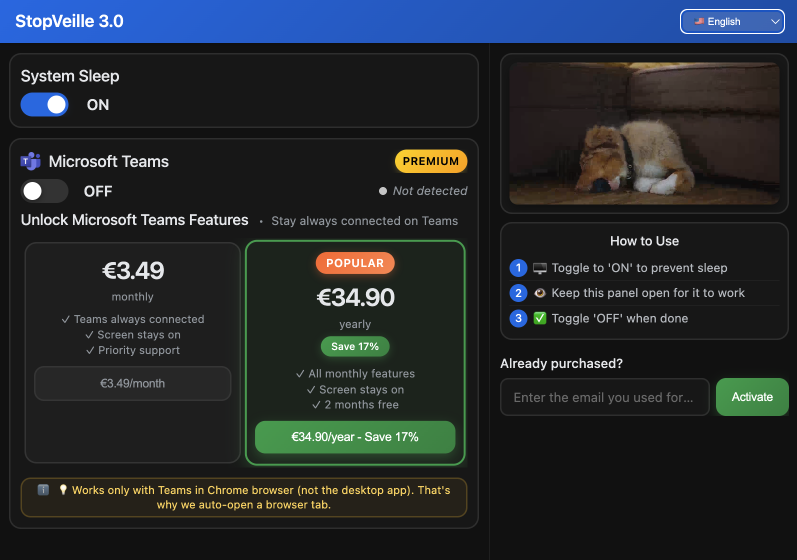
StopVeille is your zero-install alternative for browser work. It functions entirely within the Chrome environment. You won't need .exe files or hardware dongles.
Chrome extensions operate within a secure browser sandbox. This isolation makes them harder for enterprise agents to flag. It targets the application layer specifically.
Enjoy the cost-benefit of a free tool over hardware. It provides a professional solution without any financial investment. This is perfect for freelancers or contractors.
Keeping Web-Based Communication Tools Active
This extension prevents 'Away' status on web-based Teams. It simulates activity that keeps the browser session alive. Your status remains green during breaks. It works with Slack and web portals.
Activation is easy for users without administrative privileges. You simply toggle the extension on from the toolbar. No system restart or deep configuration is necessary.
Browser-level activity is remarkably reliable. It's consistent for remote workers using web apps.
This tool offers a practical balance for modern remote work.
Whether you choose a physical mouse jiggler for total stealth, PowerToys for official utility, or StopVeille for a no-install Chrome fix, staying active has never been easier. Grab your preferred tool now to protect your status and reclaim your workflow freedom. Master your digital presence today.
See also: How to stay active online status apps across all platforms · How to keep your Teams status active and green naturally
FAQ
What exactly is a mouse jiggler and how does it work?
A mouse jiggler is a clever little tool designed to simulate cursor movement so your computer thinks you're actively working. Whether it's a physical USB device or a lightweight software app, it prevents your screen from locking and keeps your status "Green" on apps like Microsoft Teams or Slack by tricking the system's idle timer.
Can my company's IT department detect if I'm using a jiggler?
It depends on the tool you choose. Software-based jigglers or apps like Caffeine can sometimes be flagged by IT security scans that look for specific file names or repetitive cursor patterns. If you want to stay under the radar, hardware HID emulators or browser-based options like StopVeille are much harder to detect because they don't require admin rights or suspicious installations.
Is there a way to keep my PC awake without installing new software?
Absolutely. If your laptop is locked down by IT, you can use a physical USB jiggler that acts like a standard mouse, or a mechanical shaker that physically moves your mouse. For a totally free, no-hardware approach, StopVeille works directly in your Chrome browser to keep web-based tools active without needing any .exe files or administrative permissions.
What's the difference between Windows PowerToys Awake and Caffeine?
Windows PowerToys Awake is an official Microsoft utility that lets you toggle permanent wakefulness from your system tray, which feels very "corporate-safe." Caffeine is a classic, ultra-lightweight favorite for Mac users that uses a simple coffee cup icon to manage sleep settings. Both are great, but they lack the randomized movement that advanced jigglers use to mimic human behavior.
Will using these tools drain my laptop battery?
Yes, keeping your screen on and preventing sleep mode will definitely hit your battery life harder than usual. If you're working away from a charger, it's a good idea to use these tools only when necessary or keep an eye on your power levels, as some apps like Mouse Jiggler for Mac include settings to auto-stop when your battery gets too low.
How can I keep my Teams or Slack status active in a browser?
The easiest way is to use a browser-centric tool like StopVeille. Since many remote workers use web-based versions of communication apps, this extension simulates activity within the browser sandbox. It keeps your session alive and your status active without affecting your entire operating system, making it a perfect stealthy middle ground.