Why does your screen always go dark right when you need it most? Whether you are running a long background download or presenting to a client, having your system cut out is a major productivity killer.
It is incredibly frustrating to see your status flip to away the second you grab a coffee. This guide breaks down exactly how to keep computer awake using native Windows and Mac settings, PowerToys, or the zero-config StopVeille extension for those without admin rights. We will help you find the right method to prevent your PC from sleeping so you can stay active and focused.
Master Your Native Settings to Keep Computer Awake
Windows 11 Power & battery menus and macOS Energy Saver settings allow permanent wake states via the "Never" option. Third-party tools like StopVeille or PowerToys Awake provide zero-config alternatives for restricted corporate environments.
The exact path differs on each OS, but the goal is identical: stop the timer that puts the machine to sleep.
-
On Windows, set the sleep timers to Never
Open the Power & battery menu and expand the Screen and sleep dropdown, then set both states to Never so long downloads and presentations never get cut off.
SettingsSystemPower & batteryScreen and sleep
Tip: Set On battery power and When plugged in separately — laptops enforce a much shorter idle timer on battery.
-
On macOS, stop the display from sleeping
Open System Settings, go to Battery (or Energy Saver on a desktop Mac), open Options, and enable "Prevent automatic sleeping when the display is off."
System SettingsBatteryOptions
Tip: The screen can still go dark — only the backlight turns off, while the CPU stays awake so background work keeps running.
Advanced Software Tools to Stop Computer From Sleeping
While native settings work well, dedicated software offers faster toggles without diving into deep system menus.
Using Microsoft PowerToys Awake for Quick Toggles
Download the PowerToys suite from the official GitHub repository. It includes the Awake utility designed for temporary activity. This tool sits in your system tray for easy access.
Right-click the blue cup icon to keep the PC awake indefinitely. It overrides your global power plan instantly.
This method is cleaner than changing registry keys. It provides a temporary solution that is easy to disable later.
Running the Caffeinate Command on Mac
Open the Terminal application on your macOS device. This built-in tool requires no extra software installations at all.
Type the "caffeinate" command and press enter to start the session. Your Mac will stay awake as long as the Terminal window remains open. It is a powerful developer trick.
Press Control+C to terminate the command and allow sleep again. This returns your Mac to its normal power cycle.
Third-Party Apps for Specialized Wake Needs
Consider apps like Amphetamine for Mac or Caffeine for Windows users. These tools offer highly customizable triggers for users.
One-click activation is much faster than navigating through the Control Panel. You can set timers or link the wake state to specific apps. It simplifies your daily workflow.
Visual indicators in the taskbar show your current status. You never have to guess if your computer will sleep.
Use StopVeille for a Zero-Config Browser Workaround
If you lack administrative rights to install software, browser-based solutions provide a clever and safe alternative. This is the same no-installer route covered in our guide on preventing Windows 11 sleep without admin rights.
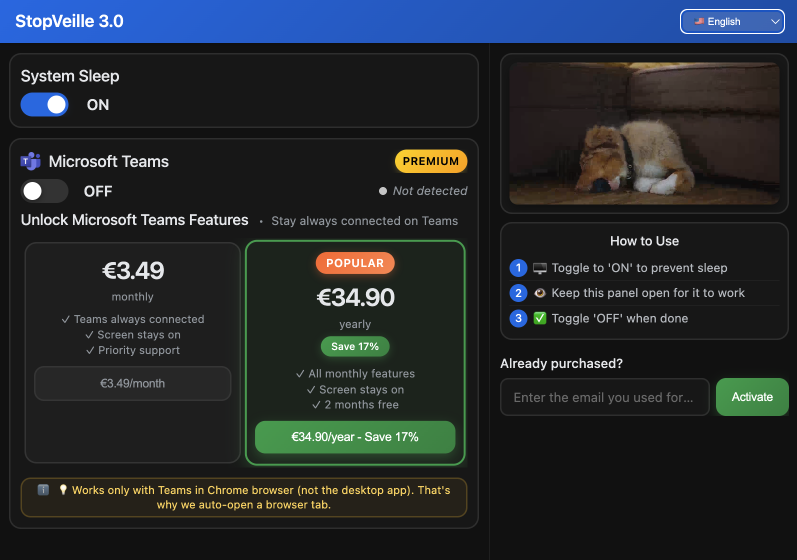
Benefits of a Zero-Config Chrome Extension
Add the StopVeille extension to your Chrome or Edge browser. It uses the Screen Wake Lock API to keep the system active. No complex setup is required for this.
This tool bypasses the need for administrator privileges on work laptops. It is perfect for employees who cannot change system settings. You stay active on communication platforms.
Simply click the icon in your browser bar to start. It works instantly without interfering with other apps.
Keeping Web Apps Active Without Admin Rights
Browser extensions are often safer for corporate environments than executable files. They operate within the browser sandbox. This reduces security risks for your IT department.
Non-technical users benefit from the zero-configuration design. There are no menus to navigate or scripts to write. You just toggle the state directly from your active tab.
This convenience makes it a top choice for remote workers, keeping your status green through long meetings. For the full playbook, see how to stay available on Microsoft Teams.
Balance Security and Battery Health for Your PC
Keeping a computer awake indefinitely is useful, but you must consider the long-term impact on hardware and privacy.
Managing Privacy in Shared Office Spaces
Leaving an unlocked computer in a public space is a major security risk. Data theft can happen in seconds. Always use a manual screen lock when walking away.
Revert to default sleep settings before leaving for the day. This protects your files and ensures total privacy.
Impact of Constant Wake on Battery Life
Constant activity generates heat, and heat is the main enemy of lithium-ion cells — leaving a laptop awake around the clock can degrade the battery over time. Use these wake tools only when a task truly needs them, and switch them off once the download or presentation is done.
Conserving energy is better for your hardware. It extends device lifespan.
Fixing Common Sleep-Related Bugs
Sometimes a computer sleeps even with the correct settings. This often happens due to outdated display drivers or BIOS bugs.
Check your USB hub settings to ensure devices do not trigger sleep. External monitors can also cause unexpected power issues.
Update your system regularly to fix these errors. It keeps everything running smoothly.
Mastering your power settings, PowerToys, or a terminal command keeps your workflow from ever hitting a wall — and when you can't install anything, StopVeille is the zero-config fallback that works from any Chrome tab. To keep your Teams dot honestly green, see how to stay active on Microsoft Teams the legitimate way.
FAQ
How can I keep my computer awake on Windows 11?
To keep computer awake on Windows 11, head over to Settings > System > Power & battery. Open the Screen and sleep dropdown and change the duration for both battery and plugged-in states to "Never".
If you're looking for a quicker toggle, Microsoft PowerToys Awake is a great utility. It sits in your system tray and lets you override your power plan with a single click without digging through menus.
What's the best way to prevent my Mac from sleeping?
You can prevent pc from sleeping (or Mac, in this case) by going to the Apple menu > System Settings. For MacBooks, look under Battery > Options to enable "Prevent automatic sleeping when the display is off." On desktops, these toggles are under the Energy menu.
For a more advanced trick, you can use the caffeinate command in the Terminal. As long as that Terminal window stays open, your Mac will stay wide awake and ready for action.
Is there a way to stop my computer from sleeping without admin rights?
Absolutely! If you're on a work laptop and can't touch the system settings, a browser extension like StopVeille is your best friend. It uses the Screen Wake Lock API to stop computer from sleeping directly through Chrome or Edge.
Since it runs within your browser, it doesn't require administrator privileges or a complex installation. It's a perfect zero-config workaround to keep your status active on apps like Teams or Slack.
How do I keep my laptop awake when the lid is closed?
On Windows, you'll need to go to the Control Panel > Power Options > Choose what closing the lid does and set it to "Do nothing." This ensures your laptop stays awake even when tucked away.
For Mac users, this usually requires being plugged into an external monitor and power source (Clamshell mode), or using a third-party app like Amphetamine to override the default sleep trigger.
Will keeping my PC awake all the time damage the battery?
It's a fair concern! While it won't "break" your hardware, constant activity generates heat, which can degrade lithium-ion batteries over time. It's always best to keep pc awake only when you actually need it for a specific task.
To protect your gear, remember to revert to your standard power-saving settings once your big download or long presentation is finished. Your hardware will thank you for the break!