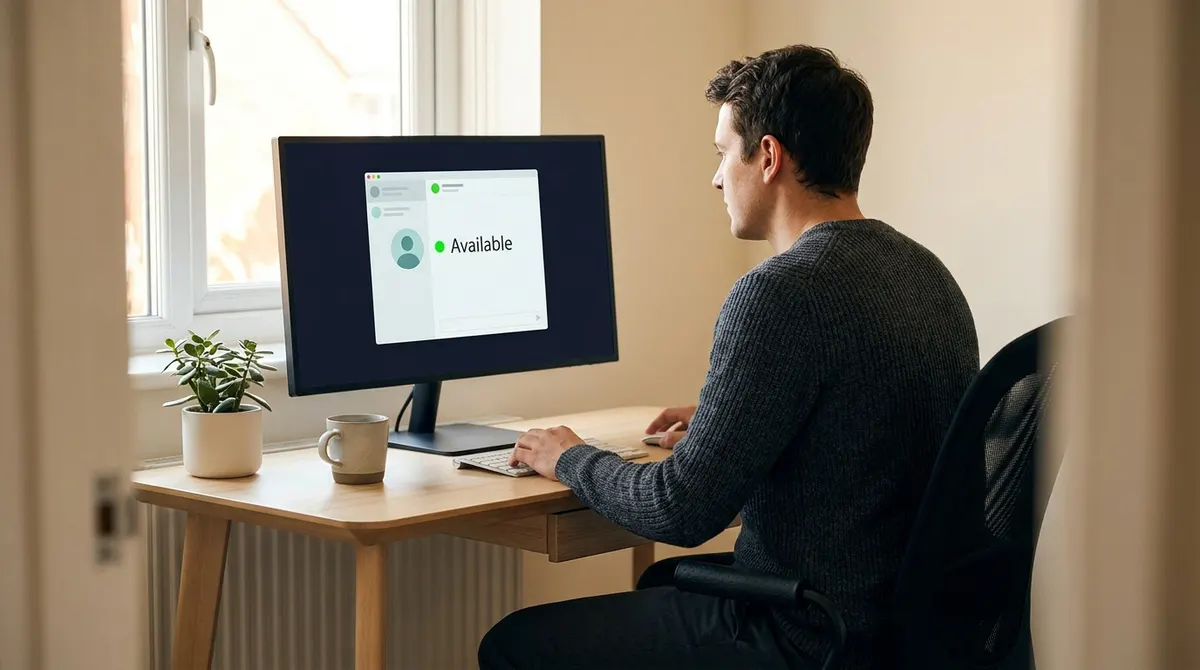
Most corporate communication tools like Slack and Teams are hardcoded to flip your status to away after just ten minutes of inactivity. This automated transition happens the moment your OS-level idle timer stops detecting mouse movements or keystrokes, regardless of whether you are actually working on a document or brainstorming off-screen.
It is incredibly frustrating to look like you are napping just because you stepped away for a quick cup of coffee. I will show you how to use stay active online status apps and simple system tweaks to maintain your presence across every platform simultaneously.
How Stay Active Online Status Apps Track Your Presence
Apps like Slack and Teams trigger "Away" status after ten minutes of inactivity by monitoring OS-level idle timers, mouse movements, and keystrokes. Adjusting system power settings or using hardware-independent simulation tools maintains a constant green dot.
The technical gap between your computer staying awake and your chat app showing you as active is where most remote workers get caught.
The Difference Between OS Sleep and Application Idle
Your operating system uses a global timer to save power. This timer is totally separate from the sensors in communication apps. Windows or macOS might stay awake while Slack decides you're gone. It's all based on specific app-level telemetry.
Presence detection relies heavily on peripheral input signals. Every mouse click or key press resets the inactivity clock immediately. Without these physical interrupts, the software assumes your desk is empty. You're effectively invisible to the system.
Some apps monitor active window focus too. If you're reading a long document without moving the cursor, your status might flip. It's a frustrating logic.
Why Your Status Flips to Away After Ten Minutes
Most corporate tools use a ten-minute default threshold for inactivity. This hardcoded limit triggers the transition from active to away. It's a standard setting across many professional communication platforms today.
Background processes rarely influence these visibility indicators. Only direct user interaction counts as valid presence for the tracking algorithm. Your computer working hard doesn't mean you're "there."
This creates a gap. You're often active but appear offline.
Practical Ways to Appear Online on Slack and Teams
Understanding these timers is the first step, but you need actionable methods to stay visible during focused work blocks.
Using Mobile Devices to Bypass Desktop Timers
-
Keep the mobile app in the foreground
Open Slack or Teams on your phone and leave the app on screen. A live mobile session tells the server you are present and bypasses the mouse-dependent desktop timer entirely.
-
Set the phone screen to never sleep
In your phone's display settings, set the screen timeout to Never so the session stays live even when you step away from the keyboard.
Tip: Mobile sessions often take priority in presence logic, so the green dot holds as long as the app stays in the foreground.
-
Keep it charging, with background refresh on
Constant screen activity and high brightness drain the battery fast, so plug the phone into a charger and make sure background refresh is enabled for the messaging app.
Managing Outlook and Google Calendar Sync Conflicts
Calendar integrations often force your status to "In a Meeting" or "Busy." These automated events override any manual "Available" setting you choose. It can be frustrating during quiet hours.
You can disconnect this automation in the app settings. Look for the "Sync with Calendar" toggle in the profile or status section. Disabling this prevents your schedule from dictating your visibility. You regain full control over your online presence throughout the day.
Alternatively, mark your calendar events as "Free" instead of "Busy." This allows the event to exist without changing your status. It is a subtle way to keep your privacy.
Avoid Discord Idle Status and Zoom Inactivity
Beyond standard office tools, platforms like Discord and Zoom require different system-level tweaks to maintain a consistent presence.
Tweak System Power Settings for Constant Visibility
SettingsSystemPower & batteryPower mode
Adjust your Windows power plan to "High Performance" to prevent the system from entering sleep mode. On macOS, use the "Energy Saver" settings to keep the display active. These changes stop the OS from sending an idle signal to Discord.
Constant visibility has professional trade-offs. Being "Online" 24/7 might look suspicious to observant managers. Use these settings only during your actual working hours to maintain a realistic professional image.
Balance is key. Do not leave your computer running all night for no reason.
Custom Status Messages vs Automated Activity Signals
A custom text status does not always keep the "Active" indicator green. Many apps separate the text message from the presence dot. You might have a "Working" message while the dot turns amber. This discrepancy can confuse your colleagues.
Zoom handles presence differently during screen sharing. It usually keeps you "Busy" or "Active" as long as the presentation is live. The app assumes you are engaged with the shared content.
Manual status updates are best for transparency. Tell people when you are stepping away for coffee. It builds more trust.
Use StopVeille for a Unified Presence Across Apps
If manual tweaks feel like a chore, a more technical and unified approach can simplify your visibility management.
The StopVeille Method for Multi-Platform Activity
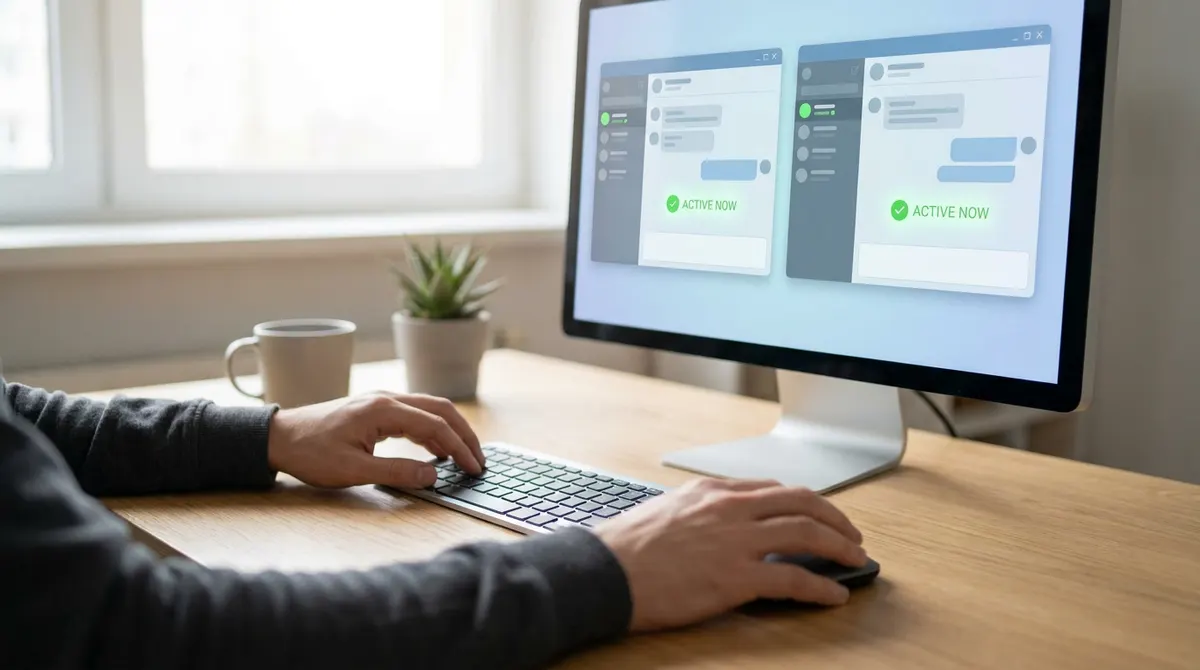
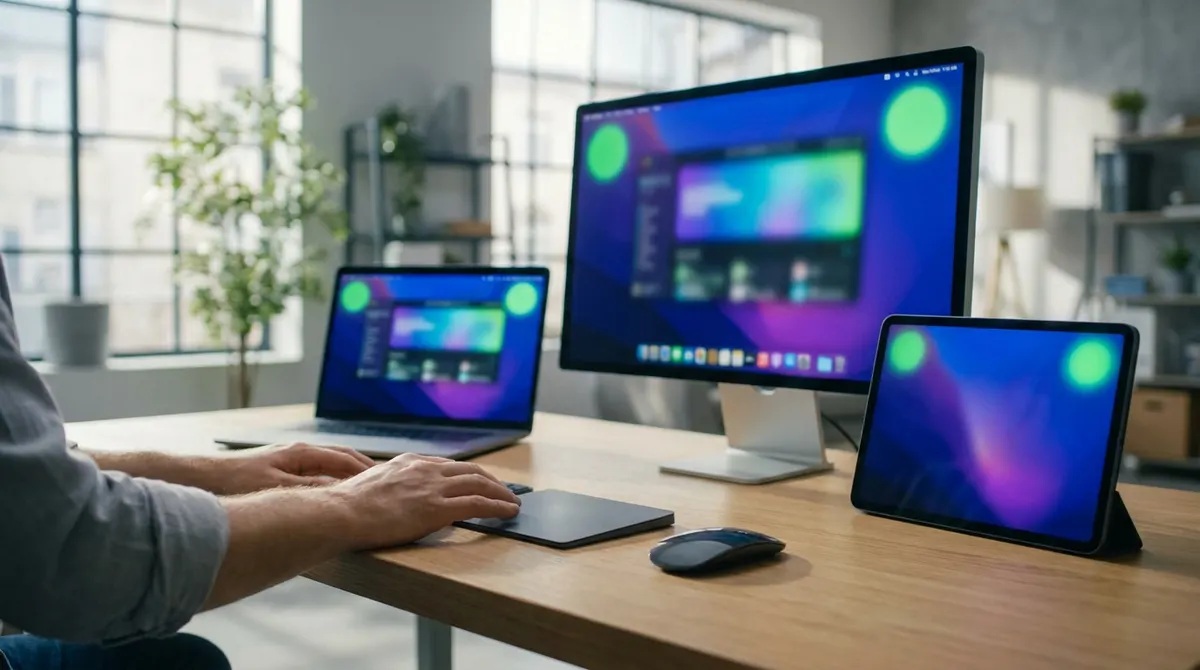
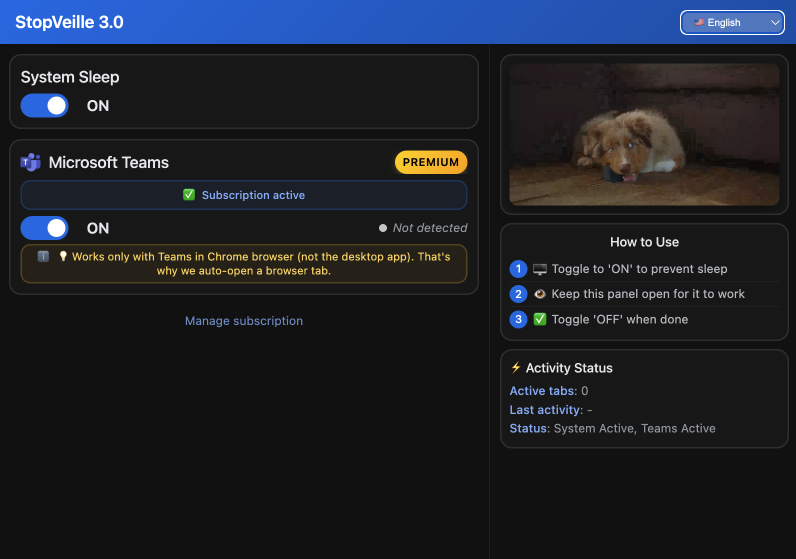
StopVeille offers a streamlined way to stay active on Slack, Discord, and Google Meet simultaneously. It simulates activity without requiring external hardware like mouse jigglers. This method works at the software level to keep your status green. It is efficient and discreet.
Hardware-independent simulation is safer for IT compliance. It does not require plugging in unrecognized USB devices. You maintain your professional presence across all platforms with a single, reliable solution.
It saves time. You no longer need to check every app individually for idle triggers.
Fixing Stuck Offline Status and Clearing App Cache
Sometimes your status gets stuck on "Offline" even when you are working. This is often due to corrupted local cache files in the desktop client. You should clear the app data in your system folders to reset the connection.
A full sign-out is often necessary to refresh presence detection. Simply closing the window is not enough. Log out completely, restart the application, and sign back in to force a sync.
Check your internet stability too. Frequent micro-disconnects can confuse the status server. A stable connection ensures your green dot stays visible.
Mastering your digital presence doesn't have to be a constant struggle against idle timers. By syncing your settings and using stay active online status apps like StopVeille, you’ll maintain total control over your visibility across every platform. Stay green, stay productive, and never let a static dot define your work ethic again.
See also: How to keep your Teams status active and green naturally · How to stay active on Microsoft Teams the legitimate way
FAQ
How can I stay active on Slack even when I'm away from my desk?
To appear online slack for longer periods, the easiest trick is using the mobile app. Open Slack on your phone, head into your display settings, and set the screen to "Never Sleep." As long as the app is in the foreground and the screen is glowing, Slack sees you as active. If you're on a computer, using stay active online status apps or a dedicated software solution like StopVeille can simulate the activity needed to bypass that ten-minute idle timer.
Does my Zoom status stay active while I am sharing my screen?
Yes, it usually does! When you are in a meeting or sharing your screen, Zoom typically keeps your status as "Busy" or "Active" because it assumes you are engaged with the presentation. To keep zoom active outside of meetings, make sure the application remains open and isn't minimized to the system tray, as some power-saving settings might trick the app into thinking you've stepped away.
Why does my Discord status change to idle so quickly?
The discord idle status kicks in automatically when the app detects a lack of mouse or keyboard input for a specific period. It's Discord's way of telling your friends you've gone to grab a snack. To prevent this, you can adjust your OS power settings to "High Performance" so your system doesn't send sleep signals, or use a unified tool like StopVeille to maintain a consistent presence without touching your hardware.
How do I manage my Google Meet presence during the workday?
Your google meet presence is generally tied to your active participation in a call. However, since Google Workspace apps are often integrated, being active in a meeting can influence your status across the suite. If you want to stay visible, ensure your browser tab remains focused. For a more reliable "green dot" across all your professional tools at once, a software-based activity simulator is your best bet to avoid being marked as away.
Can I stop my calendar from automatically changing my status?
It’s a common headache, you’re working hard, but your calendar says you’re "In a Meeting," so you look unavailable. You can fix this by going into your app settings and disabling the "Sync with Calendar" toggle. Another pro tip is to mark your calendar events as "Free" rather than "Busy." This lets you keep your schedule organized without letting an automated sync hijack your online visibility.
What should I do if my status is stuck on offline?
Sometimes the "green dot" just won't come back, even when you're typing away. This is usually a sync error caused by a glitchy app cache. To fix it, log out completely, clear your application's local cache folders, and sign back in. Also, double-check your internet connection; even tiny drops in signal can confuse the servers and leave you looking like you've vanished from the office.