Windows 11 defaults often kill your screen after just five minutes of inactivity to save energy. It’s a smart feature for your electric bill, but it's a total disaster when you're mid-sentence during a high-stakes demo.
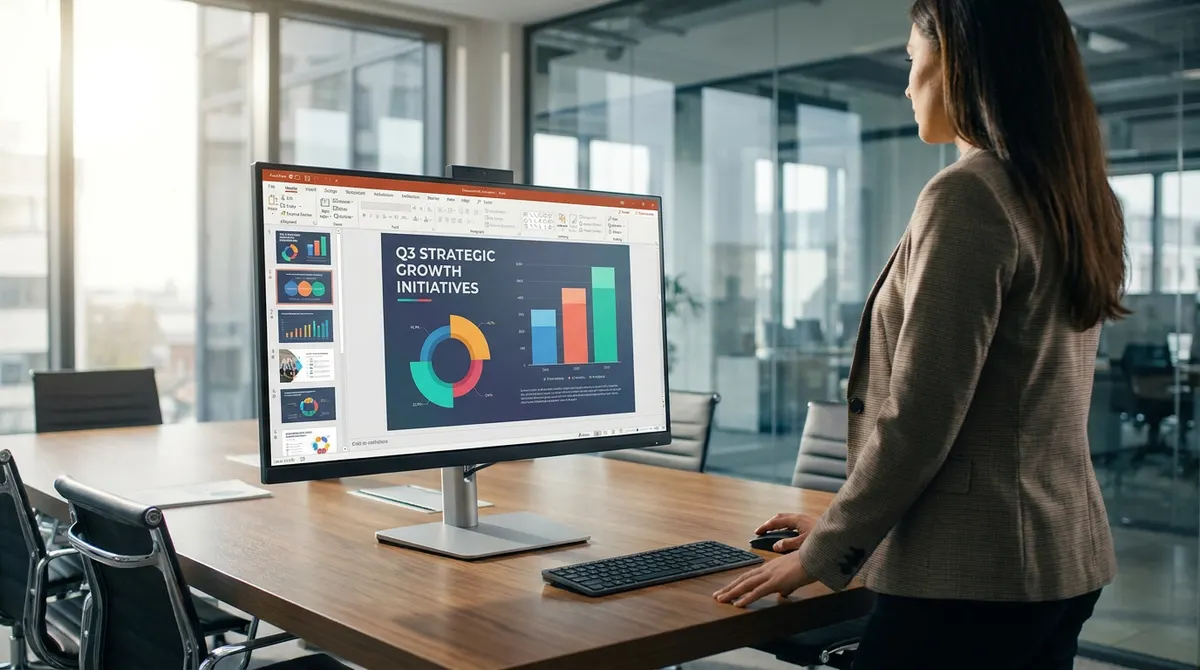
Nothing kills your professional momentum faster than a display that goes black while you’re explaining a complex slide. I’ll help you stop screen turning off during presentation sessions by tweaking your system settings and using quick tools to keep everything active without permanently ruining your power plans.
Stop Screen Turning Off During Presentation
Windows Power & Sleep settings, macOS Energy Saver, and PowerPoint’s native presenter mode bypass standard timeouts. Tools like Microsoft PowerToys Awake or Amphetamine provide indefinite wake states during critical monitoring tasks.
Start by diving into the core system adjustments required for Windows users to maintain a constant display state.
Adjusting Windows Power and Sleep Timers
Navigate to the Windows Settings menu. Open the System section and select Power and Battery. This is where your primary display controls live.
Locate the Screen and Sleep dropdown. Modify the timeout values for both battery power and plugged-in states to Never.
Change the Power Mode to Best Performance. This prevents the OS from dimming the screen to save energy. It ensures total stability during long presentations or demos.
Verify these changes immediately. Test the display by leaving the mouse idle.
Configuring macOS Energy Saver Preferences
Open System Settings on your Mac. Navigate to the Lock Screen or Energy Saver tab depending on your version. Move the Turn Display Off slider to the right. Set it to Never for when the power adapter is connected.
Disable the feature that automatically dims the display while on battery. This keeps the brightness consistent throughout your talk.
Check the Battery health settings for any hidden sleep triggers. Some newer MacBooks have aggressive power-saving defaults.
Active slide playback usually overrides these. Still, manual settings offer a safer backup.
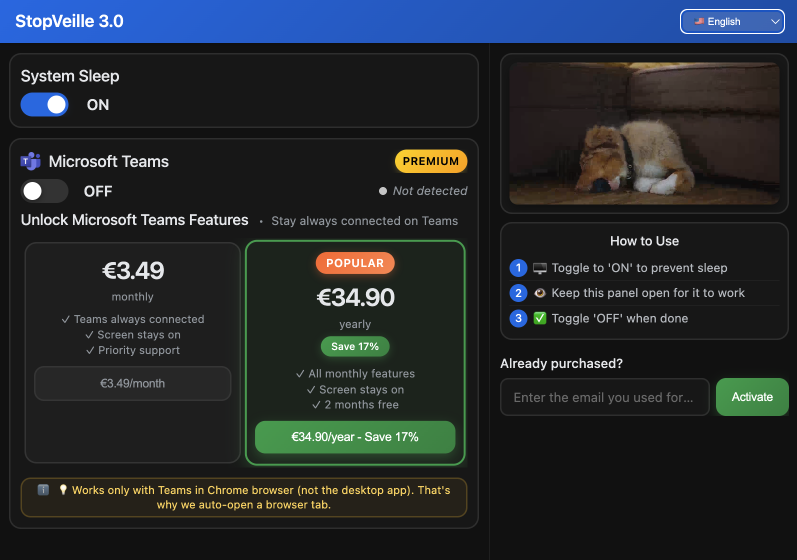
Leveraging Native App Settings to Stay Active
While system-wide changes work, specific applications offer built-in overrides that are often more convenient for temporary needs.
Activating PowerPoint Presenter Mode Features
Open your presentation in PowerPoint. Go to the File menu and select Options. Look for the Advanced tab to find display-specific settings for your slideshow.
Enable the toggle that specifically disables the screen saver during shows. This prevents the lock screen from appearing mid-sentence.
Check for recent software updates. Bugs in older versions sometimes ignore these toggles. Keeping the app updated ensures the presentation mode works as intended.
Test the slideshow mode. Ensure the screen stays bright without manual input.
Managing Mobile Display Timeouts for iOS and Android
Mobile devices require a different approach. On iOS, go to Display and Brightness. Change the Auto-Lock setting to Never to keep the screen active for monitoring.
Android users should access Developer Options. Enable the Stay Awake toggle to keep the screen on while charging.
Toggle the Always-On display feature if available. This is perfect for temporary monitoring tasks. It uses less battery while showing essential information clearly.
Remember to revert these settings. Constant display usage drains the battery fast.
Troubleshooting Hardware and Registry Conflicts
If standard menus fail, you might be fighting against hardware sensors or deep-seated system registry rules.
Disabling Proximity and Ambient Light Sensors
Modern laptops use sensors to save power. Deactivate adaptive brightness in your display control panel. This stops the screen from dimming when the room light changes.
Check manufacturer software like Armoury Crate or Dell Optimizer. These often contain hidden sleep triggers that override Windows.
Update your display drivers via the Device Manager. Corrupted drivers cause unexpected dimming issues. New drivers often fix conflicts between the OS and the hardware.
Reboot after making these changes. This ensures the new hardware profile is active.
Editing Registry Keys for Persistent Sleep Issues
Advanced users can use the Registry Editor. Locate the power policy keys under the System folder. This allows you to force specific presentation mode behaviors.
Use Group Policy updates to lock these settings. This is vital for corporate laptops with restricted user permissions.
Reset corrupted power plans using the command line. Type powercfg -restoredefaultschemes to start fresh with clean settings.
Be careful with registry edits. Always back up your data before changing keys.
3 Tools to Keep Your PC Awake During Meetings
When manual tweaks are too slow, these specialized utilities provide a one-click solution to stay awake.
Staying Awake with Microsoft PowerToys Awake
Install the Microsoft PowerToys utility suite. It includes a tool called Awake. This provides system-level control without diving into deep menus.
Select the Indefinite Keep Awake mode from the system tray icon. This overrides all existing power plans instantly.
Access it via the taskbar. It is the fastest way to stay active.
Set timed wake intervals. This is perfect for specific one-hour presentation lengths.
Quick Keyboard Shortcuts and Third-Party Utilities
Some users prefer lightweight apps. Use F15 key simulators to stop screen turning off during presentation. These apps simulate a keypress that you never see.
Evaluate tools like Caffeine for Windows or Amphetamine for macOS. They are small and very effective for meetings.
Mouse jiggler software works too. It is great for restricted corporate environments.
These tools require no installation. Just run the executable and stay online.
Tweak your system settings, update PowerPoint, or use PowerToys Awake to keep your display active. These quick fixes stop screen turning off during presentation mishaps, ensuring your slides stay bright and professional. Master these steps now and never let a black screen kill your flow again.
See also: How to disable screen timeout windows 11 and stay active · How to keep your Mac awake without changing settings
FAQ
How can I stop my screen from turning off during a presentation on Windows?
To keep your display active, head over to Settings > System > Power & battery. Under the Screen and sleep section, adjust the timeout values to Never for both battery and plugged-in states. For a more robust fix, switch your Power Mode to Best Performance to ensure the OS doesn't dim your screen to save juice while you're mid-demo.
If you're on a corporate machine, you can also check the Windows Mobility Center. Look for the Presentation Settings tile and toggle it on to instantly suppress sleep timers and notifications. If this option is grayed out, you might need to ask your IT admin to enable it via Group Policy.
What is the best way to keep my screen on for PowerPoint?
PowerPoint actually has a built-in feature designed to stop the screen turning off during a presentation. Go to File > Options > Advanced and scroll down to the Display section. Make sure the box for "Disable hardware graphics acceleration" isn't interfering, but more importantly, ensure your software is updated so the native "presenter mode" correctly tells Windows to stay awake.
If your screensaver still kicks in while you're talking over a slide, you should manually set your screensaver to None in the Windows Personalization settings. Increasing the wait time to 60 minutes or more acts as a solid backup plan to prevent awkward interruptions.
How do I prevent my Mac screen from sleeping during a talk?
On macOS, you'll need to dive into System Settings. For desktop Macs, look under Energy Saver and toggle on "Prevent automatic sleeping when the display is off." If you're using a MacBook, go to the Battery tab, click Options, and enable the same setting for when you're connected to a power adapter.
To ensure the display itself stays bright, navigate to Lock Screen settings. Here, you can change the "Turn display off on power adapter when inactive" setting to Never. Just remember that keeping the screen on indefinitely will drain your battery faster if you aren't plugged in.
Is there a simple tool to keep my computer awake without changing system settings?
Absolutely. If you don't want to mess with permanent power plans, Microsoft PowerToys Awake is a lifesaver. Once installed, you can right-click the tray icon and select Keep awake indefinitely. It’s a one-click solution that overrides your standard sleep settings until you turn it off.
For those on macOS, Amphetamine is the go-to utility, while Windows users often swear by Caffeine. These tiny apps simulate activity to prevent screen sleep during presentations, making them perfect for when you're using a locked-down work laptop where you can't change the registry.
Why does my screen keep dimming even after I changed my sleep settings?
You might be dealing with hardware sensors or manufacturer-specific software. Many modern laptops use ambient light sensors or proximity sensors that dim the screen if they think you've stepped away. Check apps like Armoury Crate or Dell Optimizer, as these often have hidden power-saving modes that override your Windows settings.
It is also worth checking your Display Drivers in the Device Manager. Corrupted or outdated drivers can cause the screen to ignore your "Never sleep" commands. A quick update or a system reboot often clears up these hardware-level conflicts.