Corporate IT policies often enforce strict inactivity timers that trigger a lockout after just minutes of idle time. It's incredibly frustrating when your status flips to "Away" or your screen goes dark the second you step away to grab a quick coffee.
You don't need elevation tweaks or group-policy changes to keep your session active. I'll show you how to stop computer locking without admin by using simple native tools and clever tricks that simulate activity to bypass those restrictive timeout settings.
Why Your PC Locks And How To Stop Computer Locking Without Admin
Corporate PC locks stem from Group Policy Objects (GPO) enforcing inactivity timers. You can bypass these restrictions using native PowerShell scripts simulating F15 key presses, looping silent media, or utilizing mechanical mouse movement methods.
These security mechanisms rely on specific administration rules that dictate your Windows session behavior.
Understanding Group Policies and Inactivity Timers
IT departments use GPOs to lock sessions automatically. This global security rule is pushed across the company network. Your computer follows these orders directly. You can't change standard sleep settings yourself.
The inactivity timer is the main culprit. This counter starts the moment your mouse stops. It tracks every second of stillness.
The system then triggers a lock. This keeps sensitive data safe.
Distinguishing Between Sleep Mode and Screen Locking
Sleep mode and screen locking aren't the same thing. Sleep mode shuts down components to save power. Locking simply closes your active user session.
Preventing sleep isn't enough to stay green. Company policies often target the lock screen specifically. Your PC stays on but demands a password.
Knowing this helps you pick the right fix. You must simulate active presence to trick the sensor.
Three Simple Ways To Prevent Auto Lock On Windows Without Software
You don't need administrator rights to use these native tricks built right into your system.
Keeping The Screen Active With Background Media
Open a silent video and set it to loop. Use Windows Media Player or the Movies & TV app. Windows detects active media playback. The system then automatically suspends the lock to avoid interrupting your theoretical viewing experience.
Simply minimize the window to your taskbar. This technique stays invisible to a quick observer. It uses very few resources on your work machine.
Activating Presentation Mode In Standard Office Apps
PowerPoint has a hidden trick to block sleep. Launch a blank slideshow in windowed mode. The software tells the system a presentation is active right now.
Your screen stays awake indefinitely. It's a clean, professional method.
No scripts are needed here. You're just using the office tools your employer provided.
Utilizing Web-Based Wake Lock Tools
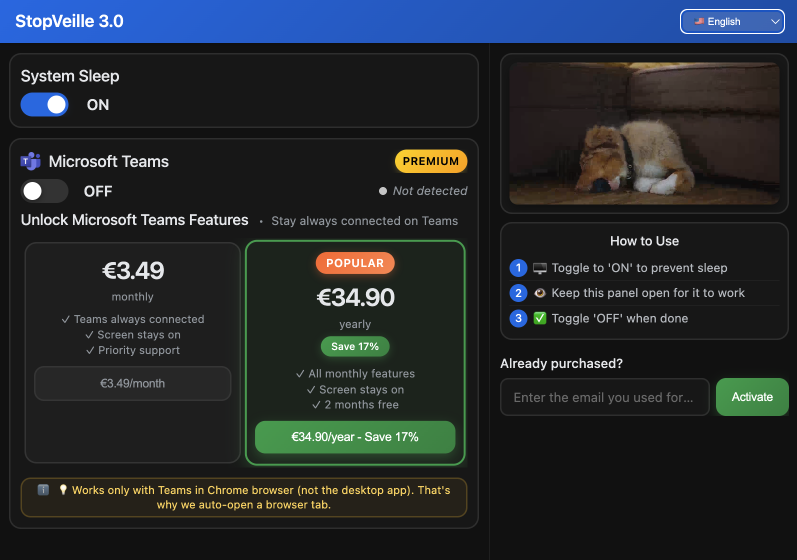
Modern browsers like Chrome support the Screen Wake Lock API. Some websites ask for permission to keep your screen on. Just keep that tab open.
The page simulates constant activity. This works without installing any third-party software.
Check that your browser isn't restricted. The effect stops once you close the tab.
Using Lightweight Scripts To Stop Screen Lock With No Admin
If visual workarounds aren't your thing, tiny scripts can automate this task in the background. They're a smart way to stop computer locking without admin rights while you're away.
Running A Basic PowerShell Script For Invisible Key Presses
PowerShell lets you send virtual keystrokes to prevent auto lock Windows. The script mimics an F15 key press every minute. This key is invisible and won't mess with your work. Your system simply thinks you're still typing away.
First, check if you can run scripts. Open the blue console and try a basic command. It's a quick way to test your permissions.
Copy the code into a text file. Change the extension to .ps1 to make it run immediately. It's that simple.
Setting Up A Simple VBScript To Mimic Activity
VBScript is a lightweight, classic alternative for your PC. It can toggle the Scroll Lock key at regular intervals. Windows treats this state change as real human activity. It's a reliable trick to stop screen lock no admin.
Create a .vbs file using Notepad. Double-click it to start the loop. To stop it, just use Task Manager to end the process. No complex setup is needed here.
This solution is robust and usually bypasses IT restrictions. Best of all, it requires zero elevated privileges to work.
Hardware Hacks And Staying Safe With Company IT Policies
Sometimes, the best answer isn't digital but physical to avoid leaving any software footprint on your machine.
Employing Physical Mouse Jiggler Alternatives
Place your optical mouse on an analog watch. The movement of the second hand disrupts the laser sensor. Your cursor then moves a few pixels on your desktop screen.
This method is totally undetectable by your network admins. No software is executed and no commands are sent. It's the safest way to stay discreet.
Everyday objects often suffice. A fan or a mobile toy can also do the trick.
Navigating Corporate Security And Professional Risks
Bypassing security rules carries real risks. Your company imposes these locks to prevent data leaks. A workstation left open and unattended is a major flaw. Be aware of the possible consequences for your contract.
Your IT department can spot suspicious scripts. They sometimes monitor active processes on machines.
Use these tips with sparingly and with common sense. The security of your workspace remains a priority.
Whether you loop a silent video, run a simple PowerShell script, or use a mechanical jiggler, you can finally stop computer locking without admin rights today. Don't let rigid IT policies kill your workflow and turn your status to "Away" while you're actually working. Grab one of these hacks now and keep your screen awake for good!
See also: How to disable sleep mode on work laptop safely · How to disable screen timeout windows 11 and stay active
FAQ
How can I stop my computer from locking without admin rights?
You can keep your session active by using built-in Windows tools that don't require elevated permissions. Simple tricks like running a silent video on a loop in the Media Player or keeping a blank PowerPoint presentation in "Slide Show" mode tell the system you're busy, effectively allowing you to stop computer locking without admin.
For a more "set it and forget it" approach, you can run a simple PowerShell script from your desktop. By simulating an invisible key press like F15 every minute, the script tricks the inactivity timer into thinking you're still typing away, which helps prevent auto lock windows sessions from closing on you.
Is there a way to stop screen lock with no admin using a script?
Absolutely. You can create a basic text file, paste a few lines of PowerShell or VBScript, and save it as a .ps1 or .vbs file. These scripts work by sending a "virtual" keystroke, like F15 or toggling Scroll Lock, at regular intervals. Since these are standard user-level commands, you can stop screen lock no admin required.
Just remember that while these scripts are lightweight and effective, your IT department might be able to see them running in the Task Manager. Always use them responsibly and check if your company has strict policies against running custom scripts on work hardware.
Can I disable the lock screen timeout through my web browser?
Yes, modern browsers like Chrome support something called the Screen Wake Lock API. Some productivity websites use this to keep your monitor awake while the tab is active. It's a great way to disable lock screen timeout settings without installing any software or touching your system registry.
As long as that specific tab stays open and visible, your computer stays awake. However, the moment you minimize the browser or switch to a different window, the "wake lock" might release, and your standard corporate security timers will kick back in.
Are there physical ways to prevent my PC from locking?
If you want to stay completely off the digital radar, hardware hacks are your best bet. A classic trick is placing your optical mouse on top of an analog watch; the movement of the second hand is often enough to jitter the cursor. This is a foolproof way to stop computer locking without admin because it uses zero software.
You can also find "Mouse Jiggler" devices that plug into a USB port and act as a standard mouse, though some advanced IT filters might flag unknown USB HID devices. Stick to mechanical methods or simple scripts if you want to keep things low-profile.