An active laptop idling on your desk pulls about 15 watts, while S3 sleep drops that draw to a mere 0.5 watts. It's easy to wonder if keeping your computer awake drains the battery when you're just trying to avoid that annoying "Away" status during a quick coffee break. You might feel like you're choosing between productivity and your hardware's lifespan.
We're going to bust the myths around screen on battery drain and show you how a smart keep-awake setup stays battery-efficient. Let's look at the real numbers to see if preventing sleep actually uses enough battery to matter in your daily grind.
Does keeping computer awake drain battery in reality?
Active idle consumes roughly 5 to 10 watts compared to 0.5 watts in S3 sleep, primarily due to display backlighting. Short breaks under five minutes yield negligible savings because wake-up power spikes offset idle gains.
The power gap between active and sleep modes
S3 sleep draws minimal milliwatts to keep your RAM data alive. Active idle is different. Your CPU stays running, consuming significantly more power than a sleeping system.
Your display is the real energy hog here. Backlight intensity dictates how fast your battery drains. Screens often pull more juice than the processor while you're idle. Dimming helps slightly.
This creates a measurable hourly impact. An open, awake laptop is essentially a fully powered machine. You'll see the percentage drop steadily.
Why short breaks don't kill your charge
Waking a system has a hidden energy cost. Deep sleep recovery requires a small power surge. This surge often equals several minutes of simple idling.
Five minutes of idle time won't ruin your battery health. Frequent power cycling can actually tax older hardware. Constant switching isn't always the most efficient path.
Modern lithium cells handle short awake periods well. Staying awake for a quick coffee break is perfectly acceptable. You won't notice the difference.
The impact of preventing sleep on modern laptops
Modern processors scale down voltage effectively. CPUs enter low-power C-states even when you're awake. This reduces the penalty of keeping the system on.
There's a big difference between working and idling. Background tasks determine your actual energy floor. An idle desktop is relatively light on your resources.
Current silicon architecture is incredibly efficient. Improvements have narrowed the gap between idle and sleep. You're safer than you think.
Decoding the three main power states for your PC
While idling has its costs, understanding the specific mechanics of sleep, hibernate, and shutdown reveals how your OS manages these energy flows.
Sleep mode versus Hibernate performance
Sleep mode keeps your RAM powered to hold open apps. This allows for near-instant wake times when you return. Hibernate saves that data to your SSD instead. It cuts power to the memory entirely to save juice.
Which one should you pick for your workflow? Sleep is ideal for lunch breaks or short meetings. Use Hibernate for overnight storage without losing your open windows or documents. It's a smart way to manage long breaks.
Choose based on time. Efficiency depends on the duration of the break.
Modern Standby and the always-on trap
Have you noticed your laptop acting like a smartphone lately? The S0 low-power idle state is common in newer Windows machines. It behaves like a smartphone by staying connected even when the screen is dark.
Watch out for background updates during this state. Laptops may download files even with the lid closed. This often leads to unexpected battery drain in bags during your commute. It's a common frustration for remote pros.
Monitor your device heat. A warm laptop in a sleeve indicates S0 is active and working.
Fast Startup and the shutdown illusion
Why does your PC boot so fast after a "shutdown"? A standard shutdown isn't a total cut. Windows 11 uses Fast Startup to hibernate the kernel. This speeds up the next boot process significantly.
Don't ignore the benefits of a full restart. It clears the system cache and resets hardware drivers. This is necessary for maintaining long-term software stability and keeping things snappy. It fixes those weird glitches.
Use "Restart" for troubleshooting. It is the only way to refresh the environment.
Why your laptop stays hungry while kept awake
Beyond the OS states, specific internal processes and hardware attachments act as silent drains when you decide to keep the machine awake.
Rogue background apps and hidden processes
Identify software that blocks CPU low-power states. Communication tools and browsers are common culprits. They ping servers constantly and prevent idling.
Check for high-impact apps regularly. Use the Task Manager or Activity Monitor. Look for the Power Impact column to find energy hogs.
Close unnecessary tabs. Every open page can run scripts. These scripts keep the processor from resting properly.
The thermal cost of staying active under load
Heavy tasks often trigger cooling fans. Keeping a PC awake during renders or updates generates heat. Fans require significant mechanical energy to spin. This creates a double drain on the battery cells.
Heat and depletion are closely linked. High temperatures reduce the efficiency of chemical energy conversion.
Keep the chassis cool. Airflow is vital for endurance.
Peripherals and external hardware drain
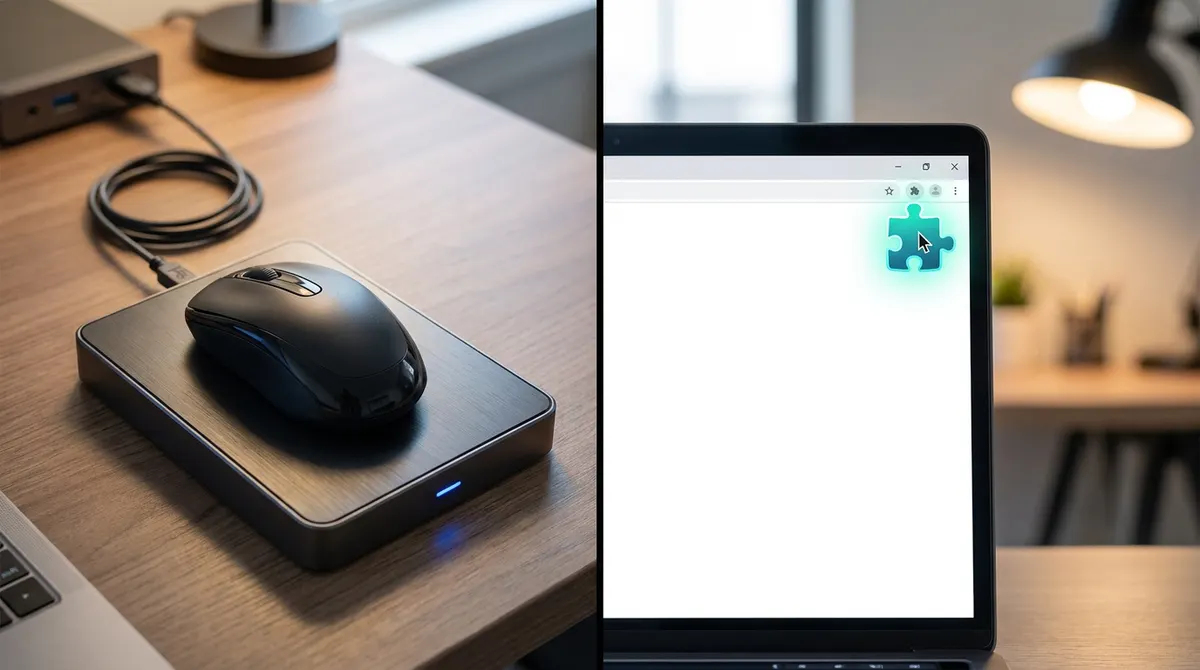
USB devices and backlit keyboards pull juice directly from the main battery. Even a small mouse adds to the total hourly draw. Does keeping computer awake drain battery? Yes, especially when these extras stay powered.
Disconnect gear during long travel. External hard drives are particularly demanding when active. Turn off keyboard lighting to save a few extra percent.
Unplug everything unnecessary. Minimalist setups last longer.
How to tweak your OS for better battery stamina
Managing hardware is half the battle; the other half lies in fine-tuning your operating system settings to prioritize longevity.
Tuning screen and sleep timers in Windows and macOS
Open your system preferences or settings menu. Locate the power or energy saver section. Adjust auto-lock and dimming to stop unnecessary waste.
Set the screen to dim after two minutes on battery. Plugged-in settings can be more generous. Short timers prevent accidental drain when you walk away. This simple change keeps your laptop running longer.
Test your new settings. Ensure the laptop locks when you expect it to.
Managing startup apps and background activity
Use the startup tab in Task Manager to disable boot programs. Stop apps that you don't use every single day. This reduces the load on your processor immediately.
Activate the 'Battery Saver' mode to extend your runtime. This feature restricts background syncing and lowers brightness. It is a powerful tool for extending the final twenty percent.
Limit mail fetch frequency. Pushing data less often saves a surprising amount of energy.
Using third-party keep-awake tools safely
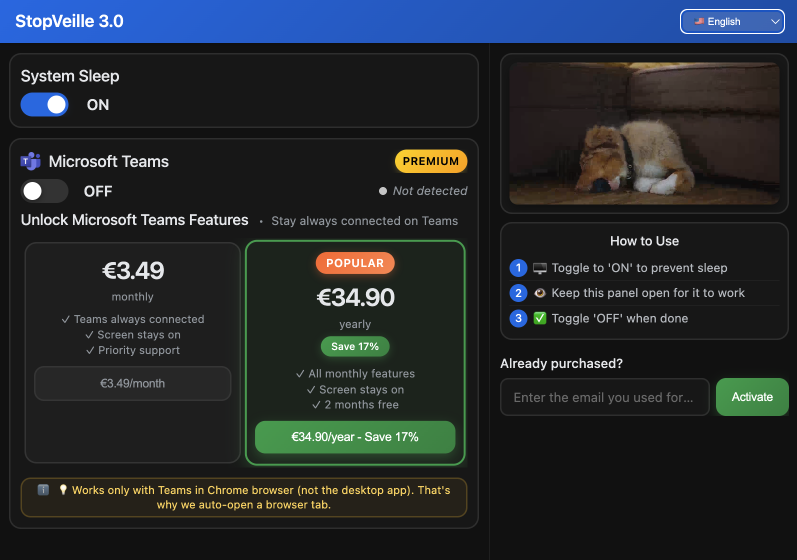
Tools like Caffeine or Amphetamine are generally safe. They simply simulate user activity to prevent sleep. These lightweight utilities help you stay green on Teams without much fuss.
Keep the system awake but allow the screen to turn off. This balances visibility with power conservation. It prevents the display from being the main culprit for battery loss.
Use these tools sparingly. Only activate them for specific tasks or meetings.
Protecting your lithium-ion cells for the long haul
While daily settings matter, long-term battery health requires a broader strategy regarding charging habits and hardware limitations.
The 20-80 rule for battery longevity
Staying between 20% and 80% charge reduces chemical stress. Extreme levels accelerate degradation of your lithium-ion cells. Keeping it in the middle significantly extends total cycle life.
Manufacturers now include built-in software limiters. Brands like Apple and Dell offer battery health management tools. These settings stop charging at 80% automatically to protect the hardware.
Avoid frequent full discharges to 0%. Deep cycles are much harder on modern battery chemistry than shallow ones.
SSD versus HDD power cycle differences
Flash storage differs greatly from old spinning disks. HDDs require a mechanical motor to physically start. This creates a significant power spike during every single wake cycle.
Older hardware suffers more from frequent interruptions. Constant sleep-wake cycles eventually wear down those mechanical components. SSDs handle these transitions easily with almost zero physical impact.
Modern tech is resilient. Flash storage makes sleep modes much more efficient than in the past.
Best power practices for long-haul travel
Choose the right mode for airplanes. Use Hibernate if you won't touch the laptop for several hours. This ensures zero drain while your gear sits in the overhead bin.
Airplane Mode offers a great trade-off. It kills wireless radios to stop background searching. Constant Wi-Fi scanning is a major battery drain while you're in transit. This simple toggle adds significant runtime to your session.
Bring a portable charger. Even the best settings have limits on those extra-long international flights.
Keeping your screen active is the real energy hog, but modern silicon makes lightweight idling surprisingly efficient. Just dim your brightness and close rogue tabs to stay battery-smart without losing your flow. Stop worrying if keeping computer awake drains battery during short breaks; grab that coffee and get back to work.
See also: How to keep computer awake downloads and long tasks · Stop your screen from turning off during presentations
FAQ
Does keeping my computer awake drain the battery significantly?
In most cases, it’s a bit of a myth that simply preventing sleep will kill your battery instantly. If your laptop is awake and idle, modern operating systems are pretty smart about scaling down voltage and putting the CPU into low-power C-states. However, "awake" usually means the screen stays on, and that is your biggest energy hog. An active display can pull between 1.8 and 4.3 watts depending on brightness, while S3 sleep only sips about 0.5 watts.
The real screen on battery drain comes from the backlight and background apps. If you keep the machine awake but dim the screen or let it turn off, the impact is relatively light. But if you’re running heavy tasks or keeping the brightness at 100%, you’ll definitely see that percentage drop much faster than if you let the system rest.
Is it better to let my laptop sleep or just keep it awake for short breaks?
For a quick five-minute coffee break, does keeping computer awake drain battery more than a reboot? Not really. Waking a system from deep sleep actually requires a small power surge to re-energize the RAM and hardware, which can equal several minutes of idling. If you're only stepping away for a moment, keeping it awake is perfectly fine for modern lithium-ion cells and might even save you the "wake-up tax."
Does preventing sleep use battery even if I'm not using the laptop?
Yes, preventing sleep keeps the motherboard, RAM, and wireless radios fully powered. Even if you aren't typing, background processes like Chrome tabs, Slack, or Spotify continue to ping servers and use CPU cycles. If you have "Modern Standby" active, your laptop might even download updates or sync mail while the lid is closed, leading to that frustrating "warm laptop in a bag" syndrome where the battery drains unexpectedly.
How can I keep my laptop awake without destroying the battery life?
The trick is to be battery-smart. If you need to keep the system active for a specific task, use a lightweight utility to prevent sleep but allow the screen to turn off. Since the display is the primary source of keep awake battery loss, killing the backlight while keeping the processor running is the best middle ground. Also, unplug unnecessary USB peripherals and backlit keyboards, as they pull juice directly from your main battery.
What is the most energy-efficient way to pause my work?
It depends on the duration. For short gaps, sleep mode is great because it keeps your data in RAM for an instant start. But for long-haul travel or overnight breaks, Hibernate is the winner. It saves your session to the SSD and cuts power completely, ensuring you have the same 80% charge in the morning that you had when you closed the lid.