Windows systems are designed to save energy by entering sleep mode after just a few minutes of inactivity, which is a major headache when you're mid-download. It's incredibly frustrating to return to your desk only to find a massive file transfer failed or a three-hour video render stalled because your PC decided to take a nap.
You shouldn't have to permanently mess up your power settings just to keep computer awake during downloads or long backups. I'll show you how to use built-in tools like PowerToys Awake and simple command-line shortcuts to keep your system running only when you actually need it.
Keep Computer Awake During Downloads Using Windows Settings
Prevent Windows sleep by setting Power & sleep timers to "Never" or using Microsoft PowerToys Awake for temporary overrides. Locking the screen with Win+L maintains active background downloads while securing your session. These methods ensure large file transfers complete without hardware interruption or energy waste, starting with basic system timer adjustments.
Just after adjusting your general preferences, it's helpful to understand how the system handles different power states.
Toggling display timers versus system sleep mode
Turning off your monitor isn't the same as system sleep. While a dark screen saves power, sleep mode actually pauses your processor. This is why downloads fail when the PC naps.
Open your Windows Settings and head to the Power & sleep tab. Look for the sleep section specifically. You'll want to select the "Never" option to keep the system fully active.
Don't forget to switch back later. Restoring your original timers saves energy. It also prevents unnecessary wear on your hardware once the file finishes.
Managing battery and plugged-in power behaviors
Windows treats battery and AC power differently. Laptops often use aggressive sleep timers when unplugged to save juice. If your battery dies mid-transfer, your download dies too. Stay plugged in for large files.
Find the "Plugged in" dropdown menu under sleep settings. Set this to "Never" immediately. This simple change allows your computer to run indefinitely while connected to a wall outlet.
Stability is key for big data transfers. Keeping the charger connected ensures the most reliable environment for your tasks.
Why Use Microsoft PowerToys Awake For Temporary Tasks?
Standard settings work for permanent changes, but sometimes you just need a quick fix for a single afternoon.
Configuring indefinite wake or timed intervals
You can use the "Keep Awake Indefinitely" mode in PowerToys easily. It overrides your system settings without changing them permanently. It's a simple utility for any user.
Here's how to set a specific expiration time for your PC. This is perfect for a three-hour download. The computer sleeps automatically once the timer runs out.
The tool works through a clever background mechanism. It simulates activity to keep the OS busy. This prevents the idle timer from triggering a shutdown.
Keeping the monitor active for visual feedback
Ever need to see the progress bar for a render? Use the "Keep screen on" toggle. Visual feedback confirms the system hasn't crashed during long backups.
Closing the utility restores your normal power plan immediately. No manual reverting is needed. It's a very user-friendly option if you aren't a tech expert.
This convenience factor is a real lifesaver. It saves time compared to digging through deep Windows menus every time.
Command-Line Shortcuts And Lightweight Wake Tools
If you prefer avoiding heavy software suites, smaller tools and built-in commands offer a faster way to stay active.
Running powercfg commands for advanced control
You can use the powercfg syntax directly in your terminal. It's a quick way to disable standby timeouts without digging through menus. This method works perfectly for intermediate users.
Here's how to create a desktop shortcut for this. One click prevents sleep for your current session. It's a clean, efficient way to manage your power settings on the fly.
Command-line arguments offer great benefits for your system. They use almost zero resources during execution. This keeps your CPU free for your actual download or long-running task.
Using lightweight utilities like Caffeine or Don't Sleep
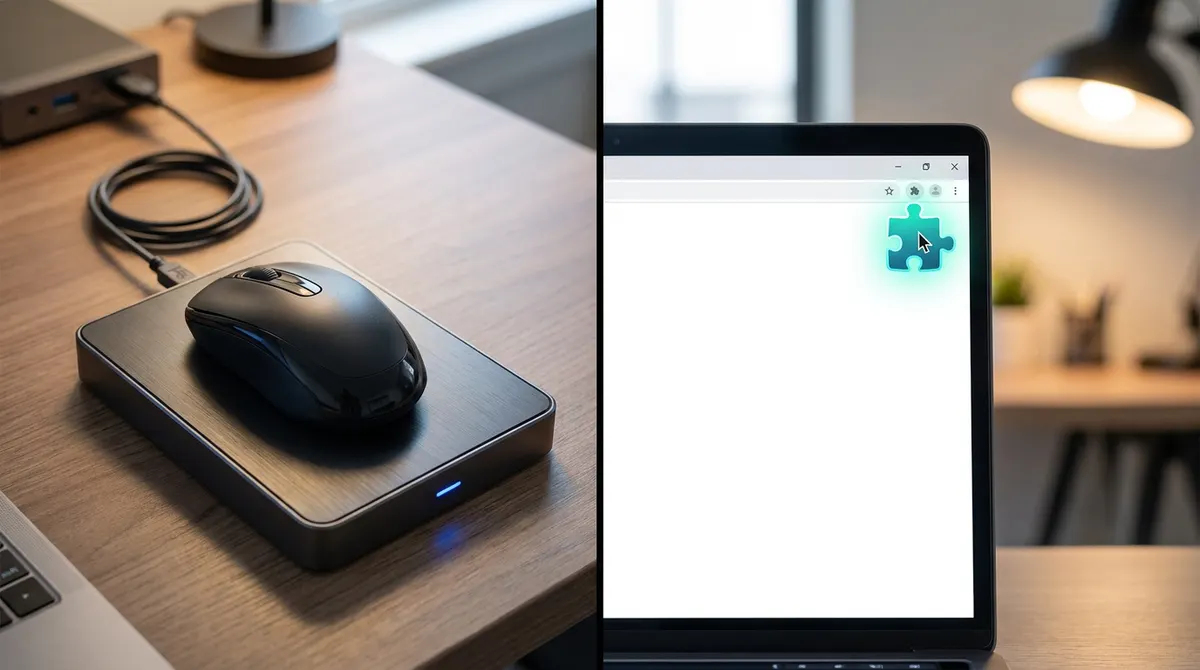
Portable apps like Caffeine are a lifesaver for busy professionals. These tools simulate a keypress every minute so the system thinks you're still there. It's a very simple way to bypass strict corporate sleep policies.
Browser extensions also help with web-based downloads. Some scripts keep the specific tab active to prevent annoying network timeouts. This is particularly useful for large cloud storage transfers that take hours.
Portable tools are often safer than permanent system changes. They leave no trace in your registry. You get the control you need without the long-term mess.
Securing Your PC During Overnight Downloads
Leaving your machine running all night requires a smart balance between finishing your productivity tasks and keeping your data physically secure.
Locking your workstation during active transfers
Win+L doesn't kill background tasks. The computer stays awake if your settings are correct. Your files keep downloading behind the lock screen.
Locking protects your personal data in shared offices. Always secure the screen when you're away. Unattended computers are a security risk for users.
Check your network adapter to prevent disconnection. Some systems drop Wi-Fi when locked. Adjust settings to stay connected. This ensures your task finishes by morning.
Preventing hardware overheating and fan wear
Fans spin to cool the processor during long runs. Ensure your laptop has proper airflow on a hard surface. Never leave it on a bed or carpet.
Constant writing can wear down older drives. Modern SSDs handle this well, but heat remains the enemy. Proper ventilation keeps your hardware healthy for the long haul.
Use a cooling pad if the room is warm. A cool PC lasts longer. Simple steps protect your investment.
Mastering how to keep computer awake during downloads is easy with Windows timers, PowerToys Awake, or portable utilities. Just toggle your settings to "Never" or set a temporary timer to ensure your big files finish overnight. Stop letting sleep mode kill your progress and enjoy a fully productive PC tomorrow.
See also: Stop your screen from turning off during presentations · Best caffeine app alternatives for your PC and Mac
FAQ
How can I keep my computer awake during long downloads without changing my settings forever?
If you're looking for a quick fix that doesn't mess up your permanent power plan, Microsoft PowerToys Awake is your best friend. It’s a lightweight utility that lets you toggle a "Keep Awake" mode right from your system tray. You can set it to stay active indefinitely or just for a specific time interval, like three hours, while you finish that massive file transfer. Once you close the app or the timer runs out, your PC goes back to its usual energy-saving habits.
Is there a way to stop Windows from sleeping using the command line?
Absolutely. If you’re comfortable with a terminal, you can use the powercfg command to take total control. Running powercfg /x -standby-timeout-ac 0 will instantly stop your PC from sleeping while it's plugged in. It’s a great way to keep computer awake during downloads without clicking through a dozen menus. Just remember to set it back to a normal number, like 30 or 60, once your task is done so you aren't wasting power all night.
Can I lock my screen and still keep my background downloads running?
Yes, you can! Hitting Win+L to lock your workstation is a smart move for security, and it won't kill your active downloads as long as your sleep settings are configured correctly. However, keep in mind that tools like PowerToys Awake might not work on the lock screen due to security restrictions. For overnight tasks, it's safer to manually set your "Plugged In" sleep timer to "Never" in the Windows Power & sleep settings to ensure the connection stays live behind the lock screen.
Are there any small apps to prevent sleep if I don't want to install PowerToys?
If you want something even lighter, check out portable utilities like Caffeine or Don't Sleep. These tiny apps work by simulating a keypress every minute, tricking Windows into thinking you're still sitting there at the keyboard. They don't require a full installation and leave no trace in your registry, making them perfect for preventing sleep during a long task on a work laptop where you might not have full admin rights.
Will keeping my PC awake for long periods cause overheating?
It shouldn't, but you need to be smart about airflow. If you're running a heavy render or a massive backup, your fans are going to be working overtime. Make sure your laptop is on a hard, flat surface rather than a bed or carpet to keep those vents clear. If the room is warm, using a cooling pad is a cheap insurance policy to prevent sleep during download sessions while keeping your hardware at a safe temperature.