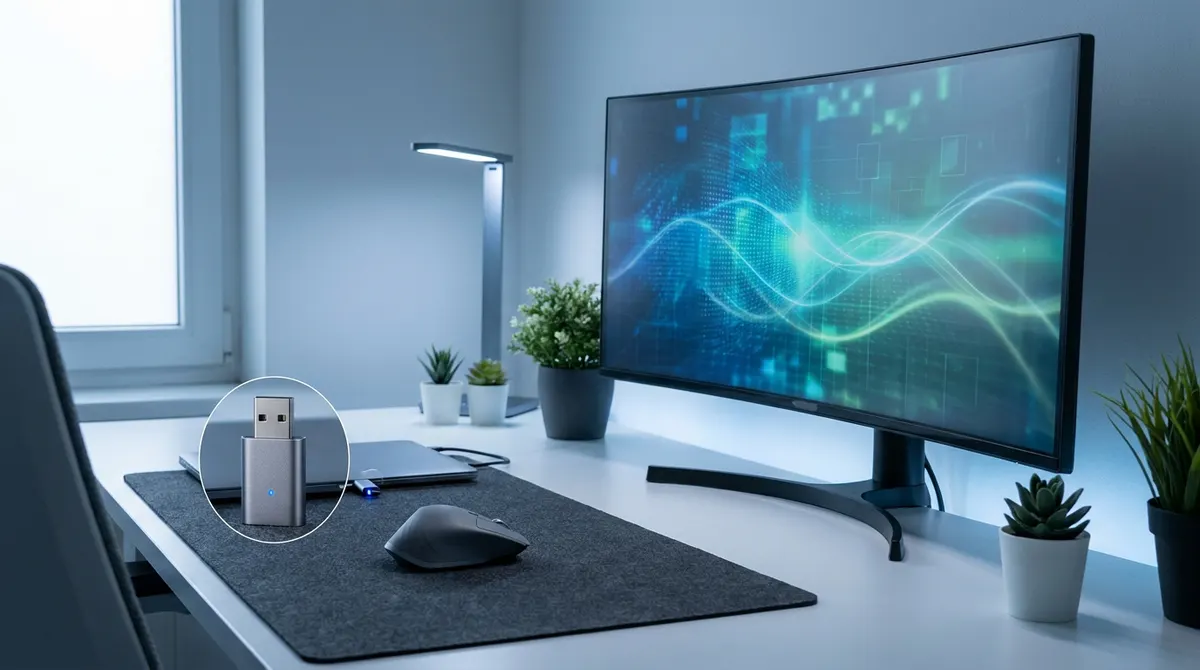
Hardware mouse jigglers show up in your device manager with a clear manufacturer ID, making them an easy target for modern endpoint security scans. It's a risky move when you realize that most corporate IT departments actively log every unauthorized USB connection to prevent data leaks.
We've all felt that spike of anxiety when the status light turns yellow while we're just grabbing a quick coffee. I'll help you compare a mouse jiggler vs browser extension so you can stay active without triggering a security alert or spending twenty bucks on a plastic gadget.
Mouse Jiggler vs Browser Extension: The Reality Check
Hardware mouse jigglers simulate physical movement via USB, while browser extensions leverage the W3C Screen Wake Lock API to prevent system sleep. Web-based tools bypass IT hardware detection, making them safer for restricted corporate laptops. This technical distinction dictates how your activity appears on monitoring software.
Transition: Before choosing a tool, you need to understand how these technologies actually interact with your workstation.
Understanding the Core Differences
Hardware jigglers are mechanical in nature. They function as a secondary mouse. Your operating system detects a real HID device moving. It’s a physical simulation of activity.
The W3C Screen Wake Lock API works differently. It is a native web standard. This protocol tells your operating system to stay awake. No physical movement is actually required here.
Compare the two methods. One relies on hardware signals. The other uses software requests. Both prevent the idle timer from starting. But they take very different paths.
Visibility is the main factor. Hardware is visible in the device manager. Software is just a browser process. This changes how IT security sees your workstation.
User experience varies. Plug-and-play hardware feels tactile. Browser tools feel integrated and invisible.
Why Browser-Based Tools Offer a Safer Profile
Web tools follow a zero-footprint concept. They do not require installation. They run within the existing browser environment. This leaves no traces in the registry. Security scans often ignore this.
IT security focuses on specific priorities. Admins look for unauthorized USB devices. They flag unknown hardware IDs immediately. Browser activity is much harder to categorize as a threat.
Physical detection is a real risk. Someone walking by might see a USB stick. A browser tab is just another work window. It blends into your daily tasks.
You don't need administrative rights for web tools. You do not need a password to open a website. Most hardware jigglers are fine. But some software movers need full admin access.
Are Physical Mouse Jigglers Worth the Corporate Risk?
But physical devices bring a set of problems that web tools simply avoid.
The Hidden Cost of Hardware Devices
Evaluate the financial side. You have to buy the device. Shipping takes time. It is an out-of-pocket expense for a work problem. Free extensions solve this without a credit card.
Mention the logistical burden. You must carry it everywhere. Remote workers often lose these small peripherals. It is one more thing to manage in your bag.
Talk about hardware failure. USB ports can break. The jiggler itself might stop working. Software does not suffer from mechanical wear and tear.
Compliance and IT Visibility
Explain endpoint monitoring. Software like CrowdStrike flags new USB peripherals. They see the manufacturer ID. If it says "Mouse Jiggler," you have a problem. This triggers an automatic security alert.
Discuss disciplinary risks. Using unauthorized hardware is a policy violation. It shows intent to bypass controls. IT departments take this more seriously than a browser tab.
Focus on the data logs. Every USB connection is recorded. These logs stay on the machine for months.
Mention the physical security aspect. Some companies glue USB ports shut. In those cases, hardware is totally useless.
Browser Extensions: Functional Reliability and Setup
So software seems better, yet you must understand its specific technical hurdles.
Performance Limitations in Background Mode
Browsers often throttle inactive tabs to save CPU power. This can unfortunately stop the wake lock from working. Your screen might lock if the tab stays hidden for too long. It's a common headache for remote workers.
To fix this, keep the window visible on your desktop. Do not minimize the browser while you're away. If you need to work on other documents, just use a separate window to keep the extension active.
Are you stuck in long meetings? Extensions are great for Teams or Zoom sessions. They keep your status green while you listen to the presentation. Just ensure the browser stays active in your taskbar.
Installation and Administrative Requirements
Most extensions install in seconds. You just click "Add to Chrome" and you're set. No reboot is needed at all. It is the fastest way to stay active during a busy shift without any hardware clutter.
Native apps need installer files that often trigger IT red flags. Those files are frequently blocked by company firewalls. Extensions live within the allowed browser ecosystem, making them much easier to manage on work laptops.
Some tools ask for broad site data. Always pick tools that only ask for wake lock access. It keeps your browsing private and secure.
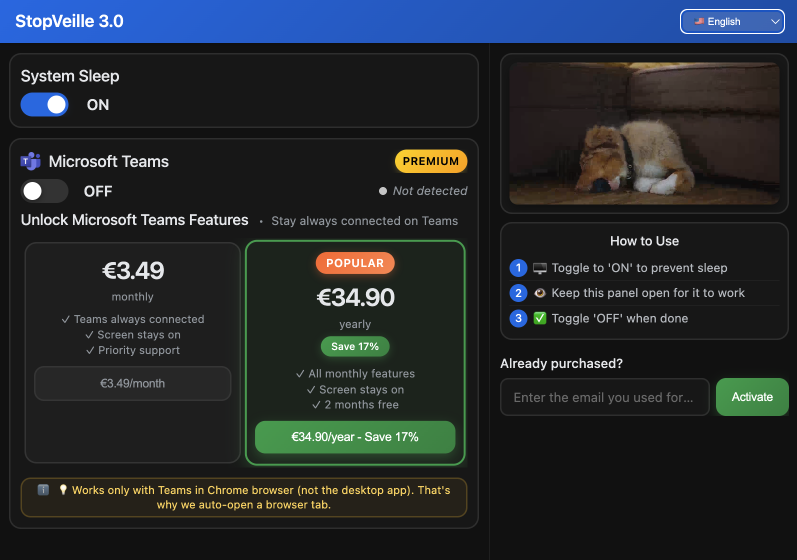
Simple toggles are best for your workflow. You want a clear on and off switch. This prevents any confusion about whether you're appearing online.
Choosing Your Keep-Awake Method Based on Your Environment
Now let's look at which path fits your specific office setup.
The Decision Matrix for Specific Corporate Setups
Categorize your situation by restriction level. If your USB ports are locked down, hardware is out. If the web store is blocked, try a web-based jiggler. Each environment has a specific loophole you can use to stay active.
I recommend software for mobile workers. If you work from cafes, use a browser extension. It is one less thing to lose. It looks much more professional to onlookers than a blinking USB gadget.
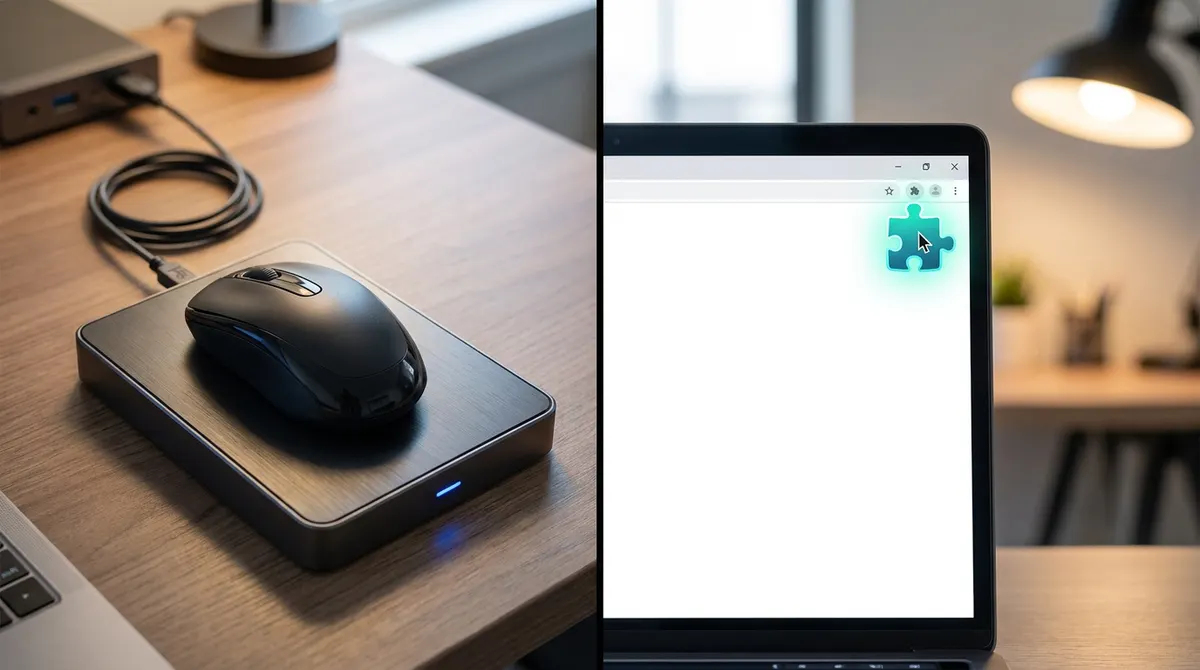
Some people use external mouse movers for high-security niches. These devices do not touch the computer at all. They physicalize the movement externally.
For the simple office worker, a basic extension is the winner. It is fast and free. You stay green without the hassle.
Final Verdict on Efficiency and Safety
The browser advantage is clear. It balances safety and ease perfectly. You get the green status without the hardware risk. It is the most logical choice for modern remote work. Most employees prefer this discreet route.
Tools are just a help, though. Do not rely on them for everything. Use them to manage your breaks and stay sane. Don't let the dot rule your life.
Keep your extension updated for long-term usage. Check if IT policies change over time. Staying informed is part of the job.
Stay smart about it. Pick the tool that leaves the smallest digital footprint.
Browser-based solutions win on almost every metric. They are simply more discreet than any physical alternative. You get peace of mind for zero dollars.
Choosing a browser extension over a physical mouse jiggler vs browser extension setup ensures a zero-footprint, cost-free way to stay active. By leveraging native web APIs, you avoid risky USB hardware that triggers IT alerts. Switch to a browser tool today to maintain your privacy and professional status effortlessly.
See also: Best mouse jigglers 2026: hardware vs software compared · Best caffeine app alternatives for your PC and Mac
FAQ
What is the difference between a mouse jiggler and a browser extension?
A mouse jiggler is usually a physical USB device that mimics a real mouse to keep your computer active. It sends hardware signals to the OS to simulate movement. On the other hand, a browser extension is a lightweight software tool that uses the W3C Screen Wake Lock API to tell your system to stay awake without needing any extra hardware.
While both keep your status green, the extension is often a better mouse jiggler alternative because it's free and doesn't require plugging unauthorized gear into your work laptop. It’s all about whether you want a physical gadget or a smart, invisible software solution.
Are hardware mouse jigglers detectable by IT departments?
Yes, they definitely can be. Most corporate security software, like CrowdStrike, monitors for new USB peripherals. If you plug in a device that identifies itself as a "Mouse Jiggler," it can trigger an automatic alert. Even if it claims to be "undetectable," IT logs every USB connection, leaving a digital paper trail that lasts for months.
Using a software mouse jiggler or a browser extension is generally safer because it runs within your existing browser environment. Since it doesn't require admin rights or new hardware IDs, it blends in with your normal web activity much better than a suspicious USB stick.
Can a browser extension keep me online on Slack or Microsoft Teams?
It sure can! Browser-based tools are designed to maintain your "Active" status by preventing the system idle timer from starting. By leveraging the same technology used by video sites to keep your screen from dimming, these extensions ensure your status dot stays green while you're away from the keyboard.
Just a quick tip: browsers sometimes throttle inactive tabs to save power. To keep your mouse mover vs extension battle won, make sure you keep the browser window visible or in a separate window. If the tab is completely hidden or minimized, the "wake lock" might drop, and you'll flip to "Away" before you know it.
Is it safer to use a free extension than a physical jiggler?
From a corporate risk perspective, absolutely. A physical jiggler is a policy violation you can hold in your hand, it shows clear intent to bypass company controls. Plus, you have to pay for the hardware and shipping. A free browser extension is a mouse jiggler alternative that costs zero dollars and leaves no physical evidence on your desk.
Extensions are also easier to manage if you're a remote worker. You don't have to worry about losing a small USB device in a coffee shop or breaking a port. You just toggle it on when you need it and off when you're done. It’s the smarter, more discreet way to manage your digital presence.
Do I need administrative rights to install a mouse jiggler extension?
Usually, no. That’s one of the biggest wins for software-based tools. While native software mouse jiggler apps often require an .exe installation that IT firewalls will block, extensions install directly into Chrome or Edge. If you can access the web store, you can stay active without ever needing a helpdesk password.
This makes them the perfect solution for locked-down corporate environments. You get all the benefits of staying online without the headache of explaining to your boss why you're trying to install unauthorized software on your workstation.