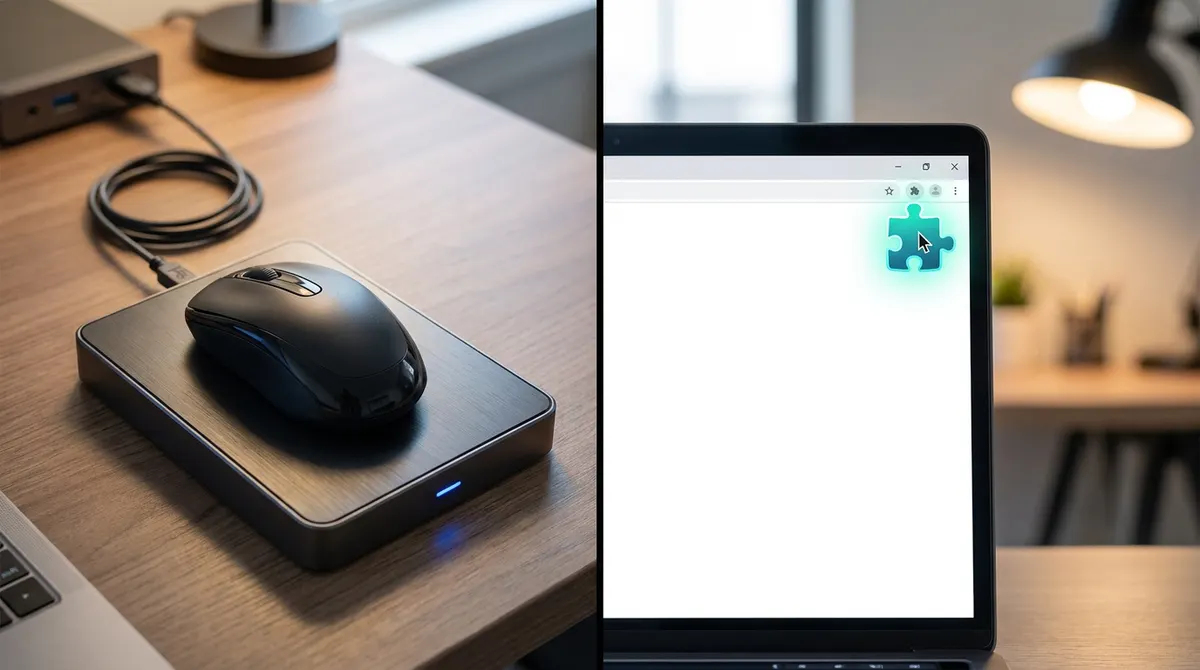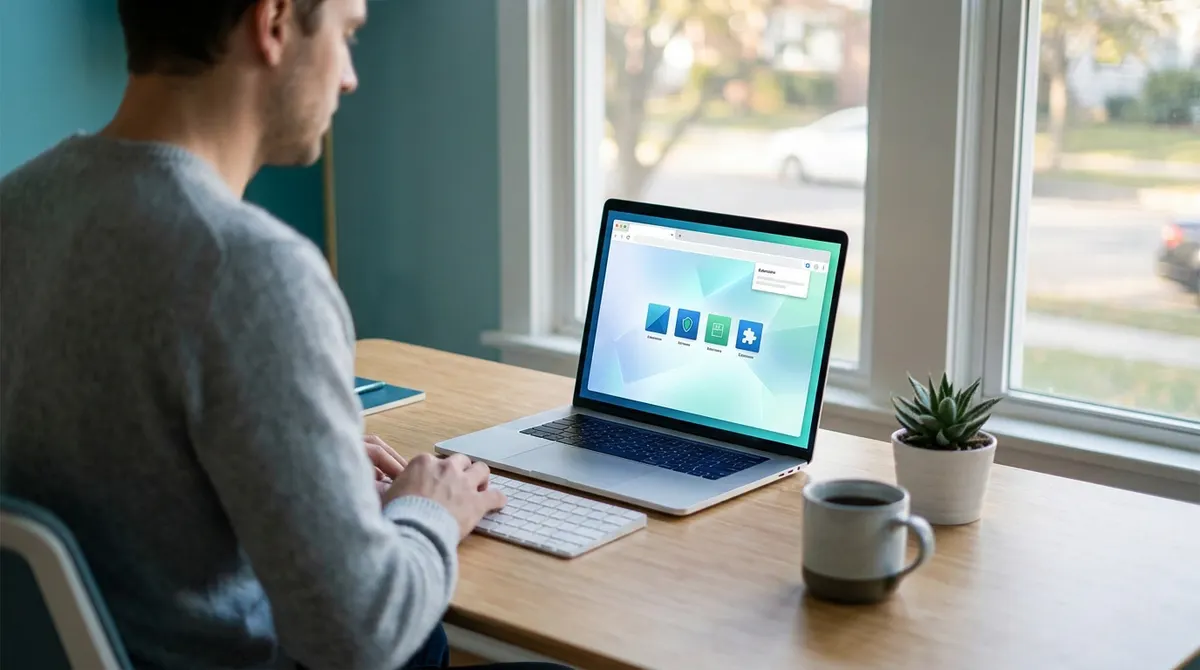
Ever noticed how your screen always seems to go dark the exact moment you look away to grab a coffee? It's a classic remote work headache that disrupts your flow and flips your status to away when you're still on the clock.
We've all dealt with the frustration of a sleeping PC killing a long download or interrupting a presentation. I'll help you find the best caffeine app alternatives for Mac and Windows, including a zero-install extension, so your workstation stays active exactly when you need it.
Best Caffeine-App Alternatives to Keep Your Computer Awake
Amphetamine remains the top macOS choice, while Microsoft PowerToys Awake serves Windows users natively. Browser extensions like Keep Awake offer zero-install utility, effectively preventing screen locks and status changes during remote work.
The focus on maintaining active status leads directly to the common frustration of sudden screen timeouts during important meetings.
Stopping the screen lock frustration
It's incredibly annoying when your screen locks during a big meeting. This disruption breaks your natural flow. Plus, it’s a major visual distraction for everyone else on the call.
These keep-awake tools stop status changes on your communication apps. They work by simulating user activity. You'll stay green on Teams or Slack without lifting a finger.
You get an uninterrupted workflow. Remote professionals stay focused easily.
Preventing background task interruptions
Sleep mode often kills long file downloads or video renders. It's a massive waste of your time. Starting these tasks over from scratch is beyond frustrating.
You also risk losing unsaved progress in older legacy applications. Some old tools simply crash during sleep. Data loss is a very real threat here.
System-level overrides are much safer. Manual mouse movement is unreliable.
Staying active on status-based apps
Remote work culture often demands constant visibility. There's a lot of pressure to maintain that green status. This creates unnecessary anxiety for many employees today.
Utilities like these simulate activity to help you out. They keep your profiles active without any manual input. It's a simple, effective workaround.
It's about balancing productivity and visibility. Real work often happens away from your keyboard.
Amphetamine for macOS: The Power User's Favorite
While general tools offer basic utility, Mac users often turn to specialized software like Amphetamine for its deep hardware integration.
Setting smart triggers based on external hardware
You can activate the app automatically when connecting monitors. Specific displays trigger the stay-awake mode instantly. It automates your workstation setup perfectly.
Link triggers to Wi-Fi networks or power sources. The app recognizes your home office environment. It adjusts behavior based on your location.
Automated sessions save time. Desk-based setups become much more efficient.
Automating sessions with specific app launches
Use the feature that monitors specific apps. Your Mac stays awake only when these tools run. It prevents sleep during active work sessions.
Stop sleep during video playback. Large file transfers also benefit from this logic. Your machine stays awake until finished.
Enjoy the convenience of set-and-forget automation. You never have to toggle manually.
Understanding the 'Allow Display Sleep' feature
System sleep and dimming aren't the same. The screen can turn off while processes continue. This saves energy without stopping tasks.
Save battery during background processes. It's ideal for MacBook users on the go. Efficiency meets performance in this mode.
Check safety settings for closed laptops. Heat management prevents damage to your hardware.
Microsoft PowerToys Awake: The Official Windows Solution
Moving over to the PC side, Microsoft provides its own robust utility that integrates seamlessly with the Windows environment.
Enabling Awake within the PowerToys suite
Open your PowerToys dashboard to start. Locate the Awake module in the sidebar. It is easy to find and configure for your needs.
Toggle the switch for indefinite activity. Your PC will never sleep with this active. It overrides all default power settings instantly without any hassle.
This tool is lightweight. It consumes almost no system resources.
Using the tray icon for quick mode toggles
Use the right-click menu functionality for speed. Access all modes directly from the taskbar. It saves time compared to opening the full app.
Check the visual indicators for active states. A blue cup icon shows the tool is working. You always know your current status at a glance.
Switch between indefinite and timed modes easily. Flexibility is just a click away.
Setting timed intervals for temporary tasks
Set specific hours or minutes for your session. This is perfect for short-term needs. The computer stays awake only as long as needed.
Use this utility for overnight updates. Long data exports finish without any issues. You can leave your desk with total confidence.
Enjoy the automatic return to default plans. Your power savings resume once finished.
Lungo: A Modern and Lightweight Mac Alternative
If PowerToys is the Windows standard, Lungo offers a similarly streamlined experience for Mac users who prefer simplicity over complexity.
Comparing Lungo's interface with classic Caffeine
Lungo features a clean design built for modern macOS. It looks native to the latest operating systems. The interface is intuitive and fast.
You'll appreciate the simplicity of menu bar interaction. One click activates the primary timer. It avoids the clutter of older utilities.
Lungo is much lighter on the CPU. It beats heavy automation tools.
Using keyboard shortcuts for instant activation
You can set customizable hotkeys for toggling states. Trigger the app with a quick combination. It keeps your hands on the keys.
It's easy to activate without the mouse. This workflow suits developers and writers. Efficiency improves when you avoid the trackpad.
Keyboard-driven workflows are always faster. Advanced users save time daily.
Battery-aware features for MacBook users
The app handles auto-deactivation when battery levels drop. It protects your remaining charge. It prevents your laptop from dying unexpectedly.
Lungo offers protection against accidental drain while traveling. If you forget it on, Lungo shuts down. This is a smart safety net.
You always see the battery status clearly. The visual feedback is helpful.
Keep Awake Extension: The Best Zero-Install Choice
For those who cannot install standalone apps, browser extensions provide a clever way to bypass system restrictions.
Activating the extension in Chrome or Edge
You can find this tool in the Web Store. Adding it to your browser takes just a few seconds. Most users won't need any administrative rights.
The interface uses a simple three-state icon system. You'll see sun, moon, and sunset icons for different levels. It's a very visual approach to control.
It works on Windows and Mac. Your settings stay active wherever your browser goes.
Keeping specific browser tabs active
This caffeine app alternatives choice stops your browser from sleeping. Web applications stay live and responsive. It's vital for keeping real-time dashboards running.
It is a huge benefit for web-based CRMs. You won't get logged out during long calls. Productivity remains high all day long.
This is a great workaround for corporate IT blocks. Extensions often bypass strict software restrictions.
Benefits of a zero-install cloud-synced tool
Your settings sync across all your devices. Preferences follow your browser profile automatically. It works perfectly on home and work PCs.
Extensions are generally safer than running EXE files. They run in a protected sandbox environment. Security teams often prefer this method.
The impact on your memory is minimal. It's far lighter than full applications.
How to Use Move Mouse on Windows?
While extensions handle the browser, legacy tools like Move Mouse offer a mechanical-style simulation for the entire Windows OS.
Configuring mouse jitter and movement intervals
You can simulate physical movement to bypass detection. The app moves the cursor slightly. It tricks the system into thinking you are active.
Detail settings for pixel distance and frequency. You can make the movement very subtle. The timing is completely under your control.
Keep the cursor invisible. You can work without seeing the jitter.
Scheduling activity during specific working hours
Use the internal scheduler for start times. The app launches automatically in the morning. It stops when your workday ends.
Align the tool with a 9-to-5 workday. This maintains a consistent professional presence. It helps manage your digital availability.
Enjoy hands-off status management. You never have to remember to start it.
Stealth mode and visibility in the system tray
You can easily hide the icon. A cleaner workspace helps you stay focused. The app runs silently in the background.
Enable the "Run at Startup" options. It ensures the tool is always ready. Consistency is key for remote work tools.
The app has a low CPU footprint. This legacy favorite stays efficient on hardware.
Native OS Scripts to Stay Awake Without Apps
If you prefer to avoid third-party software entirely, both Windows and Mac have hidden command-line powers you can tap into.
Using the caffeinate command in Mac Terminal
MacOS includes a built-in tool called caffeinate. You simply open your Terminal and type the command. It's the most direct method to stop your Mac from sleeping right now.
You can also add flags for specific durations. Use the -t flag followed by seconds to keep it awake for hours. This gives you precision without needing extra software.
Ready to sleep? Just press Control-C. That keyboard shortcut ends the session instantly.
Creating a simple PowerShell script for Windows
Windows users can use a PowerShell script to simulate activity. A script that triggers the F15 key is a popular choice. It keeps your session alive without typing characters.
You don't need administrative privileges for this workaround. Most remote workers can run these scripts without IT help. It's a great way to bypass strict software installation blocks.
It also keeps your system clean. You won't have to download or install anything new.
Adjusting native Energy Saver and Power settings
You can always go the manual route in your Power Plan settings. Set the sleep timer to 'Never' for a quick fix. It's the most basic solution for any PC.
On a Mac, head to Energy Saver preferences. You can adjust the sliders for both battery and power adapter modes. This gives you total control over screen dimming and sleep.
Just watch your battery levels. Permanent settings might drain your power if you forget to switch them back.
Choosing the Safest Keep-Awake Tool for Work
Before you start installing these utilities, you must consider the security and policy implications within a professional environment.
IT policy and corporate security risks
Many companies block mouse-moving utilities. Security teams view them as productivity bypasses. They can sometimes trigger internal alarms.
Official tools differ from third-party scripts. PowerToys is often more acceptable than random downloads. Trust matters in corporate settings.
Check with IT first. It's better to ask than to face disciplinary action.
Impact on CPU and battery health
Keeping your screen on drains the battery. Constant display usage reduces hardware longevity over time. Heat is the main enemy here.
Tray apps have a minimal resource drain. Most use less than one percent of your CPU. They're designed to be efficient.
Use these apps while plugged in. Power adapters prevent deep battery discharge cycles.
How to avoid malicious keep-awake clones
Avoid unofficial downloads from non-trusted sources. Many clones contain hidden trackers or malware. Always check the developer reputation before clicking. Your data security depends on choosing verified sources.
Stick to official stores or platforms like GitHub. These platforms offer transparency and community reviews. Open-source code is generally safer to use.
Verify app permissions before installing. Never grant more access than the tool actually needs.
Stop worrying about your screen going dark during big downloads or Slack calls. Whether you choose native scripts, PowerToys, or browser extensions, these caffeine app alternatives keep your workflow green and uninterrupted. Grab your favorite tool now and stay productive without the constant login hassle.
See also: The best chrome extensions for remote workers in 2025 · Best mouse jiggler 2026: top tools to stay active on Teams
FAQ
Are there any good caffeine app alternatives for Windows users?
Absolutely. If you're looking for caffeine for windows, Microsoft PowerToys Awake is a top-tier choice. It’s an official utility that lets you keep your PC awake indefinitely or for a specific timed interval directly from your system tray.
Other apps like caffeine for the PC side include Move Mouse, which simulates cursor movement to bypass inactivity sensors, and simple PowerShell scripts that mimic keypresses like F15 to keep your status green without installing heavy software.
What is the best caffeine mac alternative available today?
For macOS, Amphetamine is widely considered the most powerful caffeine mac alternative. It offers deep integration, allowing you to set triggers based on connected monitors, specific Wi-Fi networks, or even when certain apps are running.
If you prefer something more lightweight, Lungo is a fantastic modern option. It features a clean interface that fits perfectly with the latest macOS design and includes battery-aware settings to ensure you don't accidentally drain your MacBook while you're away from a charger.
Can I keep my computer awake without installing any new software?
Yes, you can use caffeine app alternatives that require zero installation. A free Chrome extension like Keep Awake is perfect for this; it runs entirely within your browser and prevents your system from sleeping as long as the browser is active.
For those who are comfortable with the command line, you can use the native "caffeinate" command in the Mac Terminal or a basic PowerShell script on Windows. These methods use built-in system tools to override sleep settings without needing IT approval for new downloads.
Is it safe to use these keep-awake tools on a work laptop?
It depends on your company's IT policy. While these caffeine app alternatives are great for productivity, some security teams view mouse-movers or sleep-blockers as a way to bypass corporate security protocols. It’s always smarter to check your employee handbook first.
To stay safe, stick to verified sources like the Mac App Store, Microsoft’s official PowerToys, or well-reviewed extensions. Avoid unofficial "clones" from untrusted sites, as these can sometimes bundle hidden trackers or malware that could put your data at risk.