
Microsoft Teams triggers an Away status after only five minutes of inactivity, monitoring your mouse and keyboard to judge your presence. It is a frustrating baseline that often misrepresents your actual work habits when you are simply reading a long document or taking a quick call.
You probably find yourself constantly wiggling the mouse just to keep teams status active and avoid looking unreliable to your colleagues. This article covers every legitimate fix to manage that presence timeout and explains why tools like StopVeille are the honest way to maintain a green icon without resorting to shady hardware tricks.
Decoding the Five-Minute Presence Timeout
Teams triggers an "Away" status after five minutes of inactivity, monitoring mouse movements and keyboard strokes. System sleep settings and Outlook calendar sync directly override manual presence, requiring specific power configuration adjustments.
The five-minute threshold is the hard-coded baseline for how the software tracks your physical engagement with the hardware.
Understanding the Idle Detection Threshold
Teams uses a fixed five-minute window for presence. If no input occurs during this time, your status shifts automatically. This built-in timer remains a non-negotiable part of the app logic.
The software constantly tracks mouse movement and keyboard strikes through your peripherals. A lack of these signals suggests you aren't there. The system then flags your account as idle to everyone else.
You'll see that transition to the yellow Away icon. This visual cue informs colleagues about your current unavailability in real-time.
How System Sleep and Screen Locks Kill the Green Dot
Your OS power states are linked to Teams behavior. When Windows or macOS enters sleep mode, Teams processes pause. This immediately forces an Away or Offline status on your profile.
Locking your workstation has a similar impact. Pressing Windows+L terminates the active presence signal. The green dot vanishes the moment that lock screen appears on your monitor.
Background processes face limitations during low-power states. Even if the app stays open, it cannot verify your activity. Your status remains stuck in a dormant state until a full wakeup occurs.
3 Ways to Keep Your Status Green Naturally
Beyond the default timers, you can shape your environment to reflect your actual working hours — no gimmicks required.
-
Tune your Windows or macOS power settings
Raise the screen timeout (or set it to Never while plugged in) so the machine never sleeps during a long reading task and drops your presence. No admin rights? See how to prevent Windows 11 sleep without admin rights.
SettingsSystemPower & batteryScreen and sleep
Tip: Keep the laptop on the charger — battery mode enforces a much shorter idle timer.
-
Let Outlook and Focus Time carry your status
Schedule meetings and Focus Time blocks: Teams reads Outlook and shows you as Busy or Focusing automatically, which reads far better than a yellow Away dot.
Tip: Recurring Focus Time blocks silence pings while keeping you firmly in the "active" category.
-
Keep the Teams mobile app in the foreground
Mobile activity often overrides desktop idleness. Keep the app open and disable battery optimization for it so the system doesn't kill the process.
Why Does My Status Show Away While I Am Still Working?
Technical glitches sometimes cause the icon to turn yellow even when you are actively typing or reading.
Clearing the Teams Cache to Reset Presence
Locate the local cache folders on your machine. Delete these temporary files to refresh the application. This often solves persistent status synchronization errors.
Corrupted data leads to incorrect presence reporting. The app might think you are offline. Clearing the data forces a clean server handshake.
Sign out and sign back in afterward. This simple step re-authenticates your session. It restores the correct green checkmark immediately.
Managing Multi-Device Conflicts and Status Stuck Errors
Check your other devices for active sessions. An old tablet or phone might be overriding your desktop. Multiple logins often confuse the presence engine.
Use the manual status reset option. Click your profile picture and select "Reset status." This clears any manual overrides you might have set. It allows automatic detection to take over again.
Verify Microsoft 365 service health online. Sometimes the issue lies with their servers, not your computer.
Staying Green Without Faking It: The Ethical Approach
Maintaining visibility is important, but using dishonest workarounds can lead to serious professional trouble.
The Risks of Mouse Jigglers and Company Monitoring
Avoid unauthorized third-party hardware like mouse jigglers. These tools pose significant security risks to the network. IT departments easily identify these suspicious USB devices.
Modern monitoring software detects simulated activity patterns. Constant, repetitive movements look artificial to an algorithm. You might inadvertently trigger a red flag for management.
Faking presence can lead to disciplinary action. It erodes trust between you and your employer. Focus on actual output rather than just the green icon.
Using StopVeille for Honest Deep-Work Protection
Use StopVeille to keep your PC awake legitimately. This tool prevents unintended sleep during long research sessions. It ensures your machine stays ready for work.
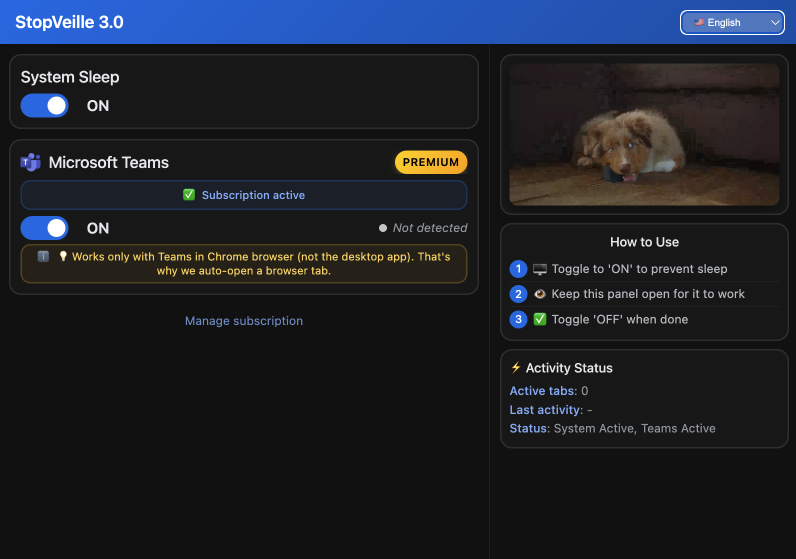
Understand the difference between faking and preventing sleep. One hides inactivity while the other maintains a functional workspace. StopVeille supports genuine productivity without deception.
Communicate your availability transparently with your manager, and let them know when you need quiet time — honesty beats trying to trick the software. For every legitimate way to hold a green dot, see how to stay available on Microsoft Teams and how to stay active the legitimate way.
Mastering your presence is about syncing system settings and using tools like StopVeille to prevent idle timeouts. By staying active through mobile apps or focus blocks, you’ll keep teams status active while maintaining trust. Stay visible, stay productive, and keep that green dot glowing without the gimmicks.
FAQ
Why does my Teams status keep switching to "Away" even when I'm working?
It's all down to a built-in five-minute timer that Microsoft has hard-coded into the app. If Teams doesn't detect mouse movement or keyboard input for exactly five minutes, it automatically flips your status to "Away." It’s frustrating when you’re just reading a long document or taking a quick brainstorming break, but that's the system's default behavior.
Your computer's power settings might also be the culprit. If your PC or Mac is set to go to sleep or lock the screen after a few minutes of inactivity, Teams will immediately kill the green dot. Since the app can't verify you're there while the system is dormant, it defaults to "Away" or "Offline" to be safe.
How can I keep my Microsoft Teams status active and green?
The most reliable way to keep Teams status active is to adjust your system's power and sleep settings. By setting your screen timeout to "Never" or a much longer interval while plugged in, you prevent the system signals that trigger an "Away" status. You can also use the Teams mobile app; keeping it open in the foreground on your phone often overrides the idle detection on your desktop.
For a more professional approach, try scheduling "Focus Time" or syncing your Outlook calendar. When you have a block of time reserved for deep work, Teams will show you as "Busy" or "Do Not Disturb," which looks much better than a yellow "Away" icon. If you just need to prevent unintended sleep during long research sessions, a tool like StopVeille can keep your PC awake legitimately without using shady tricks.
Is there a way to change the idle timeout in Teams?
Currently, there is no direct setting within Microsoft Teams to change that five-minute inactivity window. It's a frequent request on Microsoft’s feedback portals, but for now, users are stuck with the default. You can't simply go into the options and tell Teams to wait twenty minutes before marking you as idle.
Since you can't change the timer itself, your best bet is to manage your environment. This means interacting with the app occasionally, like reacting to a message or opening a file, to reset the clock. Alternatively, keeping a PowerPoint presentation running in full-screen mode (F5) is a classic trick to keep the system active and prevent the timeout from kicking in.
Are mouse jigglers or third-party status tools safe to use?
Honestly? They're pretty risky. While hardware or software mouse jigglers might keep you green, most IT departments can easily spot unauthorized USB devices or suspicious software patterns. Many companies have security policies against these tools, and getting caught using one can lead to a very awkward conversation with HR or even disciplinary action.
Beyond the security risks, faking activity erodes the trust you've built with your team. It’s much better to use honest methods like StopVeille to prevent your computer from sleeping, or simply communicating with your manager about your "deep work" hours. Transparency about when you're away from your desk is always a better long-term career move than trying to outsmart an algorithm.
What should I do if my Teams status is stuck on "Away" or "Offline"?
If you're clearly active but the green dot won't return, you likely have a synchronization glitch. Start by clearing your Teams cache; deleting those temporary local files often forces the app to do a "clean handshake" with the server and fix presence errors. You should also try signing out and back in to re-authenticate your session.
Don't forget to check your other devices. If you're logged into Teams on an old tablet or a phone tucked in a drawer, that device might be sending an "Idle" signal that overrides your current desktop activity. If all else fails, you can manually click your profile picture and select "Reset status" to clear any manual overrides and let the automatic detection start fresh.