Microsoft Teams triggers an away status after just five minutes of inactivity, while Slack usually gives you ten before that dreaded yellow dot appears. It’s incredibly frustrating to look like you’re napping just because you stepped away to grab a quick coffee or focus on a physical document.
You can actually keep Slack and Teams active at the same time by using a single keep-awake strategy that tricks both platforms into seeing constant presence. I’ll show you how to sync your status and stay green on every dashboard without breaking a sweat.
Keep Slack and Teams Active at the Same Time
Microsoft Teams triggers an Away status after five minutes of inactivity, while Slack typically waits ten. Maintaining a green dot requires constant mouse movement detection or active browser tab focus to bypass these system-level idle timers.
The logic behind these status changes depends heavily on whether you use the installed software or a simple web interface.
Differences Between Desktop Apps and Browser Sessions
Desktop clients hook directly into your operating system's mouse and keyboard drivers. This deep integration allows them to monitor activity across your entire PC. Web browsers have a much more limited reach.
Browsers lose track of you once the tab isn't active. Strict sandbox limitations prevent them from seeing what you do elsewhere.
Desktop apps stay active longer because they detect system-wide movement. Browsers only care about clicks inside their specific window. This creates a frustrating discrepancy when you multitask between different tools. You might be working hard but appearing offline.
Adjusting System Power and Sleep Settings
Access your power plans on Windows or macOS to prevent the screen from turning off. A black screen kills your active status immediately. You want to keep that display glowing to stay green.
Don't forget the specific setting for hard disk sleep. Keeping the system awake is the first step for any reliable workaround.
System idle timers and app presence are linked. If your OS thinks you're gone, Teams follows suit. Slack behaves similarly but adds a slight ten-minute delay before flipping to gray.
Disable the auto-lock feature entirely. This keeps your session alive and your dot green.
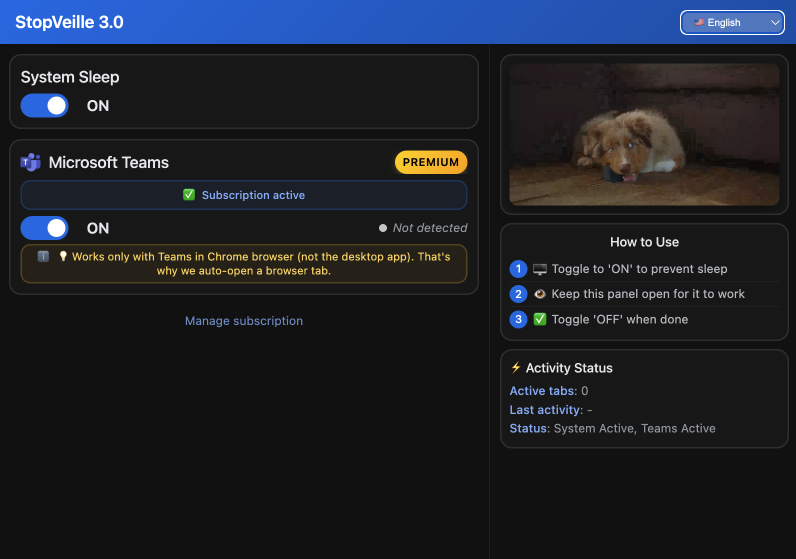
3 Methods to Maintain Your Green Status
While system settings provide a foundation, you often need more active ways to simulate your presence.
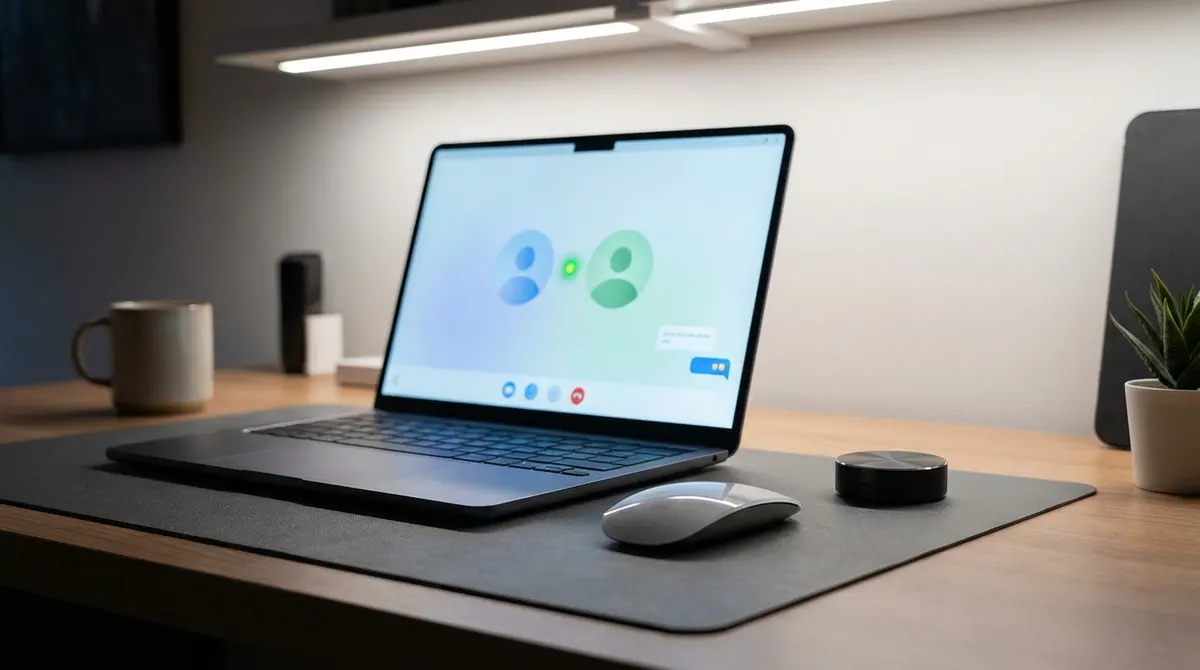
Using Physical or Software Mouse Movers
Hardware jigglers are much harder for IT departments to detect than software scripts. Software is easier to set up but leaves a digital footprint on your work machine. Choose wisely based on your company's tech policy.
These tools trick the sensor by moving the cursor slightly. They move the cursor by a single pixel every few seconds to prevent idleness.
Only use verified devices. This helps you avoid security risks at work.
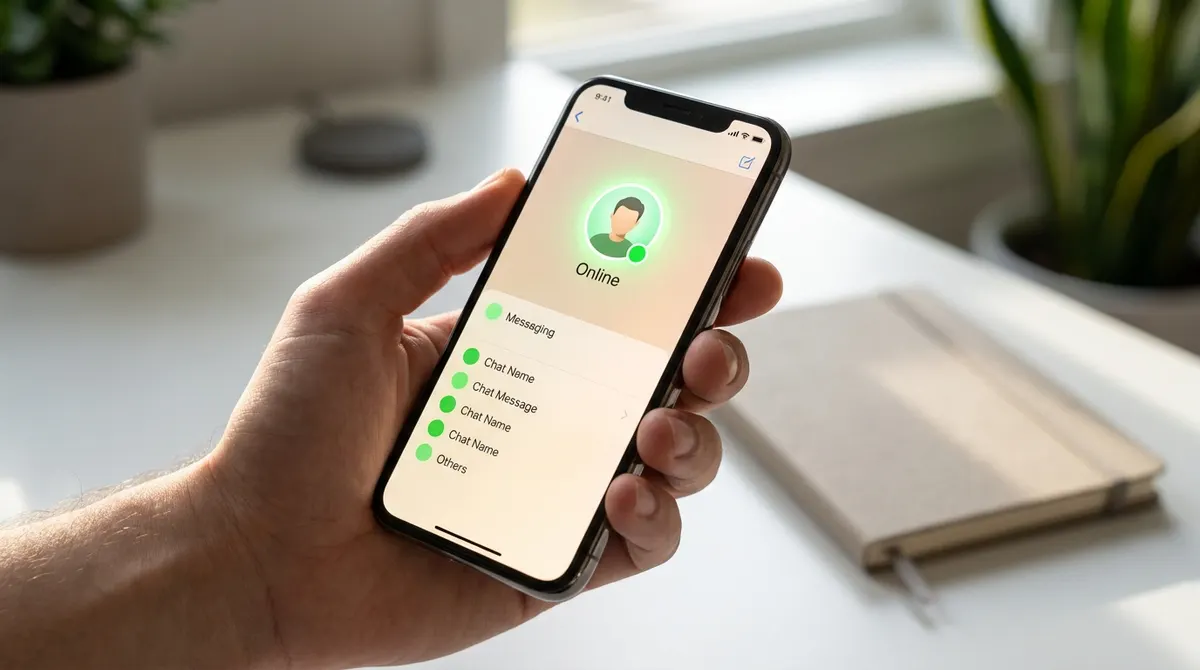
Leveraging Mobile Devices for Presence
Keep the app open on a phone or tablet. Plug the device into a charger. Set the screen timeout to never so the app stays in the foreground at all times.
Mobile activity overrides desktop idleness. If your phone is active, your global status remains green across all your devices.
Silence your notifications. You don't want your desk buzzing twice.
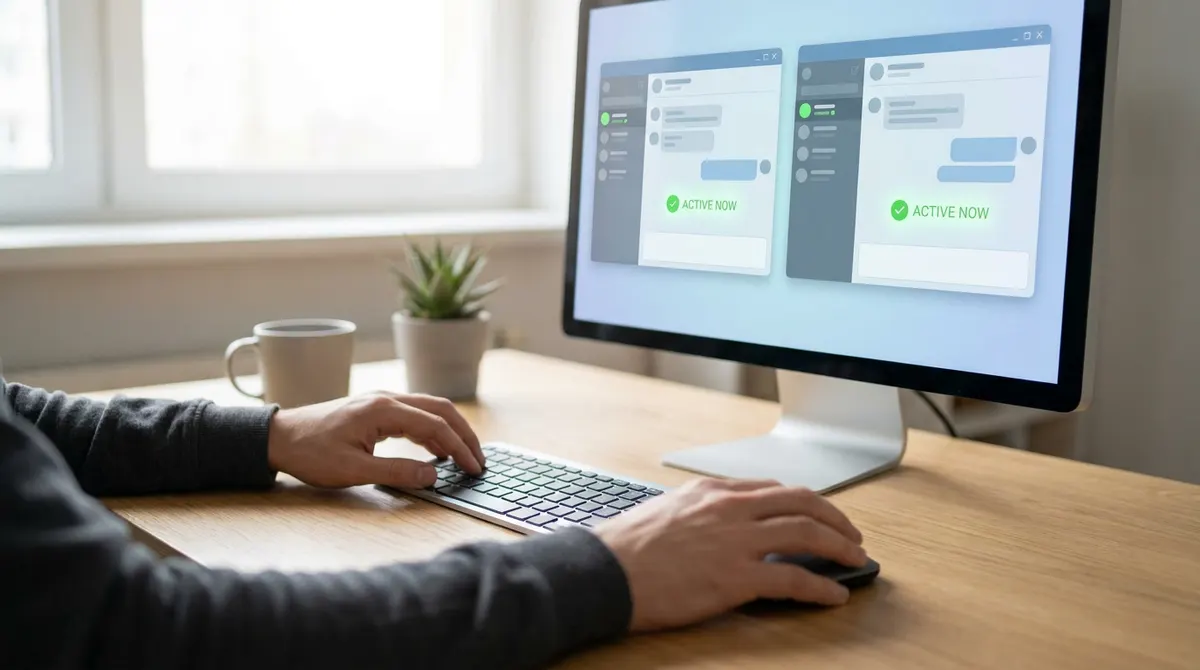
Keeping Windows Focused With Split-Screen
Try the split-screen technique for desktop users. Place Slack on one side and Teams on the other using Windows Snap. This setup ensures both applications are visible at once. Interacting with one often helps keep the other from falling into a background sleep mode.
Windows prioritizes active windows. By keeping both in view, you reduce the chance of the operating system throttling the background app's activity sensors. It's a simple workaround to keep slack and teams active at the same time without extra software.
Why Does Your Status Flip to 'Away' Randomly?
Even with these tricks, you might still find your status turning yellow without any clear explanation.
Background Processes and Inactivity Timers
Hidden apps often steal your focus. Background update windows pop up silently. This makes your chat app think you've stopped interacting with your main workspace.
Synchronization lag also plays a role. Your phone might report you as away while your PC stays active. These conflicting signals cause the status to flicker between green and yellow.
Troubleshoot these sync issues quickly. Restarting both apps often fixes the timer logic. It effectively resets the connection to the servers.
Media Playback and Idle Prevention
Does YouTube or Spotify keep you active? Generally, playing music doesn't count as interaction. The system sees the media stream but ignores it for presence. You must actually move the mouse or type to keep Slack and Teams active at the same time.
Compare this to video calls. Being in a meeting usually forces an active or busy status automatically.
Platform limits vary between services. Slack is more lenient with media than Teams. Teams requires direct user input to stay online.
Managing Workplace Expectations and Deep Focus
Beyond the technical hurdles, you should consider how your visibility affects your professional relationships.
Setting Clear Availability With Managers
Simulating activity is just a temporary fix. It doesn't replace actual results, so you're better off focusing on output. Your value isn't just the color of your dot.
Tell your team when you're focusing. This removes the pressure to always appear active. Transparency builds better trust than a fake green light, every single time.
Align your status with project goals. Use your calendar to show when you're truly busy. This manages expectations automatically.
Using Status Messages Instead of the Dot
Instead of relying on the dot, write exactly what you're doing. Mention if you're reading a long document. This explains why you might not respond instantly to every new chat notification you get.
Handle the Do Not Disturb mode. It shows you're working but not available for interruptions.
Balance visibility and focus. A clear message is better than a misleading active status. It shows professional maturity and respect.
Mastering how to keep Slack and Teams active at the same time comes down to preventing system idle timers through hardware jigglers or mobile focus. By syncing your presence across devices, you'll maintain visibility and stay accessible for every urgent ping. Start optimizing your setup today to ensure your professional glow never fades.
See also: How to stay online in teams during meetings and calls · How to keep Teams active on phone and stay green
FAQ
How can I keep Slack and Teams active at the same time?
The most effective way to keep slack and teams active at the same time is to address the activity detection at the system level. Since both apps monitor your operating system for mouse and keyboard inputs, using a hardware mouse jiggler or a dedicated background app like NoAway keeps your PC from idling. This ensures both status dots stay green simultaneously without you having to manually click back and forth between windows.
Why does my Slack status change to away so quickly?
Slack is designed to flip your status to "Away" after about 10 minutes of inactivity on your desktop. If you're using the mobile app, it happens the moment you navigate away from the app or lock your screen. To keep Slack green, you need to maintain active interaction with the app or use a system-wide tool that prevents your computer from entering an idle state, which Slack interprets as you being gone.
Is there a way to stay active on Slack and Teams while using a phone?
Yes, you can stay active slack and teams by keeping the apps open in the foreground on your mobile device. To make this work, you should plug your phone into a charger and set your screen timeout to "Never." As long as the app is visible and the screen is on, the mobile activity often overrides the desktop's idle timer, keeping your global presence active across both platforms.
Do I need to change my PC power settings to stay green?
While power settings don't directly control the "Away" logic in Slack or Teams, they are a necessary foundation. If your screen turns off or the hard drive sleeps, your status will drop to offline immediately. You should adjust your Windows or macOS settings to prevent sleep mode, but remember that you'll still need a way to simulate movement to keep slack and teams active at the same time.
Can I use a status message instead of just relying on the green dot?
Absolutely, and it's often a smarter move for your professional reputation. You can set a custom status in Slack or Teams to tell people exactly what you're doing, like "Deep Work" or "In a long read." This manages expectations much better than a faked green dot, as it explains why you might not reply to a DM instantly even if your slack teams both active status is showing.