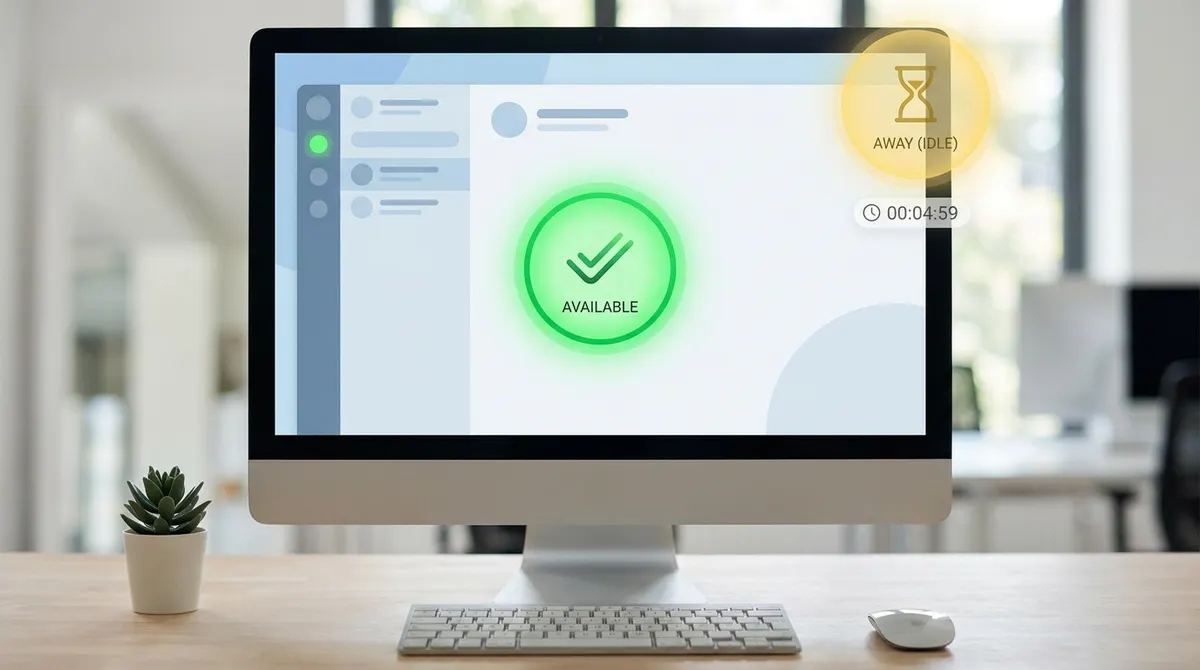
Microsoft Teams triggers an automatic Away status after just five minutes of keyboard or mouse inactivity, regardless of how hard you are actually working. It is incredibly frustrating to look up from a document only to find that your status dot has flipped to yellow while you were sitting right there.
I will help you understand why does teams show me away and show you the honest fixes, from adjusting system sleep settings to using keep awake extensions, so you can finally stay green.
Why Does Teams Show Me Away While I Am Active
Microsoft Teams triggers an Away status after five minutes of keyboard or mouse inactivity. System sleep settings, mobile app conflicts, and Outlook calendar appointments frequently override your actual availability, forcing a yellow indicator despite active work.
This automated logic relies on specific hardware signals to determine if you are present at your desk.
The 5-minute inactivity timer explained
Teams monitors your physical inputs to gauge availability. The software tracks your mouse and keyboard movements constantly. Since the five-minute window is hardcoded, you cannot adjust it in standard settings. It's incredibly frustrating when you're just reading a long PDF.
Your status shifts from green to yellow quickly. The system simply assumes you left the building. It only cares about physical interaction with peripherals connected to your workstation. If you aren't clicking, you aren't there.
Your status reflects hardware movement. Without a click or a keystroke, the algorithm decides you are officially idle.
How Teams tracks background activity
Working in other software often confuses the detection system. Teams sometimes fails to register activity happening outside its own window. You might be typing a report while appearing offline to your entire team. It's a classic sync error.
Background processes don't always signal your presence to Microsoft servers. If the application loses focus, the timer keeps ticking toward the Away threshold. This happens frequently when using specialized B2B tools or web browsers for research tasks. The app feels ignored.
Focus remains the primary metric for the app. If Teams isn't the active window, the presence logic might simply ignore your current inputs.
System Triggers That Force A Status Change
But software logic isn't the only culprit, as your computer hardware settings often dictate how the application behaves behind the scenes.
The impact of screen locks and sleep mode
Power saving modes shut down active signaling immediately. When your screen goes black, Teams sends a signal to the server. Your colleagues then see the yellow dot instantly.
Closing your laptop lid is a definitive trigger. The operating system cuts the connection to the presence service. This override happens regardless of your manual status settings or activity.
Sync issues between mobile and desktop apps
Having the app on your phone creates a conflict. The mobile version might report inactivity while you work on your PC. These two sources battle for status dominance.
Server delays often keep your status stuck in the wrong state. One device says you are available, but the other insists you are away. Synchronization takes time to resolve.
Calendar events and meeting status overrides
Outlook appointments take priority over your manual choices. If a meeting starts on your calendar, the system pushes an In a Meeting status. This happens even if you are not actually attending the call or sitting at your desk.
Automated scheduling forces these changes. The integration between productivity tools ensures that your calendar always leads your visible presence.
How Can You Stop Teams From Going Away Automatically?
Pourtant, you can take control of these automated shifts by performing some basic maintenance and using built-in duration settings.
Clearing the Teams cache to resolve glitches
Corrupted temporary files often break the presence logic. Deleting the cache folder forces the app to rebuild its connection. This simple fix often resolves weird status jumping issues.
Navigate to the AppData folder on your machine to find the local files. Close the application completely before removing these items. A fresh start allows the software to communicate properly with the Microsoft servers without old data interfering.
Restart your computer afterward. This ensures all background processes reset correctly.
Setting a manual status duration
The Duration feature is your best tool for stability. You can tell the app to stay Available for a specific number of hours. This prevents the automatic idle flip.
Click your profile picture and select the status menu. Choose the Duration option to set a custom timeframe for your presence. This override stays active until the clock runs out or you change it back to the default setting manually.
It works for any status. Use it to stay Busy or Available all day.
3 Reliable Methods To Maintain A Green Status
Beyond the app settings, you might need to look at your operating system to ensure your visibility remains consistent throughout the day.Adjusting Windows and Mac power settings
System idle timeouts are the primary enemy of a green status. Change your display settings to never sleep while plugged in. This keeps the Teams process fully awake.
Open your control panel or system preferences to find power options. Extend the time before the screen locks to at least thirty minutes. This gives you a much larger buffer when you are reading or away from the keyboard briefly.
Disable the screen saver. It often triggers the Away status immediately.
The role of keep-awake extensions and hardware
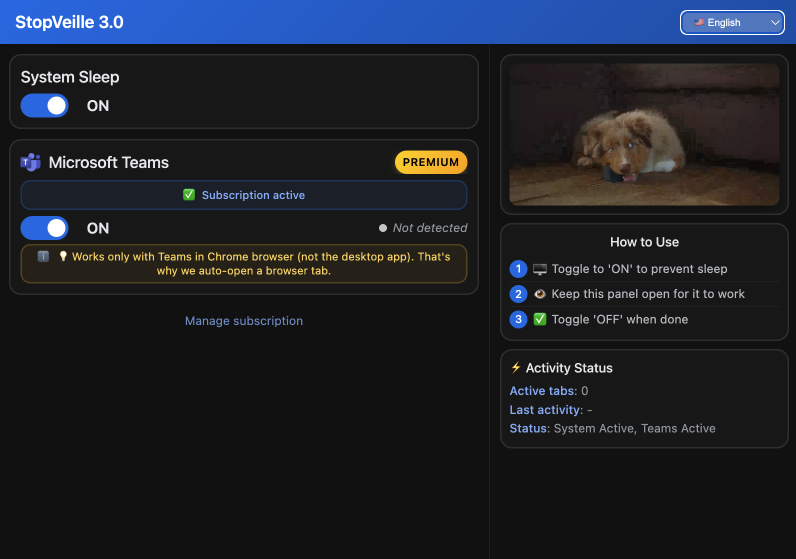
Browser extensions can simulate activity for the web version. These tools prevent the tab from going dormant. It is a lightweight solution for those using the browser-based interface.
Physical mouse jigglers offer a hardware-based workaround for corporate computers. These devices move the cursor slightly to mimic human interaction. Since they require no software installation, they bypass many security restrictions while keeping your status active and green.
Use these tools ethically. They are meant to fix technical bugs, not to hide your actual absence.
Teams forces an "Away" status because of hardcoded timers, sleep settings, or mobile sync glitches. To stay green, clear your cache, adjust system power settings, or use a duration override. Master these fixes now to reclaim your presence and stay visible when it matters most.
See also: Microsoft teams status meanings and how they work · How long does Teams stay green before turning yellow?
FAQ
Why does Teams show me as away when I'm still working?
It’s all about the built-in inactivity timer. By default, Microsoft Teams is programmed to flip your status to "Away" if it doesn't detect any keyboard or mouse movement for five minutes. Even if you're actively reading a long document or doing research in a browser, the app assumes you’ve stepped away because you aren't physically interacting with your peripherals.
System settings like screen locks or sleep mode also play a huge role. If your computer screen goes black or you close your laptop lid, Teams immediately tells the server you're gone, overriding whatever you were doing. It’s a hardware-based logic that often misses the mark on your actual productivity.
How can I keep my Teams status active while using other apps?
Teams can get a bit "jealous" when it isn't the active window. Sometimes, if the app loses focus while you're grinding away in another B2B tool or a spreadsheet, the timer keeps ticking toward that yellow status. To fix this, you can manually set a status duration. By clicking your profile picture and selecting a specific timeframe under the "Duration" setting, you can force the app to stay "Available" regardless of what else you're doing.
Another solid move is to adjust your PC or Mac power settings. If you set your display to never sleep while plugged in and extend your screen lock timer to at least thirty minutes, you give yourself a much bigger buffer. This keeps the Teams process fully awake even when you aren't clicking inside the app every few minutes.
Can I stop Teams from automatically changing my status?
While you can't permanently disable the five-minute timer in the standard settings, you can outsmart it. Using the "Duration" feature is the most honest way to maintain control; it keeps your chosen status active until the clock runs out. If the app is acting glitchy and jumping to "Away" for no reason, clearing your Teams cache in the AppData folder can often reset the presence logic and fix the bug.
For a more "set it and forget it" approach, some remote workers use keep-awake extensions or physical mouse jigglers. These tools simulate activity to prevent the system from idling out. Just remember to use these ethically, they’re great for fixing technical status annoyances, but they shouldn't be a cover for actually being M.I.A.
Why does my status stay "Away" even after I come back?
This is usually a sync issue between your devices or a cache glitch. If you have Teams on your phone, the mobile app might be telling the server you're inactive while your desktop says you're back. These two sources sometimes battle for dominance, and the server takes a moment to catch up.
Your Outlook calendar might also be the culprit. If you have a scheduled appointment, Teams will prioritize that calendar event and might push a "Busy" or "In a Meeting" status that doesn't clear properly. A quick manual reset or a full app restart usually forces the software to communicate correctly with the Microsoft servers again.