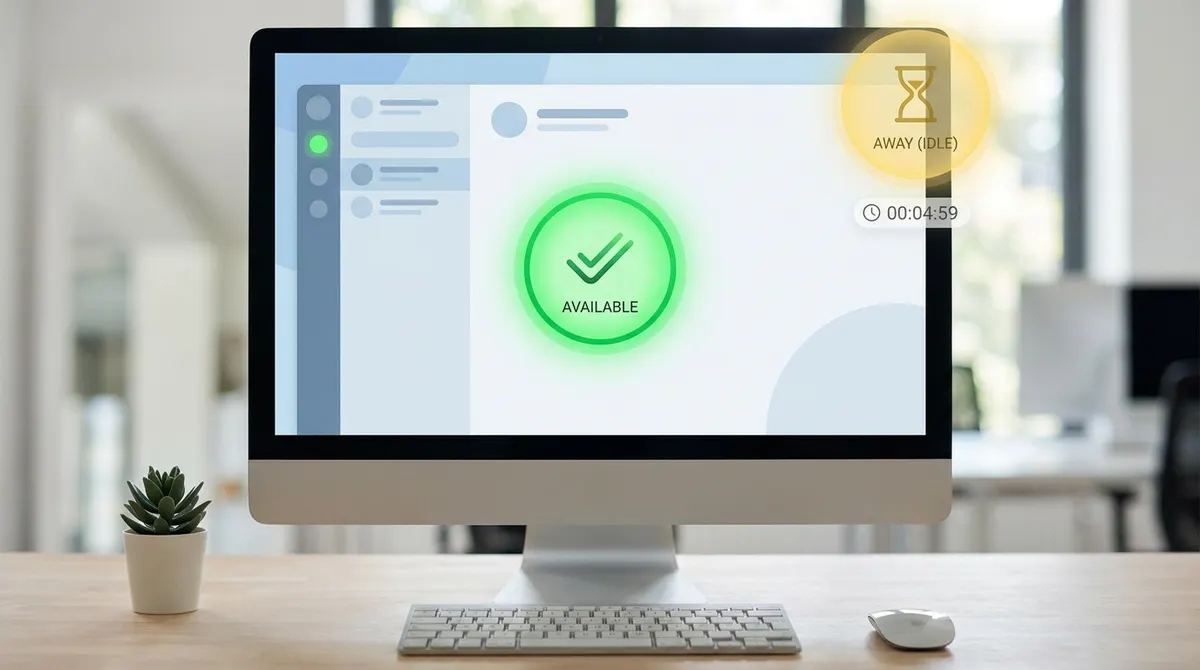
Microsoft Teams triggers an automatic status shift to Away after exactly five minutes of inactivity on your mouse or keyboard. We have all felt that sudden pressure to wiggle the cursor just to prove we are still at our desks.
It is frustrating when a brief coffee break makes you look offline, but I will help you understand how long does teams stay green and how to manage your presence legitimately. Let's look at the mechanics behind this timeout and the best ways to keep your status accurate.
How Long Does Teams Stay Green? The Five-Minute Rule
Microsoft Teams triggers an Away status after exactly five minutes of inactivity. This hardcoded window relies on hardware signals from your keyboard and mouse, marking the start of your digital presence journey.
The transition between your hardware activity and the software response defines how colleagues perceive your availability.
Understanding the Standard Inactivity Timeout
Teams uses a rigid five-minute default window. If you don't move your mouse or type, your status flips from Available to Away automatically. It's a built-in system rule.
You can't change this specific setting yourself. The Teams interface lacks a slider to adjust idle time. You're stuck with the developer's choice here.
The software monitors your hardware. It watches for physical interaction with your peripherals. This keeps that little light green.
This check is binary. Either you're moving the cursor or you're idle. There's no middle ground.
What Counts as Activity for the Green Dot
Specific inputs like clicking or typing reset the countdown immediately. Scrolling through a long document also keeps the timer at zero. It's all about active engagement with the machine.
Don't confuse active use with background tasks. Running a long report won't count as activity. The app needs your direct input to stay Available.
A locked screen changes everything. Locking your Windows session forces an immediate Away status. The idle timer stops mattering then.
Desktop presence is fragile. A quick coffee break breaks the green streak.
Why the Green Dot Isn't a Productivity Tracker
While the technical timer is objective, the way people interpret that yellow dot is often deeply flawed and subjective.
The Difference Between Available and Active
Think of the green dot as a digital doorbell. It simply shows you're at your desk with Teams open. It isn't a detailed log of your actual work output.
Away status doesn't mean you're unproductive. You might be brainstorming or reading a physical book. Deep thinking rarely involves clicking a mouse or typing constantly.
Managers should focus on results rather than monitoring a color. Trusting your team is more effective than watching a dashboard all day. Results matter more than active icons.
Remote work requires a mindset shift. Presence is just a communication tool. It shouldn't be used as a surveillance metric for employees.
Handling the Pressure of Remote Presence
The green dot carries a heavy psychological toll. Many employees feel watched every second. This anxiety leads to performative presence rather than real work. It's digital office paranoia.
Try sharing progress updates in chat instead of worrying about your status. Let your work speak louder than a small icon. Tangible results always beat a glowing green light.
Set healthy boundaries by being transparent. Tell your team when you're stepping away for a walk. Good communication reduces the need for micromanagement and eases your daily anxiety.
Reclaim your focus by ignoring the dot. Your value comes from your brain. Mouse movements don't define your professional worth.
Smart Ways to Manage Your Status Manually
Instead of letting the system dictate your visibility, you can take the lead by using built-in manual overrides.
Using the Status Duration Feature
Click your profile picture to find the status settings. Select a specific time frame for your current state. This prevents the app from guessing your availability incorrectly. It's the best way to stay in control.
Using manual labels like "Be Right Back" gives coworkers clear expectations. It is much better than a vague yellow circle. You're being transparent about your desk activity.
The status reverts once the timer hits zero. You do not have to remember to change it back later. Teams handles the reset for you automatically.
This automation saves time. It keeps your profile accurate without constant manual updates.
Setting Focus Time to Protect Deep Work
Use the Viva Insights app to reserve time. This triggers the "Do Not Disturb" mode automatically. It's a great way to schedule focus blocks in your calendar.
As long as the block is active, the status stays firm. You can concentrate without worrying about idling. It effectively stops the Away flip while you work.
All pings are silenced during this period. You finally get some peace to work. No more distracting pop-ups while you're in the zone.
Focus time is a shield. It protects your most valuable hours from digital interruptions and status shifts.
Deep work requires silence. These settings make that silence possible for everyone.
How Multi-Device Sync and Calendars Affect Visibility
Managing your status manually is one thing, but the complexity increases when multiple devices and calendars start talking to each other.
Solving the Mobile and Desktop Status Conflict
The Teams mobile app has its own logic. Keeping the app open on your phone can keep you green. This happens even if your PC is currently sleeping.
Device synchronization errors often occur. Sometimes your mobile status gets stuck. This creates a false impression of your actual availability to your colleagues.
Troubleshooting cache issues is simple. Clearing the app cache often fixes a frozen icon. It forces a fresh sync between your devices.
You can also log out of all sessions. This is the fastest way to clear conflicting signals across your hardware.
Multiple logins cause confusion. Keep active sessions to a minimum.
Managing the Outlook Calendar Automatic Override
Outlook integration is seamless. Scheduled meetings change your status to In a meeting instantly. This happens because the two apps share a single database. It is a seamless but sometimes annoying automation for users.
Manual changes are often ignored. The calendar event usually takes priority over your choice. The system assumes the meeting is your primary activity.
Try blocking time manually. Create private appointments to signal you are busy. This keeps your presence consistent even when you are just working alone.
Calendar logic is dominant. Understanding this hierarchy helps you stay in control.
Keeping Your Status Active Without Breaking IT Rules
While navigating calendar overrides is standard, some users look for deeper ways to stay active, which brings us to the realm of system settings and security.
Configuring PC Power Settings for Longer Presence
Teams disconnects the moment your computer sleeps. Keeping your system awake is the first step to staying Available. It's a legitimate way to manage presence. You're just managing your hardware settings.
Teams timeouts are separate from screen savers. Yet, a black screen usually triggers the Away shift. When the OS locks, the app follows. It's a link you can manage via settings.
Adjust the 'Turn off screen' timer in your control panel. Increasing this duration keeps your session alive. It prevents the system from idling out quickly. Look under your power plan options.
Power settings are your friend. They offer a simple, compliant way to stay visible.
The Security Risks of Unauthorized Automation Tools
Think twice before using mouse jigglers. These tools are highly visible to IT departments. Using them often violates corporate security policies directly. It's a risky move that leaves a trail.
Admins use sophisticated detection for unusual activity. Repetitive movement patterns are easy to spot. Automated scripts leave digital fingerprints that security software flags. You aren't as stealthy as you think.
Always follow company rules. A green dot isn't worth losing your job over. Stay honest with your team.
Focus on real productivity instead of hacks. Genuine work proves you're active. Results matter more than a light.
Security comes first. Avoid shortcuts that risk your professional reputation.
Teams flips to Away after five minutes of inactivity, but you can master your visibility by using manual status durations or scheduling focus time. Stop worrying about how long Teams stays green and start focusing on your actual output. Set your status now to reclaim your deep work hours and stay productive.
See also: How to keep your Teams status active and green naturally · How to stay active on Microsoft Teams the legitimate way
FAQ
How long does it take for Teams to switch my status to Away?
The standard inactivity timeout for Microsoft Teams is exactly five minutes. If the app doesn't detect any hardware signals from your keyboard or mouse during that window, your status will automatically flip from the green "Available" dot to the yellow "Away" icon. It's a hardcoded rule within the software, meaning there isn't a slider in the settings to change it.
Can I adjust the idle timeout settings in Microsoft Teams?
Currently, you can't manually change the five-minute timeout through the Teams interface or official settings. While it’s a common frustration for remote workers, Microsoft hasn't provided a way for users or IT admins to extend this duration to 15 or 30 minutes. Your best bet is to manage your status manually or use built-in features like Focus Time to stay in control of your visibility.
Does my status stay green if I'm active on the Teams mobile app?
Yes, having the Teams app open and active on your phone can keep your status green, even if your PC has gone to sleep. However, keep in mind that once the mobile app moves to the background, it will eventually trigger an "Away" status. Syncing between multiple devices can sometimes be glitchy, so logging out of unused sessions is a good way to keep your presence accurate.
Will my status stay Available if I'm in a meeting?
Actually, Teams is designed to prioritize your calendar. If you're in a scheduled meeting or a call, your status will automatically switch to "In a meeting" or "In a call." Even if you aren't typing, the system knows you're occupied. Once the meeting ends, Teams will look for hardware activity again to decide whether to put you back to "Available" or "Away."
Is it safe to use third-party tools to keep my Teams status green?
Using "mouse jigglers" or unauthorized scripts to fake activity is generally a bad idea. These tools are often easily detected by IT departments and can violate your company's security policies. Instead of risking your professional reputation over a digital dot, it's better to focus on clear communication with your team and using legitimate methods like adjusting your PC's power settings to prevent the system from sleeping.
How can I stop Teams from showing me as Away when I'm working?
The most effective "legit" way to handle this is to set a manual status with a specific duration. By clicking your profile picture and selecting "Duration," you can set yourself as "Busy" or "Do Not Disturb" for a set number of hours. This overrides the automatic five-minute timer and tells your colleagues exactly when you'll be back, which is much more helpful than a vague yellow circle.