You're deep into a critical presentation, contributing every few minutes, yet you glance down only to see that dreaded yellow dot. It's a common frustration: Microsoft Teams often triggers an "Away" status after just five minutes of inactivity, even when you're in the middle of a live call. This happens because the app's internal timer focuses strictly on hardware inputs like mouse movements rather than your actual presence in the meeting.
I’m going to show you exactly how to stay online in teams during meetings using native settings and a few clever workarounds that keep your status green. We'll break down why your status drops mid-call and the keep-awake fixes that actually work, so you never have to worry about looking idle while you're working hard.
Why Teams Goes Away During Meetings Even When You Are Active
Microsoft Teams triggers an "Away" status after five minutes of inactivity by monitoring peripheral inputs like mouse movements or keystrokes. This default threshold often conflicts with long presentations or multi-device setups where background synchronization delays occur. Understanding these specific triggers is the first step toward maintaining a consistent online presence.
The mention of the five-minute threshold leads directly into the mechanics of the inactivity timer.
The Hidden Inactivity Timer That Flips Your Status
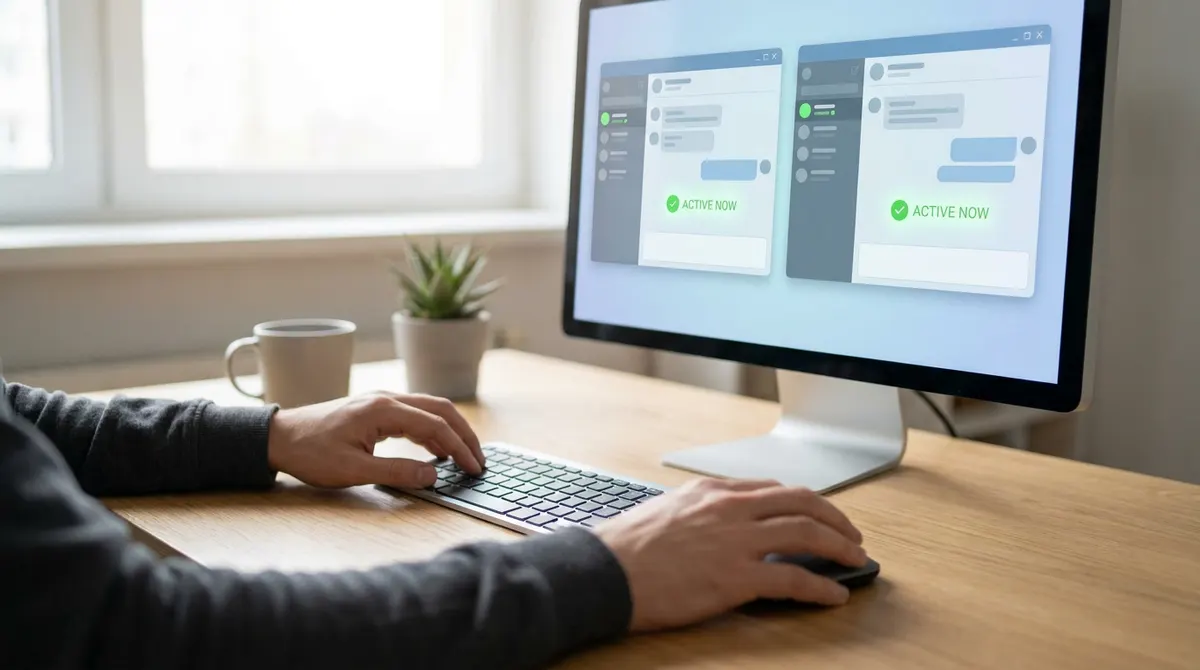
Teams follows a strict five-minute rule for your status. The app monitors your hardware interactions constantly. If you stop typing or moving the mouse, the countdown begins immediately.
Active means you are interacting. Available shows you are simply signed in and reachable.
The system checks for inputs every few seconds. Silence from your hardware triggers the change.
Desktop vs Web App Behavior Differences
Browsers handle status differently than the installed client. You must keep the specific tab in focus for the timer to reset. Background tabs often fall asleep quickly. This happens because web sessions rely on browser-level activity tracking rather than system-wide inputs.
Laptop energy saving modes frequently kill web sessions. Your operating system might suspend the browser to save power.
Synchronization Lag Between Mobile and PC
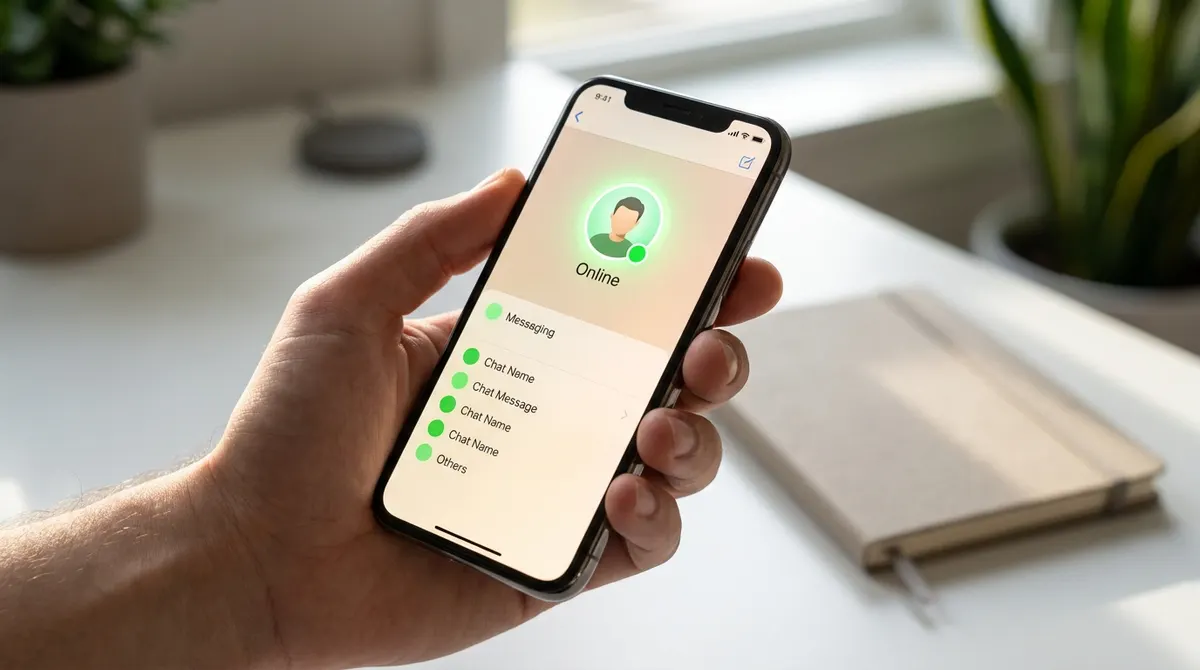
Using two devices creates conflicting signals for the server. Your phone might report you as idle while your PC is active. This creates a confusing status for colleagues.
Background refresh settings on iOS often cause delays. Check your mobile app permissions frequently.
Android users face similar notification lags. Ensure the app has permission to run constantly.
Native Settings To Stay Online In Teams During Meetings
While internal timers cause these drops, you can adjust your system settings to provide a more stable foundation for your online status.
Updating Windows and Mac Power Settings
Prevent your screen from sleeping during long calls. Go to your system preferences to adjust the display timer. Set it to a longer duration for work hours.
Laptops often use aggressive energy saver modes when unplugged. These settings force the network card to throttle. This action disconnects the Teams heartbeat signal. Keep your device plugged in to maintain a steady connection during important virtual meetings.
Hardware power management impacts app responsiveness. A sleeping hard drive can delay your status updates to the cloud.
Customizing Status Duration and Manual Overrides
You can set a manual status for a specific timeframe. Click your profile picture to find the duration settings. Choose how long you want to appear available.
Status messages provide vital context to your team. Tell them you are focusing on a task. This prevents people from assuming you are just ignoring messages.
Manual locking has its own set of technical limits. The system might still override your choice during a reboot. Always double check your icon after an update.
Pro Workarounds Like The Meet Now Private Call Trick
If standard settings fail to keep you green, certain built-in features can be repurposed to lock your status effectively.
Setting Up A Private Solo Meeting To Lock Status
Start a private session using the Meet Now button. Do not invite any other participants to this call. This forces your status to stay in a busy state.
Being in a meeting prevents the idle timer from triggering. The software assumes you are engaged in a conversation. This is perfect for deep work sessions. You can focus on your documents without appearing away to your manager.
Remember to end the call when you finish. Staying in a fake meeting all day looks suspicious.
Keeping The Screen Active During Long Presentations
Use a looping video to simulate constant activity. Media playback usually overrides the system sleep timers. This keeps the environment awake during long stretches of silence.
Presentation mode in PowerPoint has a similar effect. It signals to Windows that the user is busy. Your screen will not dim while the slide deck is active.
Minimal interaction during screen sharing often triggers the yellow icon. Moving your cursor slightly every few minutes helps. It keeps the session alive without distracting your audience.
Security And Privacy Risks Of Status Automation Tools
While these native tricks are safe, turning to external software introduces significant risks to your professional standing and data security.
Risks Of Third-Party Automation Software
Unauthorized executable files pose a massive security threat. Many free tools contain hidden malware or trackers. Your IT department will likely flag these downloads immediately.
Corporate computers are heavily monitored for unusual processes. Running a jiggler script is often a fireable offense.
Compliance policies are strict regarding third-party scripts. You risk compromising sensitive company data for a green icon. It is never worth the potential professional fallout.
Visibility Of Activity Simulators To IT Departments
Hardware jigglers are harder to detect than software versions. They appear as a standard mouse to the operating system. However, IT can still see patterns of repetitive movement. Constant rhythmic motion looks very unnatural in activity logs over time.
Employers can see your login times and app usage. They track when you are actually completing tasks. A green status without output raises many red flags.
Focus on your actual work results. Trust is better than a faked status.
Stop letting aggressive inactivity timers kill your productivity vibe. By adjusting power settings, using private solo calls, or simulating activity, you’ll stay online in teams during meetings without a hitch. Take control of your status now to ensure you always look as active as you truly are.
See also: How to keep Teams active on phone and stay green · Microsoft teams status meanings and how they work
FAQ
Why does my Teams status keep switching to Away during a meeting?
It’s incredibly annoying, isn't it? This happens because Microsoft Teams is constantly watching your hardware for activity. If you don't move your mouse or hit a key for just five minutes, the app assumes you've walked away, even if you’re right there listening to a presentation. It’s all down to a built-in inactivity timer that triggers a status flip the moment it stops detecting physical input.
How can I stay online in Teams during meetings without moving my mouse?
The best way to stay online in Teams during meetings is to keep your system from falling asleep. You can adjust your PC or Mac power settings to ensure the screen stays active, or try the "Meet Now" trick. By starting a private solo call with yourself, Teams sees you as "In a meeting," which often overrides the standard idle timer and keeps that green light glowing while you focus.
Is there a way to prevent Teams from going away during a long call?
Yes, you can actually set a manual status duration to hold your position. Just click your profile picture, select your status, and use the "Duration" setting to lock yourself as "Available" or "Busy" for a specific timeframe. This tells the system to ignore the five-minute inactivity rule for as long as you’ve specified, preventing Teams away in meeting issues.
Does the Teams mobile app stay active better than the desktop version?
The mobile app is designed to stay connected via push notifications, but it’s notorious for sync delays. If you’re using both a phone and a PC, your phone might report you as idle while you're actually working on your desktop. To stay active teams call sessions across devices, make sure your mobile app has full background refresh permissions so it doesn't send "Away" signals to the server.
Can my boss tell if I'm using a tool to stay active on Teams?
While hardware "jigglers" are hard to spot, IT departments can definitely flag unauthorized software or scripts. Running third-party automation tools is risky and can even be a fireable offense in some companies. It’s always safer to stick with native workarounds, like keeping a PowerPoint presentation running in the background, rather than risking your job for a status icon.
How long does it take for Teams to mark me as Away?
By default, the "Away" status kicks in after five minutes of inactivity on your desktop. While your IT admin can configure session limits, sometimes up to 30 minutes for web sessions, the app itself is pretty aggressive about monitoring your mouse and keyboard. If you’re not actively clicking, the countdown starts almost immediately.